Conditions
Add intelligence to your workflows with conditions. Make your automations respond dynamically to different scenarios by creating decision points that route execution along different paths based on your criteria.
Smart Branching
Create workflows that adapt and branch based on real-time data and business logic
Dynamic Logic
Evaluate complex expressions and make real-time decisions within your flows
Flexible Control
Handle multiple scenarios easily with boolean logic and multi-branch conditions
What Conditions Do
A condition is a decision point in your workflow that evaluates criteria and routes execution accordingly:
Resolves conditions to true or false based on your criteria
Routes execution along different branches based on results
Changes workflow behavior based on data and context
Creates sophisticated branching for advanced scenarios
Types of Conditions
Wakflo offers two main types of conditions to handle different decision-making needs.
Boolean (If/Else)
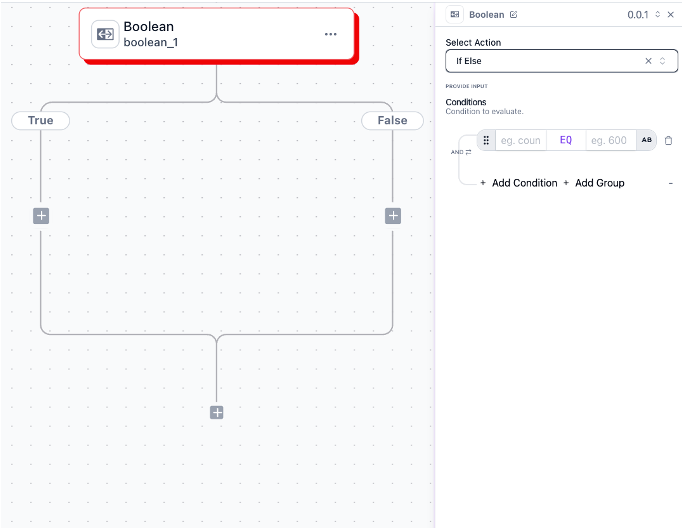
The most common condition type—evaluate a single expression and follow one of two paths.
IF
Executes when condition is true
ELSE
Executes when condition is false
MERGE
Where branches rejoin to continue
Example: If order value > $100, send VIP shipping notification; else send standard notification.
Branch (Multi-Conditions)
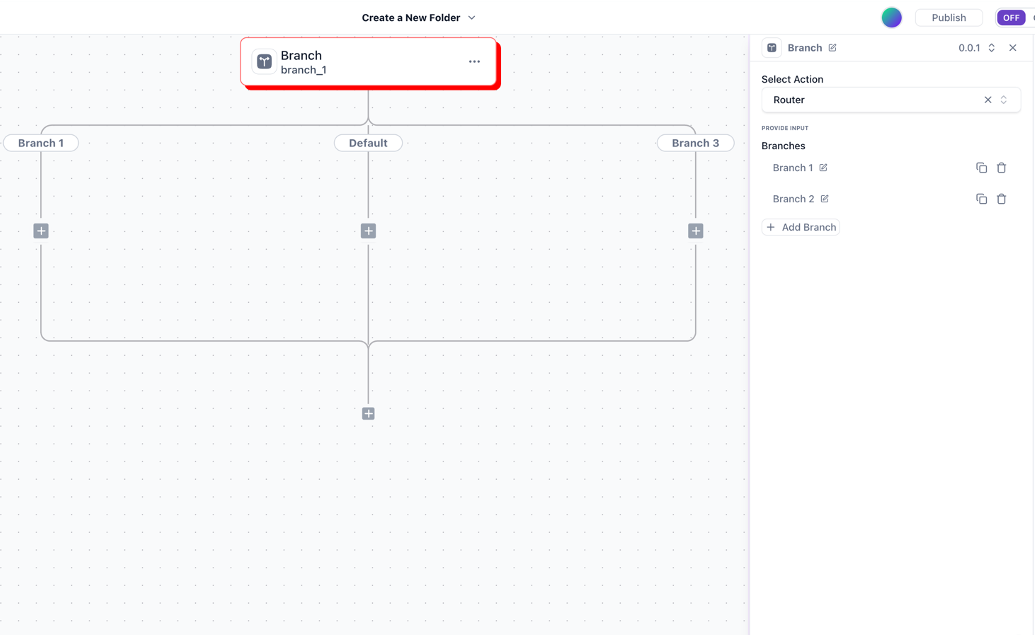
Evaluate multiple expressions in sequence for sophisticated routing with many possible paths.
1-N
Series of expressions evaluated in order
PATHS
One path for each condition plus default
ORDER
First matching condition determines path
Example: Route customers based on purchase history, account age, and VIP status for personalized experiences.
Creating Conditions
Follow these steps to add decision-making to your workflows.
Add condition component
Click the ”+” button where you want to add a condition. This opens the component selection menu.
Select condition type
Choose Boolean (simple if/else) or Branch (multiple conditions) based on your needs.
Define the expression
Create the logical expression using our intuitive builder with data browser and operators.
Configure branches
Add actions to each branch. Each branch can contain multiple steps and even nested conditions.
Set up merge point
Configure where branches should rejoin to continue the workflow (optional).
Building Expressions
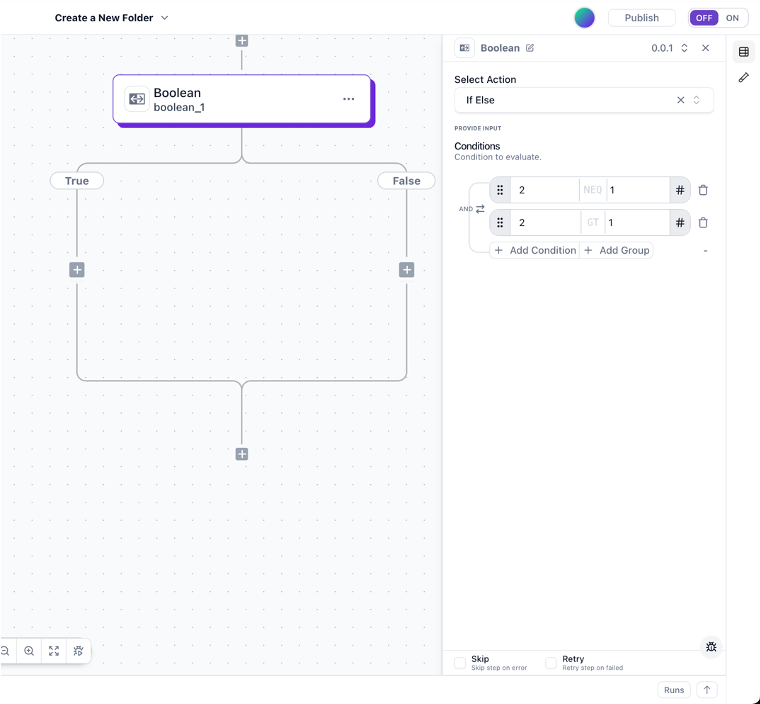
Condition expressions are logical statements that evaluate to true or false. Wakflo’s expression builder makes creating them simple.
Access data from previous steps, triggers, and variables with autocomplete
Comparison and logical operators with inline documentation and examples
Test expressions with sample data and see results in real-time
Comparison Operators
| Operator | Symbol | Description | Example |
|---|---|---|---|
| Equals | = | Checks if values are equal | order.status = “shipped” |
| Not Equals | != | Checks if values differ | status != “cancelled” |
| Greater Than | > | Checks if left value is greater | order.total > 100 |
| Less Than | < | Checks if left value is less | inventory < 10 |
| Greater or Equal | >= | Greater than or equal to | customer.orders >= 5 |
| Less or Equal | <= | Less than or equal to | stock <= reorder_level |
| Contains | contains | String/array contains value | tags contains “sale” |
| Starts With | startsWith | String starts with value | email startsWith “vip” |
| Ends With | endsWith | String ends with value | file endsWith “.pdf” |
Logical Operators
| Operator | Symbol | Description | Example |
|---|---|---|---|
| And | AND | Both conditions must be true | total > 100 AND vip = true |
| Or | OR | Either condition can be true | inventory < 5 OR restock = true |
Real-World Examples
Copy and adapt these practical examples for your own workflows.
Order Processing
order.total > 500Route high-value orders for special handling or manual verification
NOT (country = “US” OR country = “CA”)Identify international orders needing customs documentation
anyOf(items, i => i.assembly = true)Detect orders needing assembly instructions
payment = “paid” AND status = “unfulfilled”Identify paid orders ready for shipping
Inventory Management
qty <= threshold AND NOT reorderedTrigger reordering when stock falls below threshold
qty = 0 AND backorder = falseUpdate availability and notify customers
tags has “seasonal” AND days < 30Identify products for clearance
zip startsWith “9” AND weight < 20Route west coast orders to local fulfillment
Customer Management
lifetime_value > 1000 OR orders > 10Identify high-value customers for VIP treatment
daysSince(last_order) > 90 AND consent = trueTarget inactive customers with special offers
plan = “enterprise” OR value > 5000Prioritize enterprise customer tickets
birthday = today AND consent = trueSend personalized birthday offers
Advanced Patterns
Techniques for building sophisticated decision logic in your workflows.
Nested Conditions
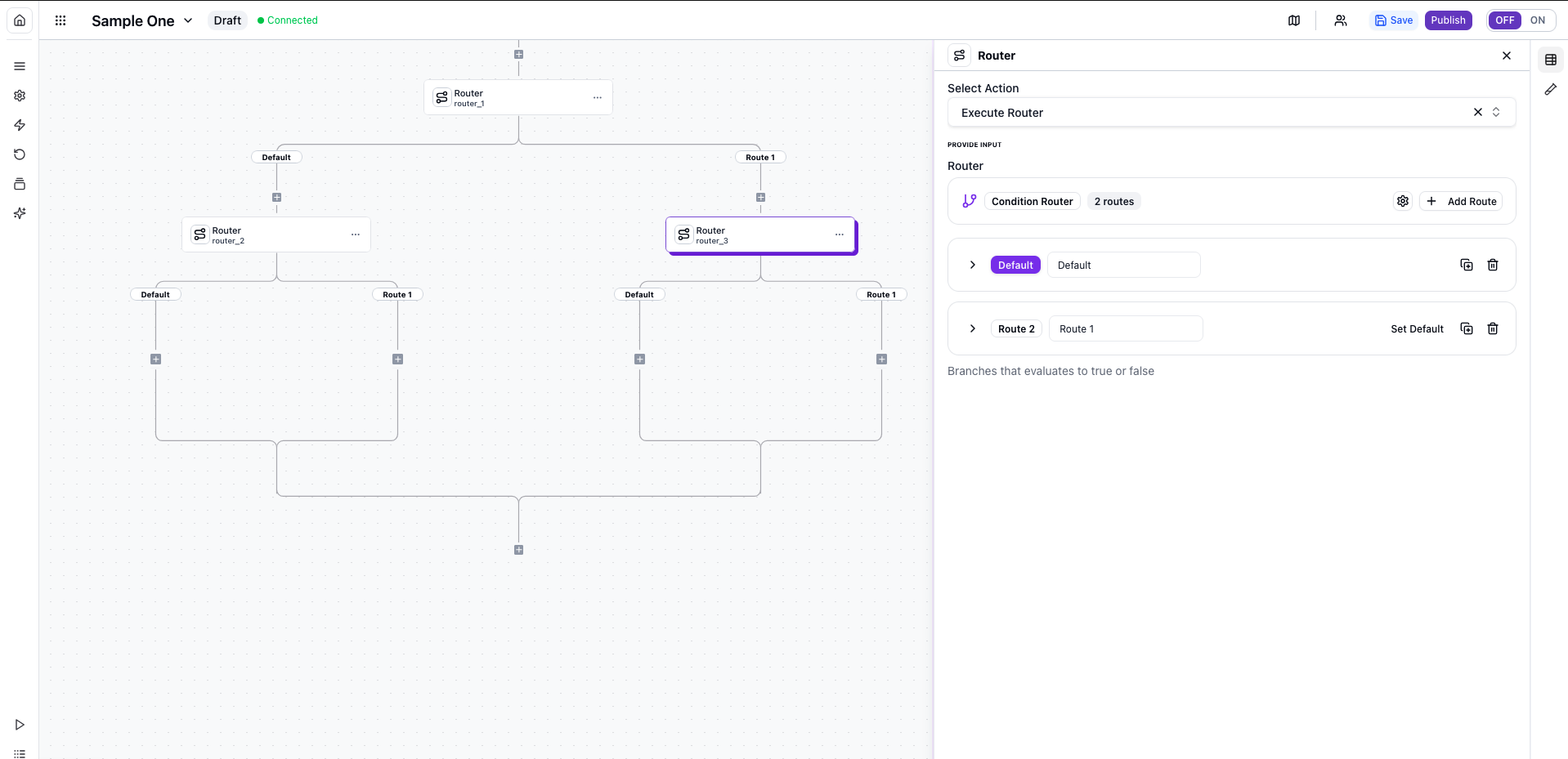
Create complex decision trees by placing conditions inside other condition branches.
1
First-level condition evaluates primary criterion
2
Second-level conditions evaluate further
3
Each branch can have its own nested conditions
Example: Route by country → order value → product type
Parallel Conditions
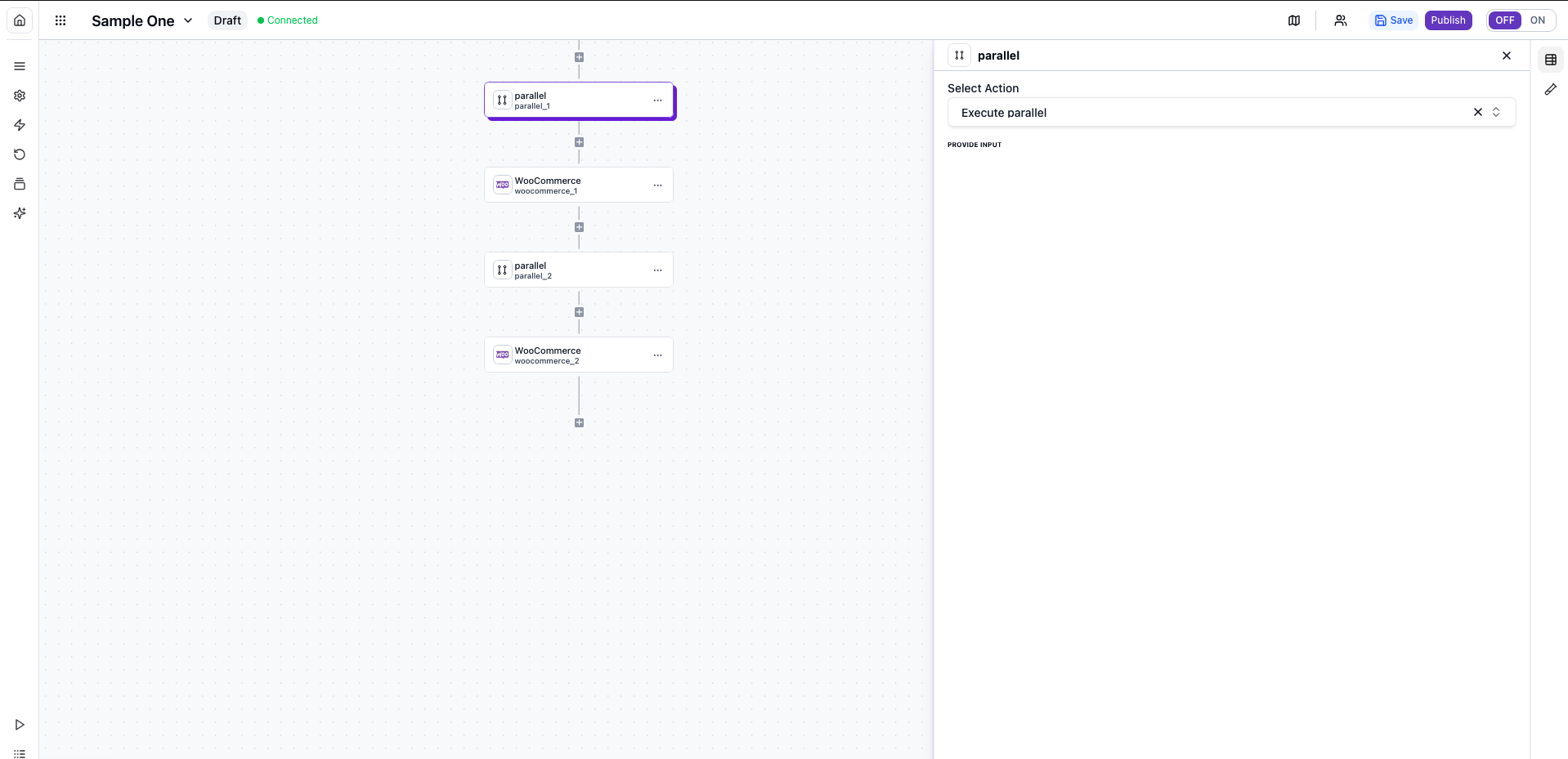
Multiple independent conditions that evaluate different aspects simultaneously.
||
Each condition operates independently
⚡
Different aspects branch separately
🔀
Results don’t depend on each other
Example: Check inventory, payment, and fraud detection simultaneously
Loop with Conditions
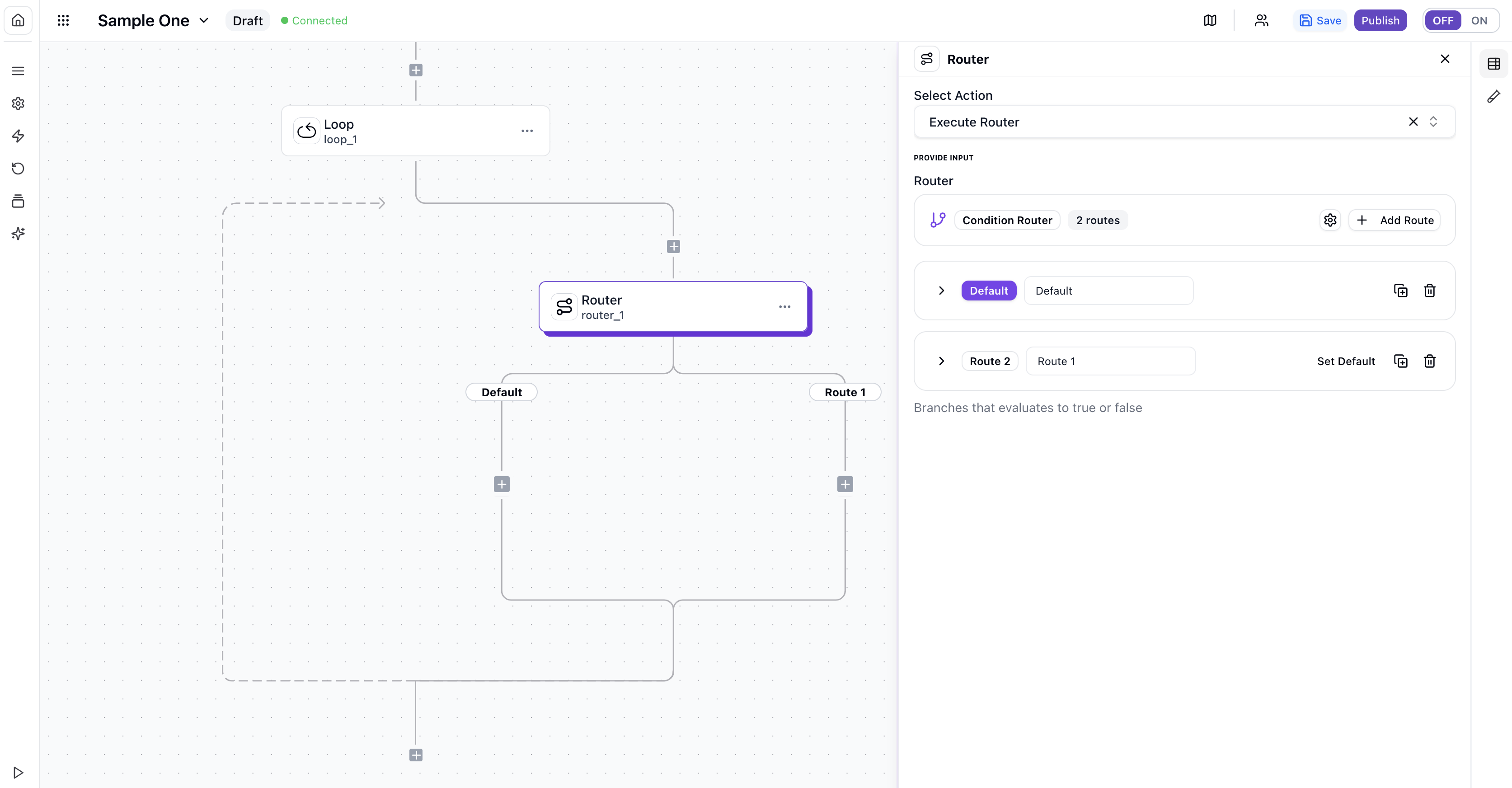
Combine loops and conditions for powerful iterative processing.
↻
Loop through collection of items
?
Apply conditions to each item
→
Take different actions based on properties
Example: Process order items based on category or stock status
Best Practices
Follow these guidelines to create maintainable, reliable conditions.
Break complex conditions into multiple simpler ones for better readability
Use descriptive names like “Check High-Value Order”
Account for all scenarios including edge cases
Compare numbers with numbers, strings with strings
Test with various data to ensure correct behavior
Always include “else” paths for unexpected scenarios
Add comments explaining complex condition reasoning
Check data exists before using it in conditions
Debugging Conditions
When conditions don’t behave as expected, use these debugging techniques.
Enable condition logging
Turn on detailed logging in workflow settings to capture evaluation details and execution paths.
Use test mode
Run the workflow with sample data to see condition evaluation results in real-time.
Check visualization
View visual indicators showing which path was taken during execution.
Inspect data values
Compare actual data values against your condition criteria using the data inspector.
Simplify for testing
Temporarily simplify complex conditions to isolate issues.
Use the Condition Debugger tool to step through evaluation and see exactly how expressions are evaluated with your data.
Common Issues
Comparing values of different types (string “100” vs number 100)
toNumber() or toString() to convertisNumber() or isString()Condition fails because expected data is null or undefined
isEmpty() to check if data existsvalue || defaultValueCondition logic doesn’t match intended business rules
String comparisons fail due to case differences
toLowerCase() or toUpperCase()Keep Learning
Now that you understand conditions, explore these related topics to enhance your skills.
Start creating powerful conditional workflows today! Use the examples and patterns in this guide as templates for your own automations.
💡 Pro Tip: Start simple and gradually add complexity as you become more comfortable with conditions.