Google Drive Integration
Automate file management and folder organization in Google Drive. Upload files, create folders, duplicate documents, read content, and build powerful cloud storage workflows.
OAuth 2.0
Secure Google authentication
File Webhooks
Real-time file notifications
Unlimited Storage
Work with any size files
Requirements
- •Active Google account (personal or Google Workspace)
- •Sufficient storage space in your Google Drive
- •Appropriate file/folder permissions for items you want to access
Available Triggers
Start workflows automatically when files or folders are added to your Google Drive.
File & Folder Triggers
- •New File: Triggered when a new file is uploaded or created in Google Drive
- •New Folder: Triggered when a new folder is created in Google Drive
Available Actions
Manage your Google Drive files and folders programmatically through your workflows.
File Actions
File Operations
- •Upload File: Upload a file to Google Drive
- •Create File: Create a new file in Google Drive
- •Duplicate File: Create a copy of an existing file
- •Get File: Retrieve file metadata and download link
- •Read File Content: Get the content of text-based files
- •List Files: Retrieve a list of files with filtering options
Folder Actions
Folder Operations
- •Create Folder: Create a new folder in Google Drive
- •List Folders: Retrieve a list of folders with filtering options
Setup Guide
Follow these steps to connect your Google Drive to Wakflo and start automating.
Connect to Google Drive
From the Integrations page, select Google Drive and click 'Connect'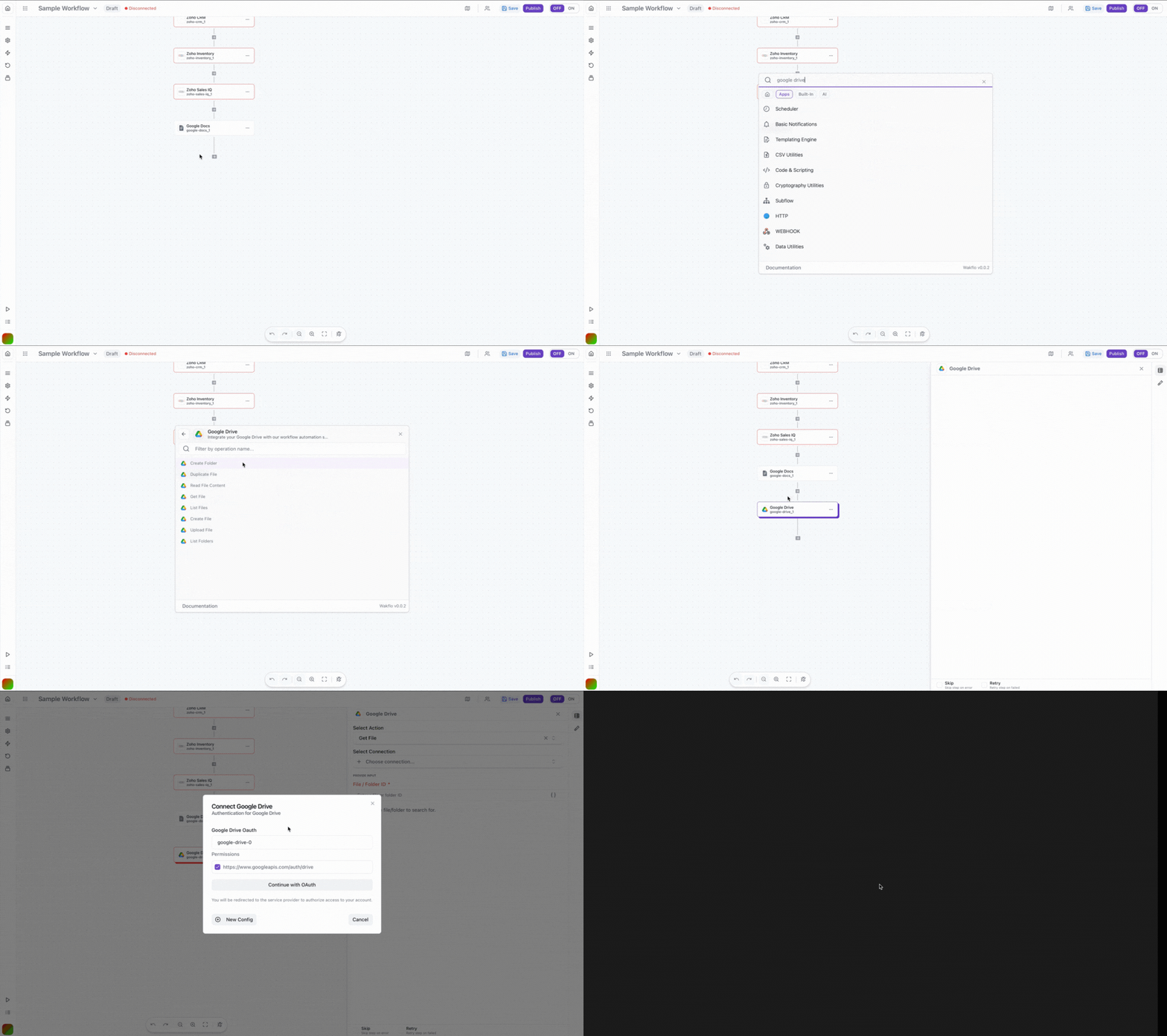
Sign in to Google
Log in to your Google account when prompted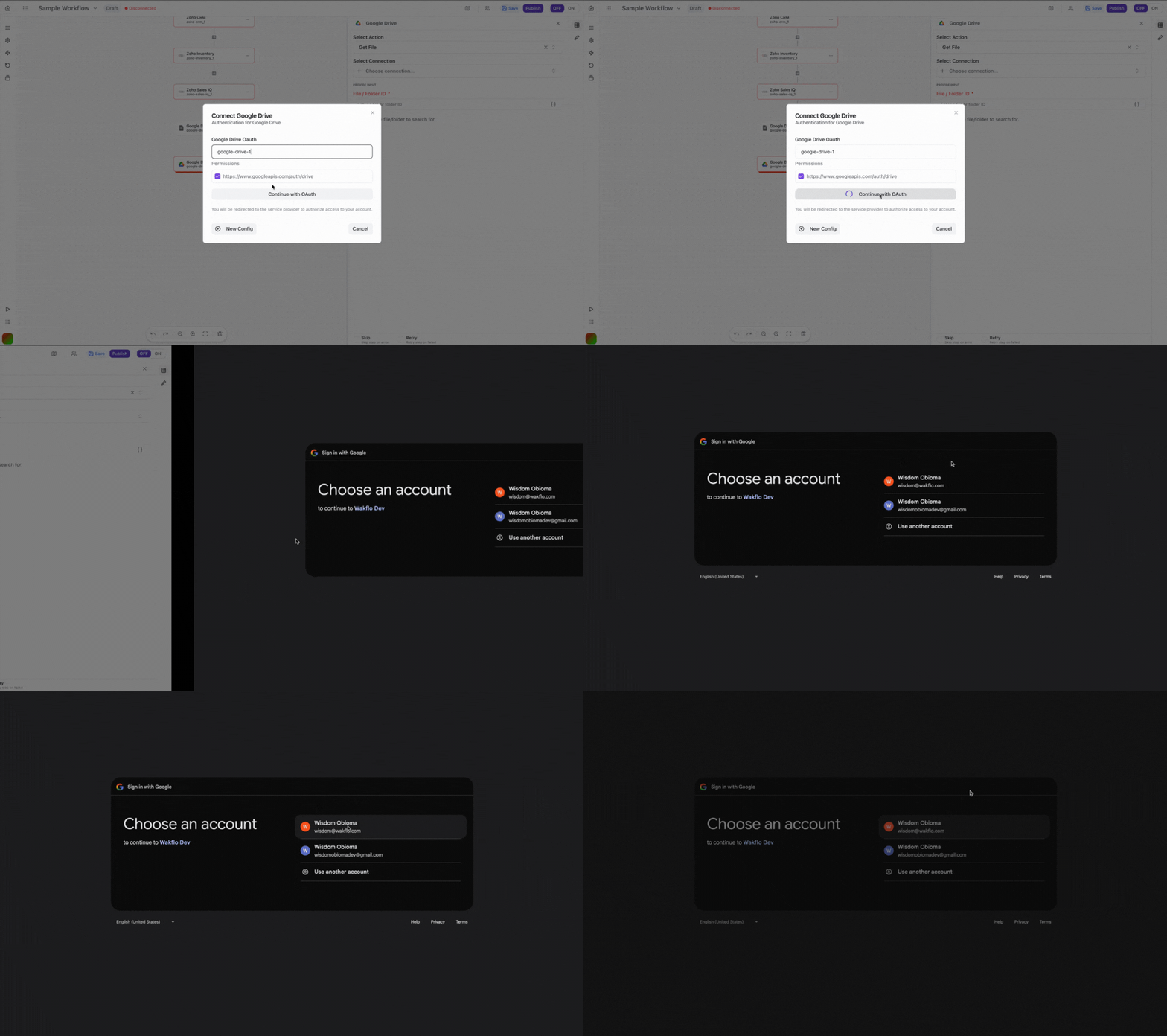
Approve Permissions
Review and grant the requested permissions for Wakflo to access your Google Drive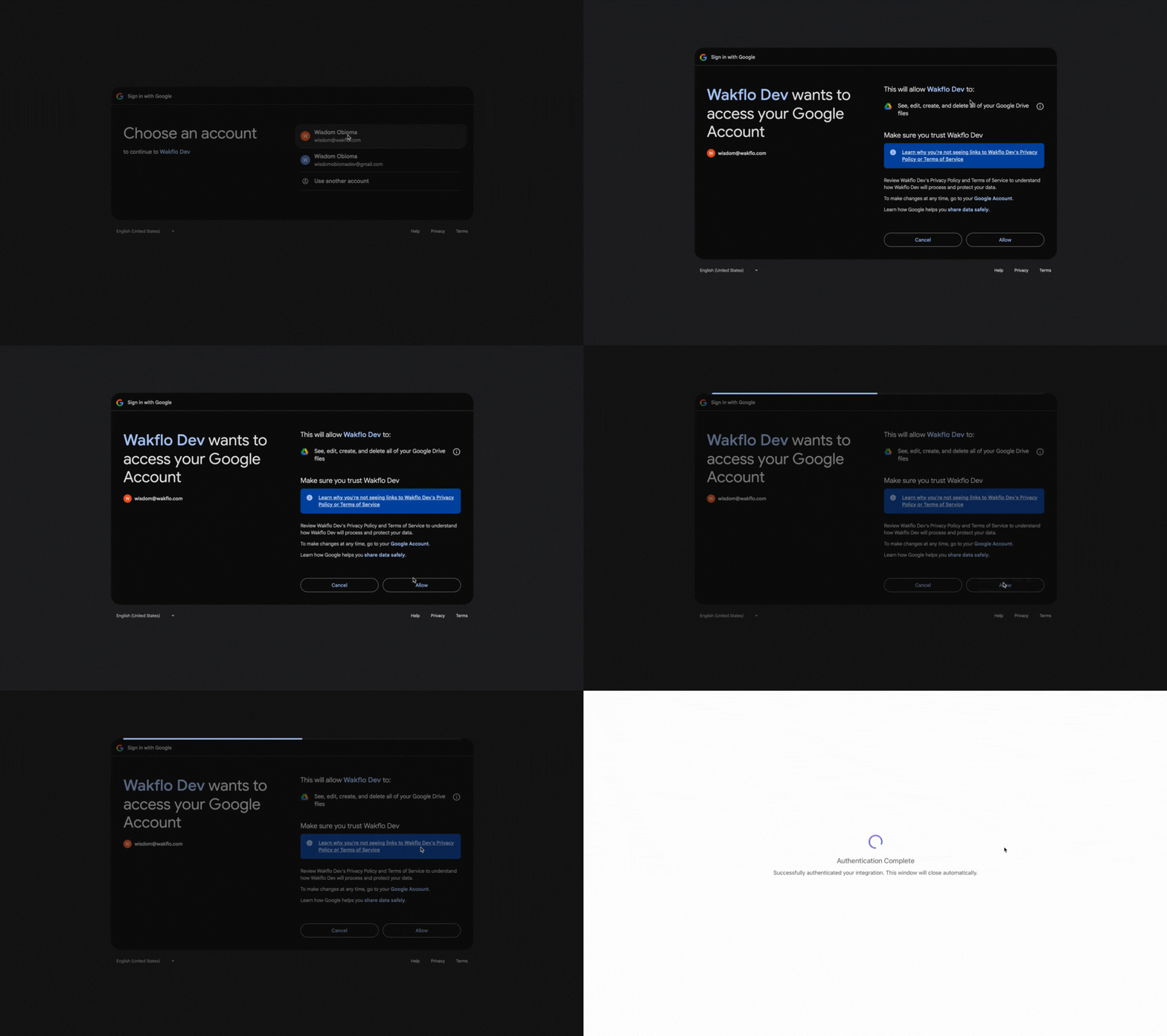
Complete Setup
Finish the connection process and start building file management workflows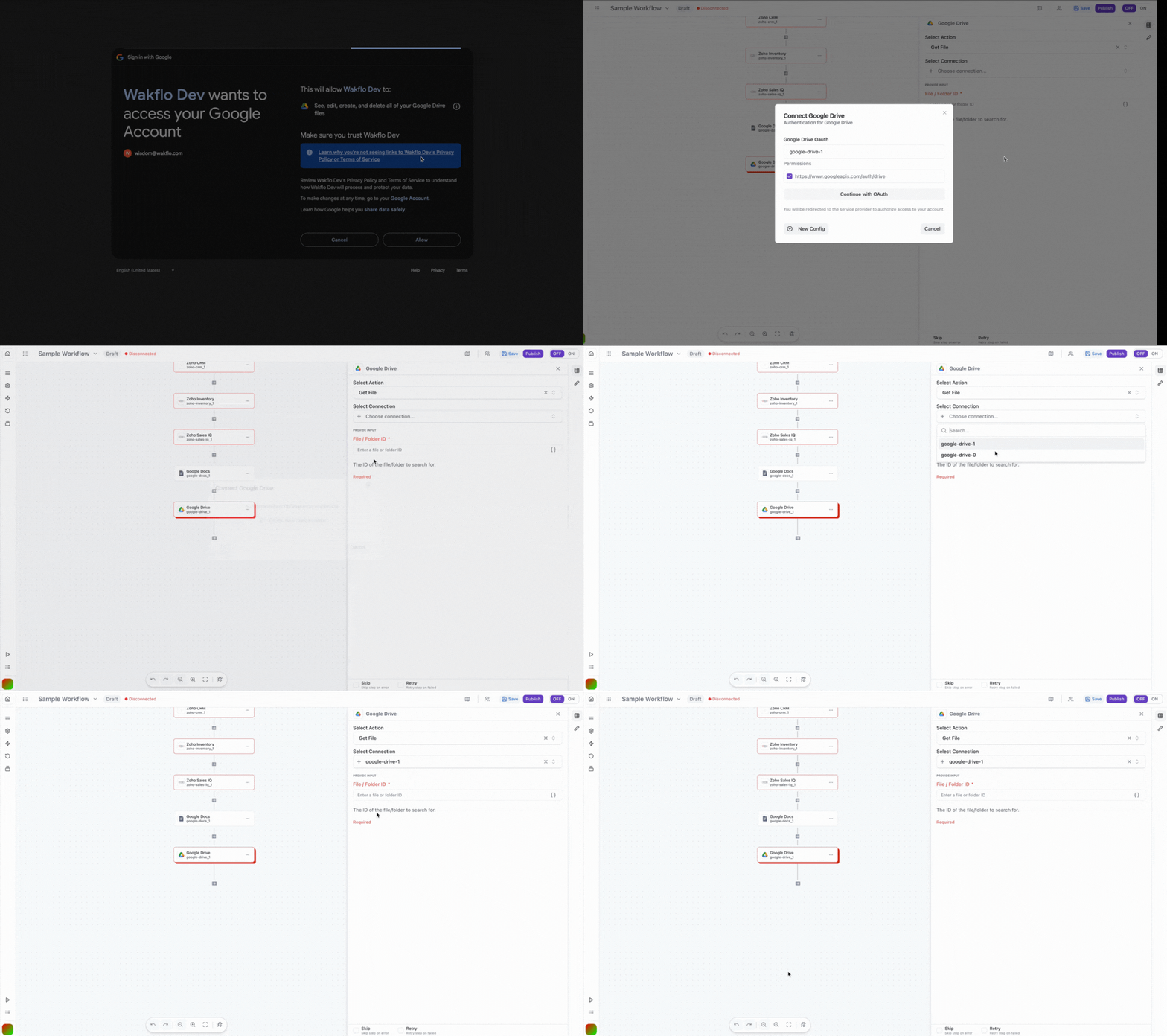
Shared Drives: If you're using Google Workspace, ensure you have appropriate permissions for shared drives you want to access through the integration.
Field Mapping
When working with Google Drive:
• File/Folder IDs can be found in the URL after
/folders/ or /file/d/
• MIME types determine how Google Drive handles files
• Use 'root' as folder ID to reference the main Drive folder
• Shared items require appropriate permissionsAPI Limits & Best Practices
| Limit Type | Value | Notes |
|---|---|---|
| Queries per day | 1,000,000,000 | Per project |
| Queries per 100 seconds | 20,000 | Per user |
| Upload size | 5 TB | Maximum file size |
| List page size | 1000 | Maximum items per request |
Example Workflow: Retrieve and Process Files
Here's a practical example showing how to retrieve a file and work with its metadata.
Add Google Drive node
Search for Google Drive and add the 'Get File' action to your workflow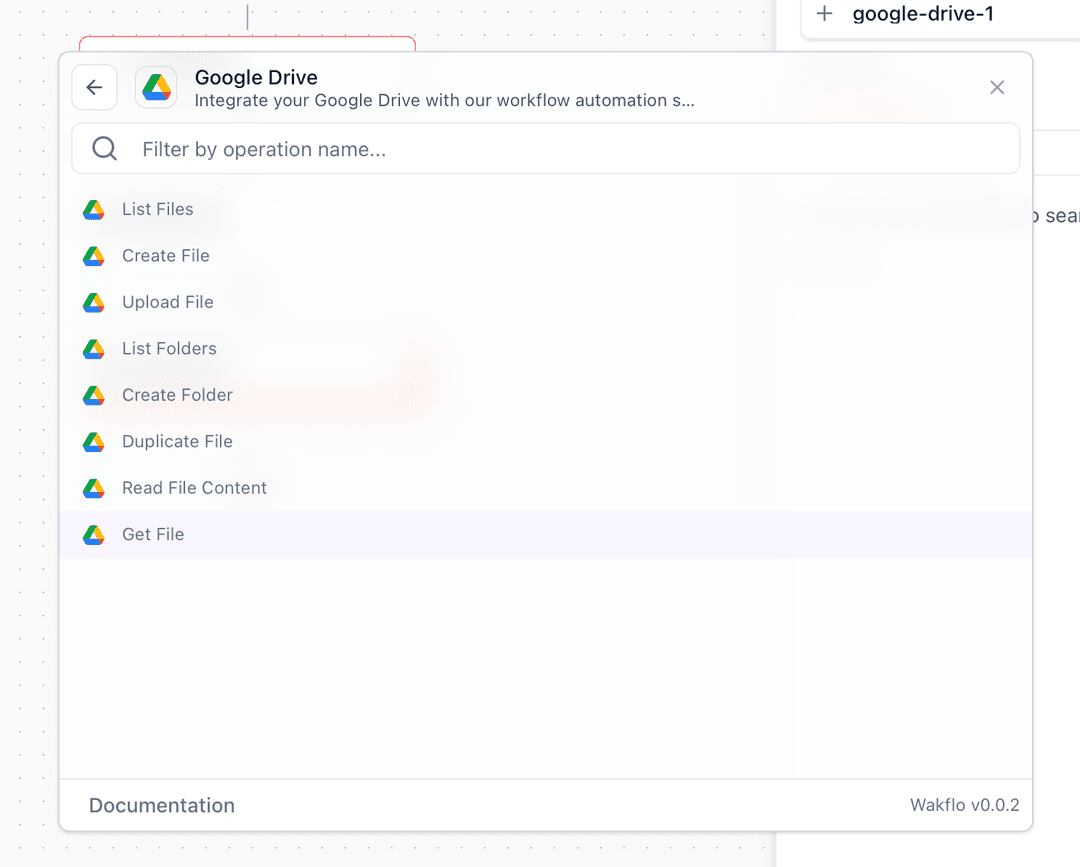
Configure connection
Select or create a Google Drive connection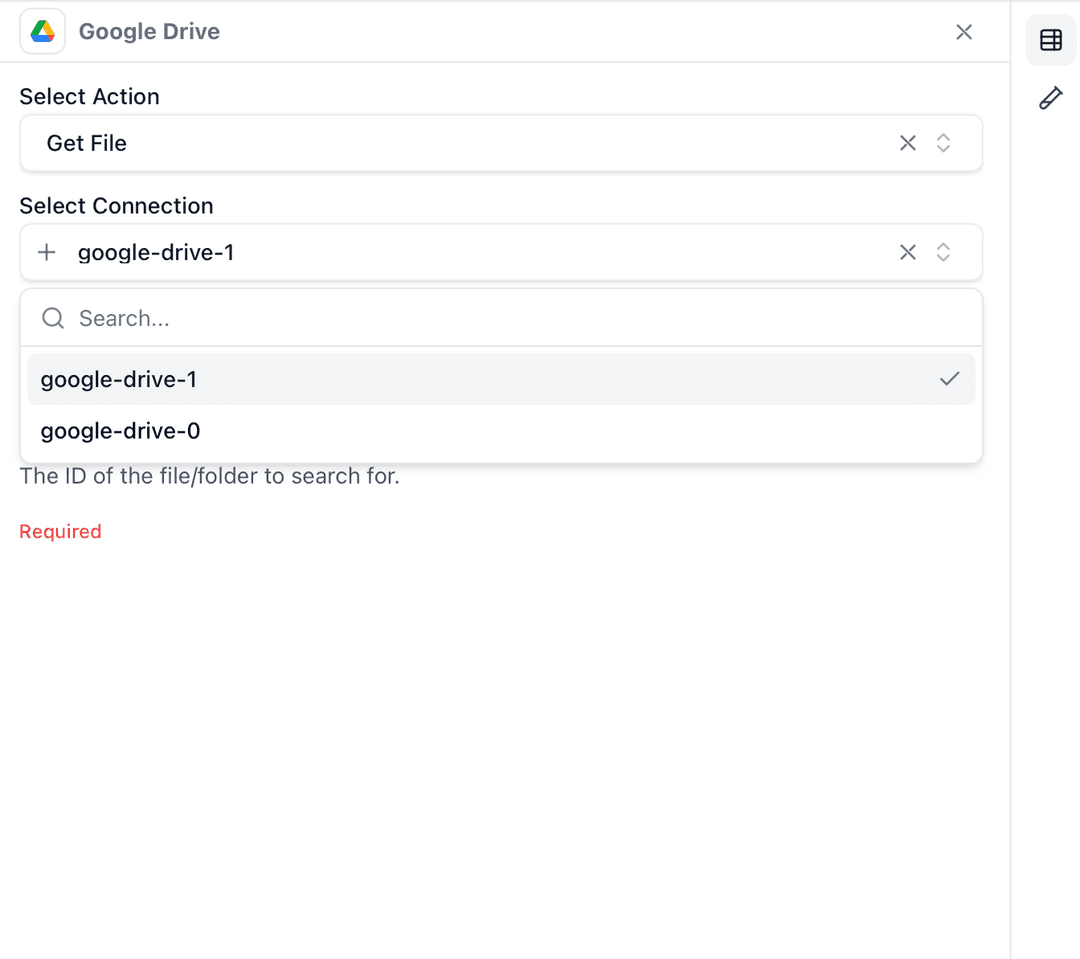
Enter file ID
Input the file ID or map it from a previous workflow step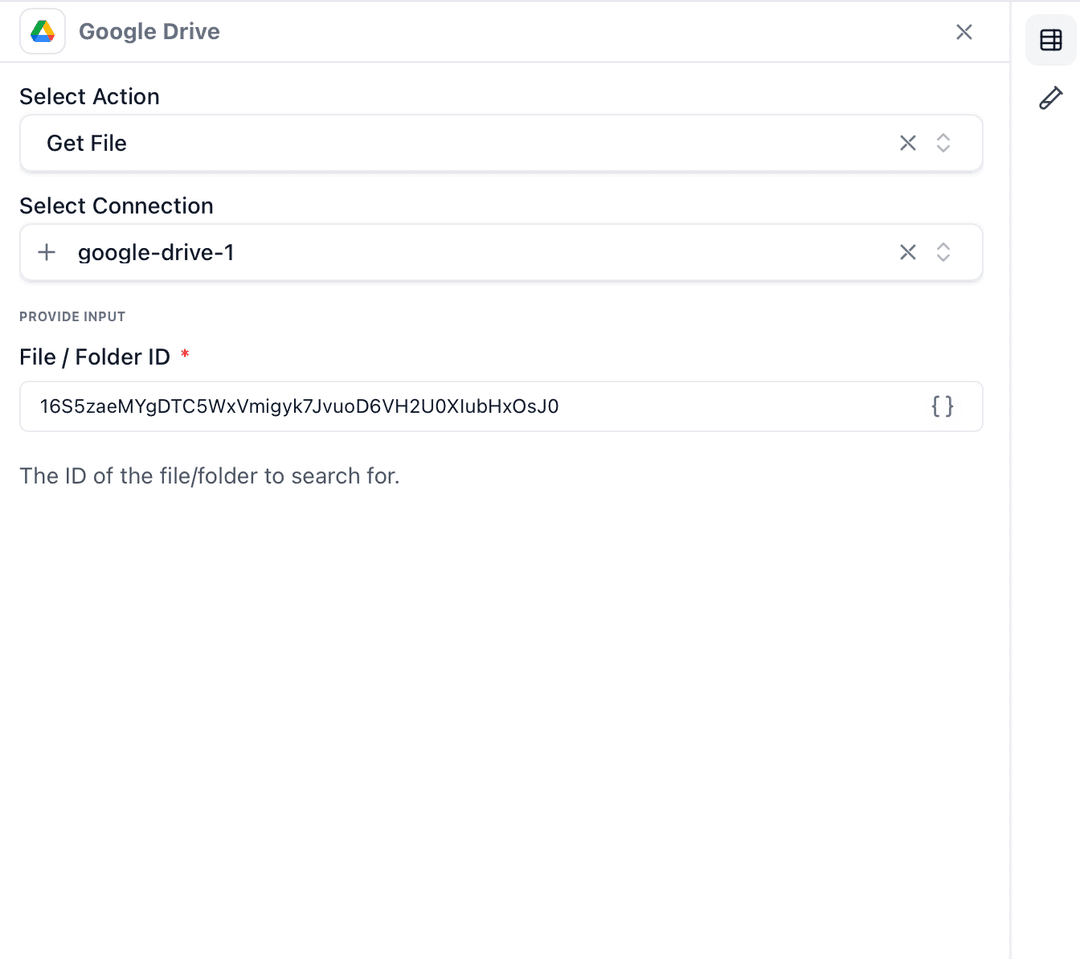
Test the action
Click 'Test Step' to retrieve the file metadata and download link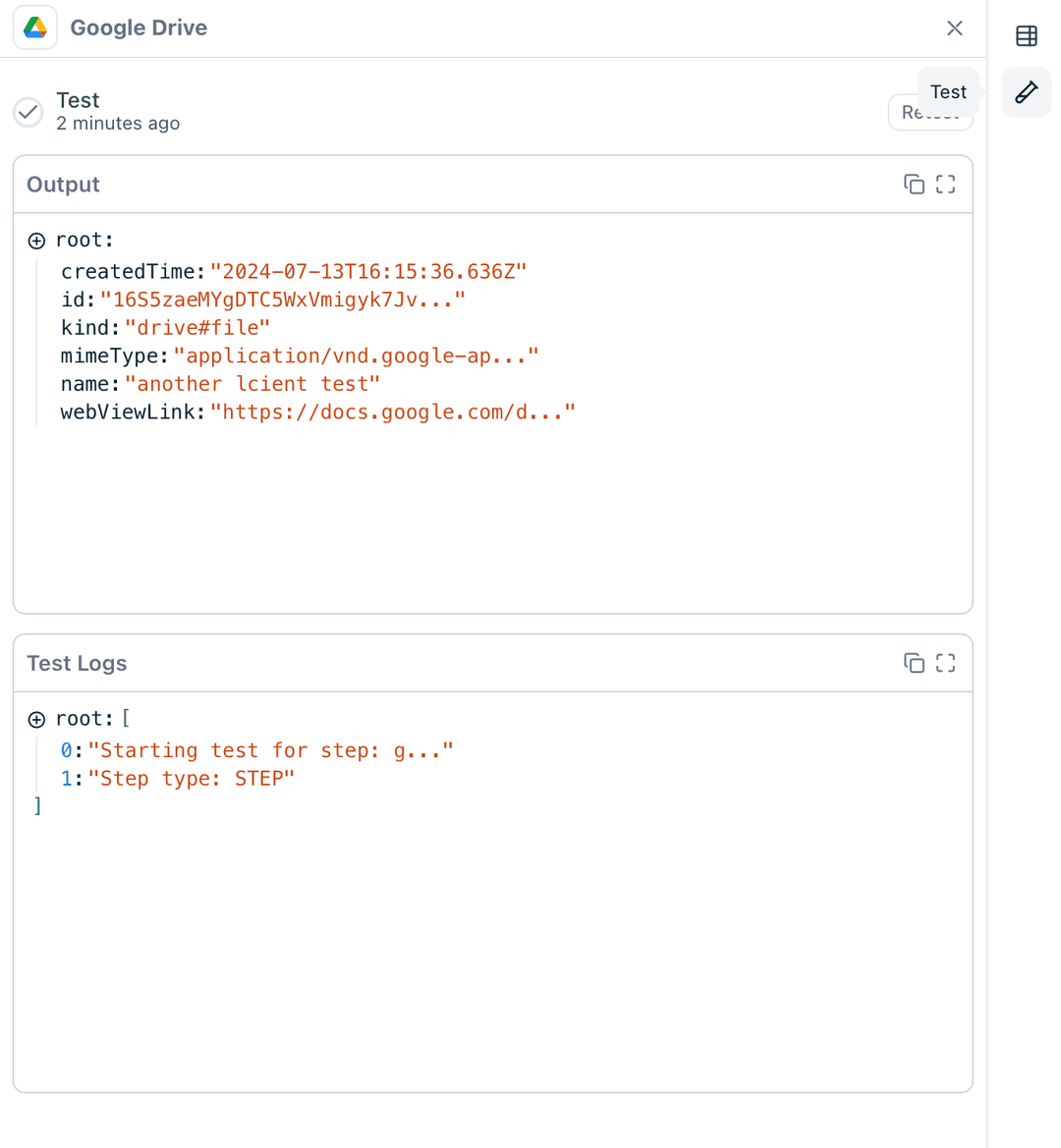
Troubleshooting
Permission Denied Errors
- •Verify the connected account has access to the file/folder
- •Check if the item is in a shared drive requiring additional permissions
- •Ensure OAuth scopes include necessary Drive permissions
- •For shared items, confirm you have edit (not just view) access
File Not Found
- •Verify the file ID is correct
- •Check if the file has been moved to trash
- •Ensure the file is in the connected account's Drive
- •Use List Files to search if ID is unknown
Upload Failures
- •Check available storage space in Google Drive
- •Verify file size is within limits
- •Ensure proper MIME type is specified
- •For base64 uploads, verify encoding is correct
Additional Resources
Last updated on