Calendly Integration
Connect your Calendly account to Wakflo and automate scheduling workflows, event management, and meeting coordination. Build powerful automations that streamline your appointment booking process.
Authentication
OAuth 2.0
Features
3 Actions
Available Actions
Calendly Actions
Event Actions
- •Get Event: Retrieve details of a specific scheduled event
- •List Events: Retrieve all scheduled events from your Calendly account
Scheduling Actions
- •Create Single-Use Schedule Link: Generate a one-time scheduling link for a specific event
Setup Guide
Connect to Wakflo
In Wakflo, navigate to the Calendly integration and click connect. You'll be redirected to Calendly to authorize Wakflo to access your account.
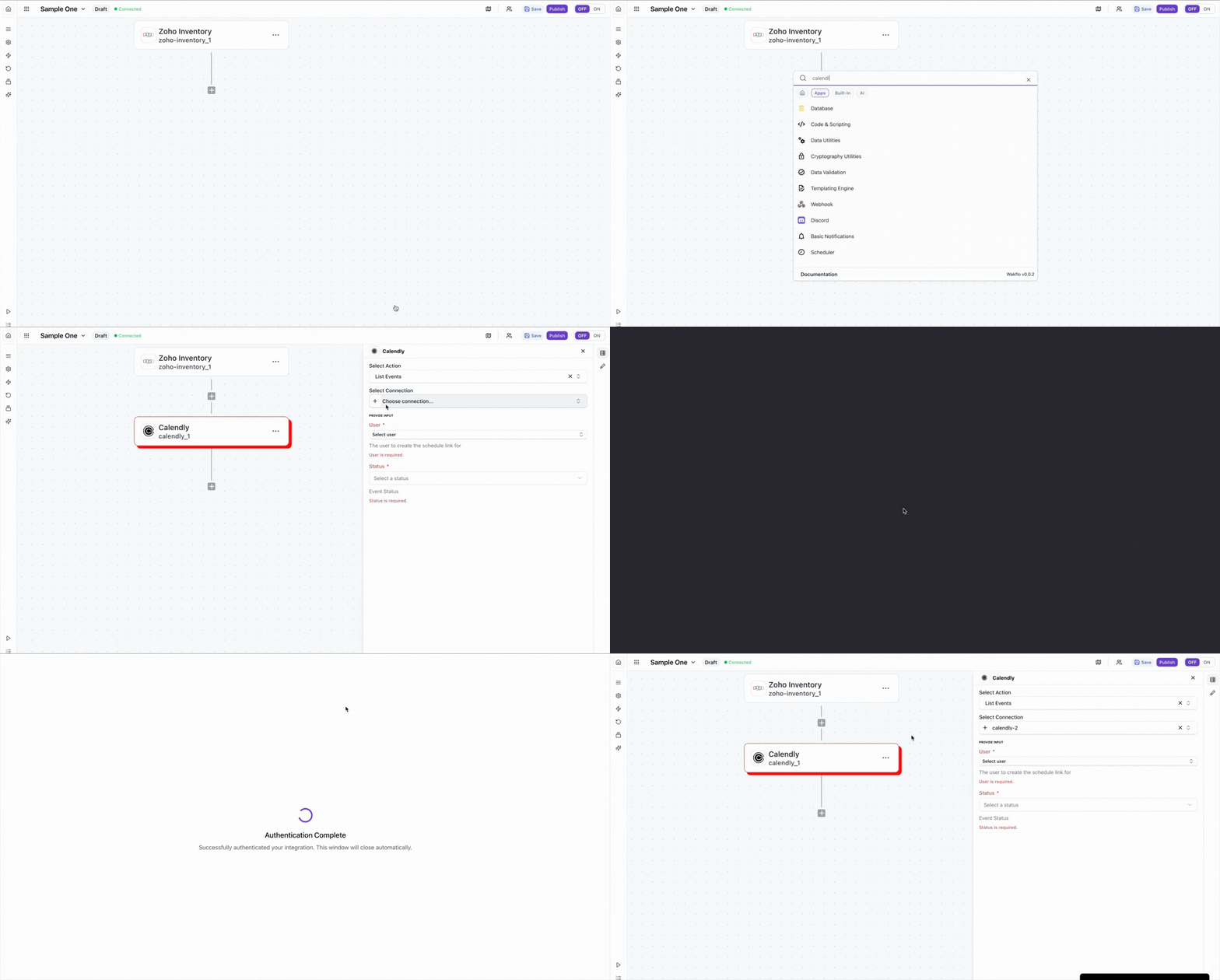
Authorize Permissions
Grant Wakflo access to your Calendly account. The following permissions are required:
- •Event management (read/write)
- •Scheduling links (read/write)
- •User profile information (read)
Test Connection
Verify the connection by retrieving test data to ensure everything is working properly.
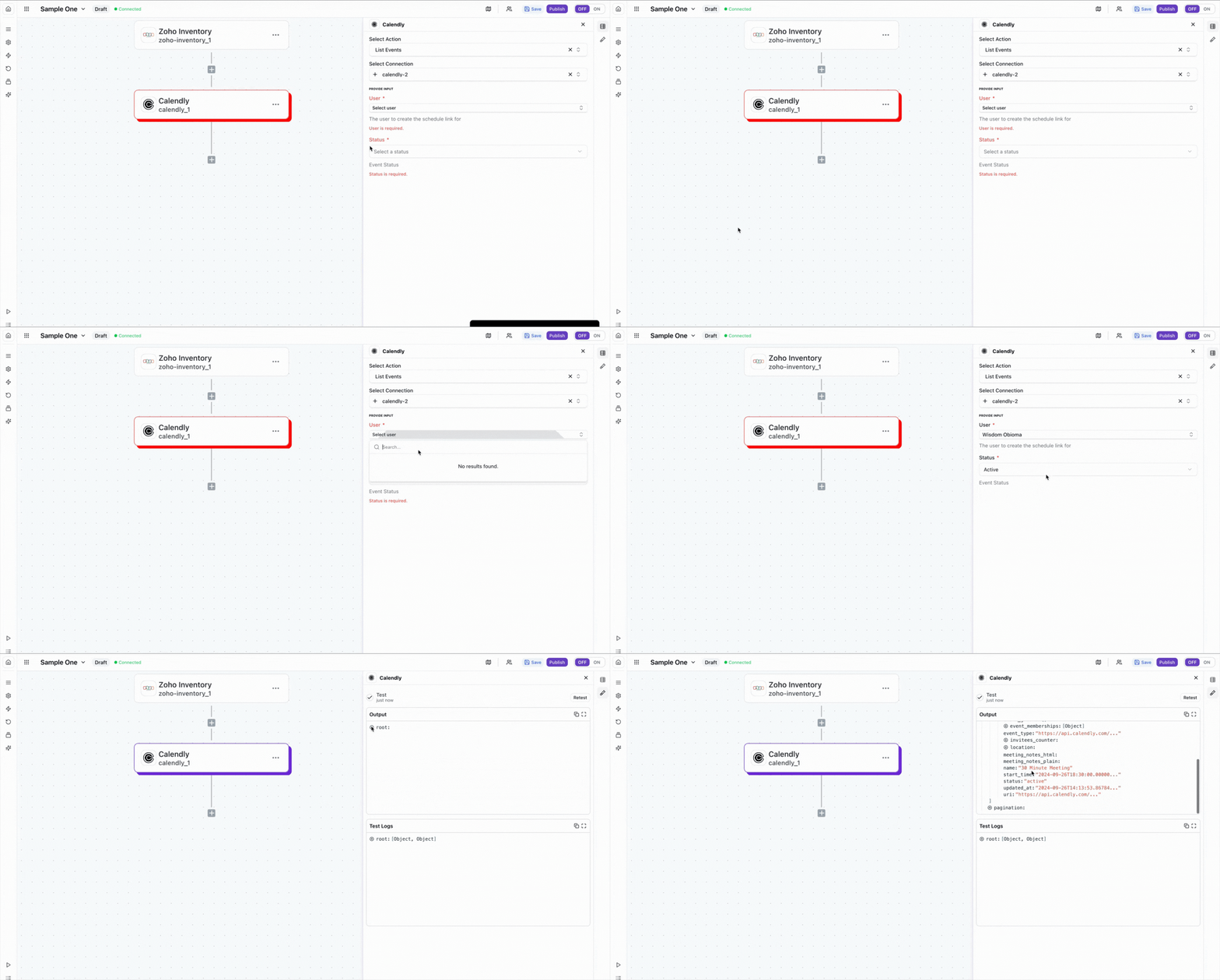
Usage Example: List Events
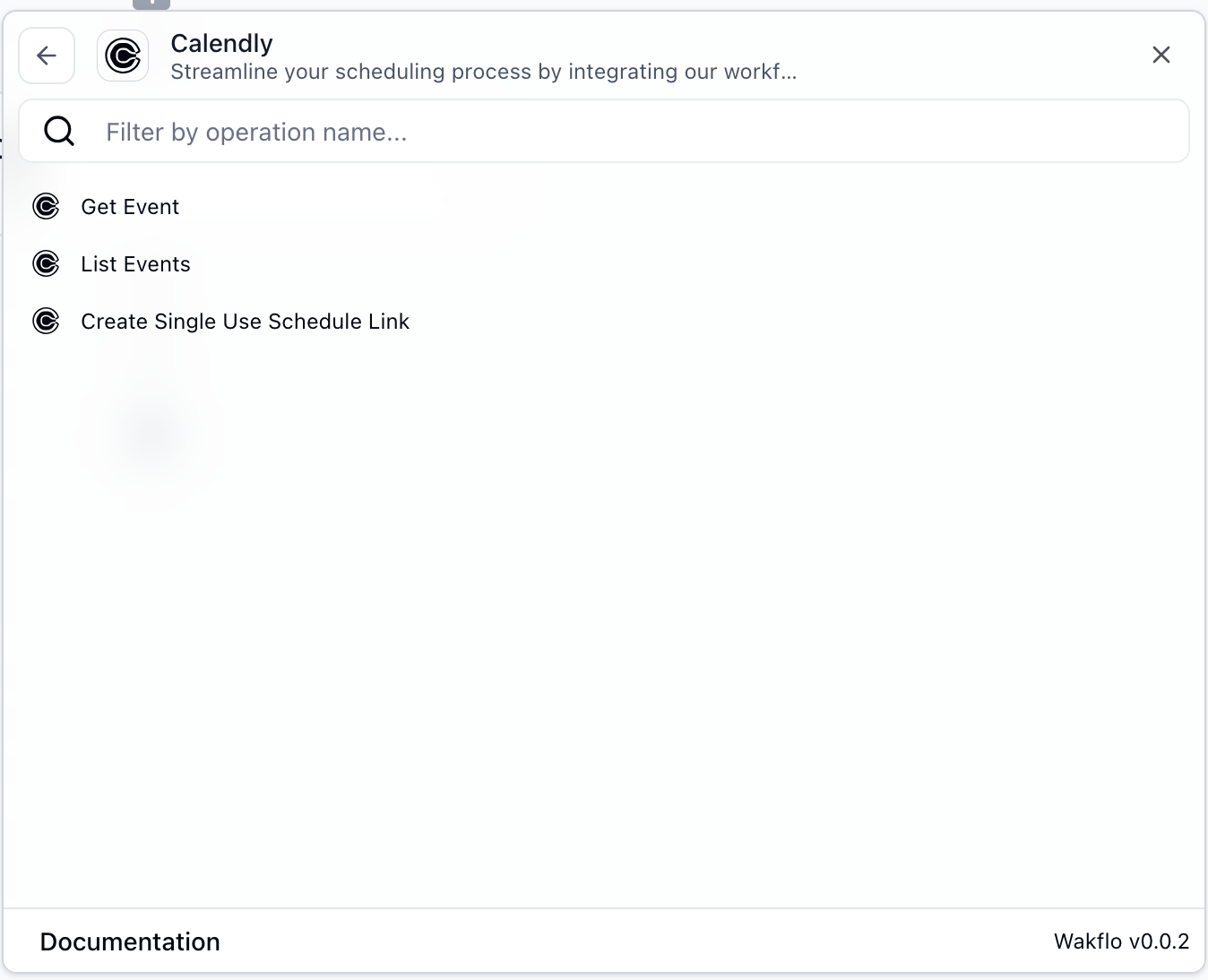
Select the Action
In your Wakflo workflow, add a new action and select Calendly as the integration, then choose List Events from the available actions.
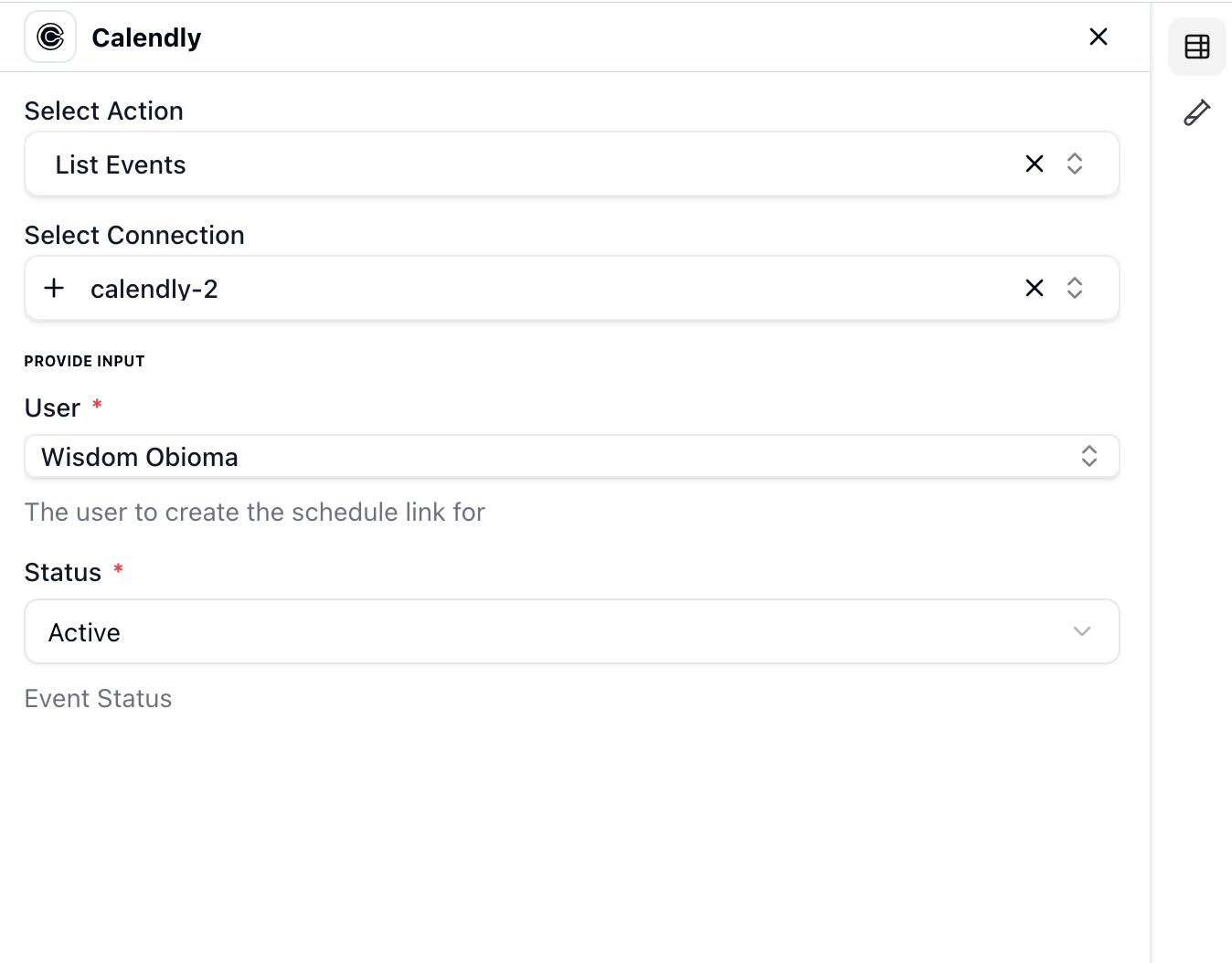
Configure Node
Select your connected Calendly account and configure any filtering options such as date range, event status, or specific event types.
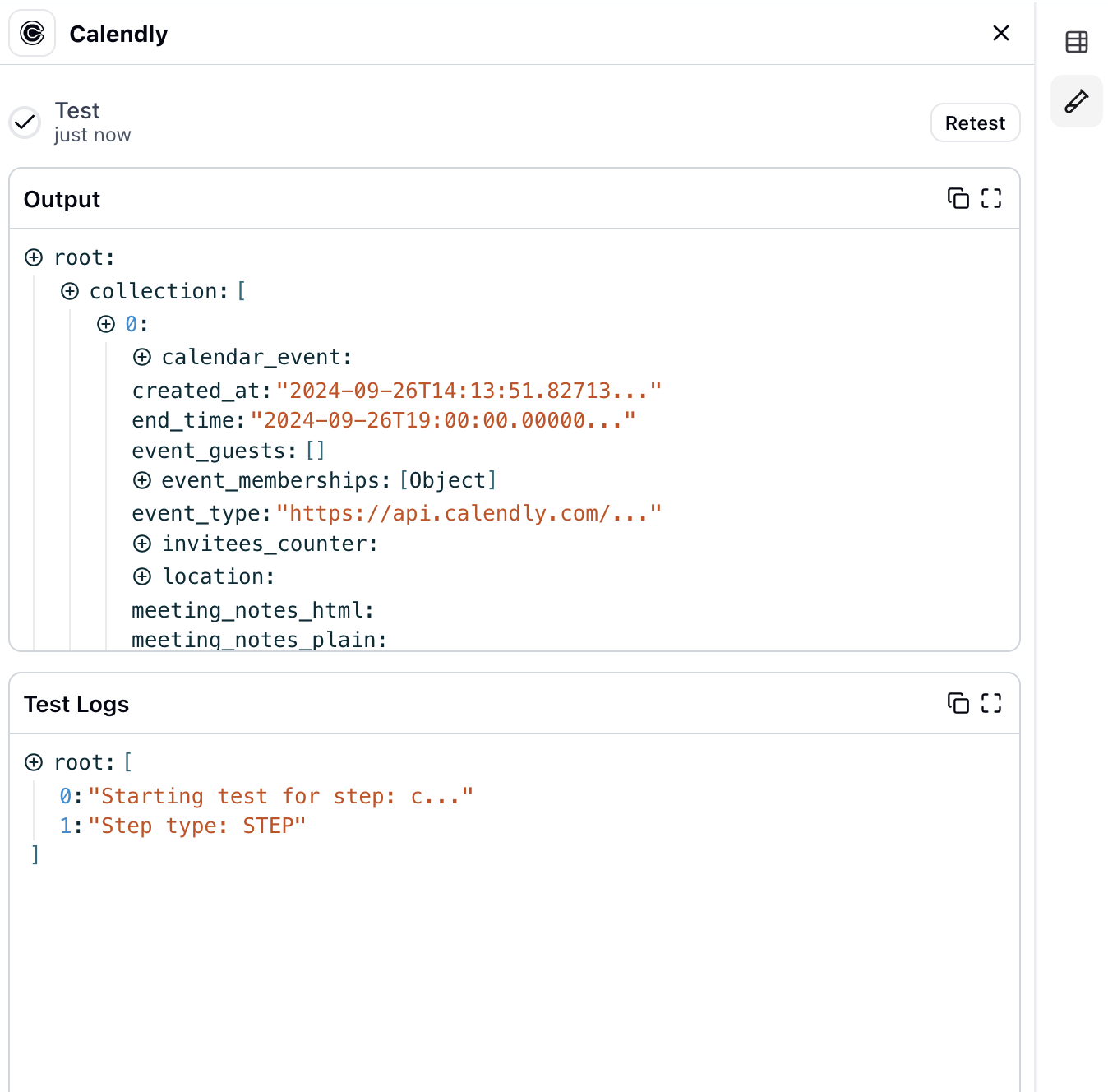
Run and Retrieve Events
Execute the action to retrieve all your scheduled Calendly events. The event data will be returned in the action output and can be used in subsequent workflow steps.
Best Practices
Working with Calendly Data
- •Use single-use scheduling links for one-time meetings to maintain security
- •Monitor webhook events for real-time updates on scheduled appointments
- •Implement error handling for scheduling conflicts and cancellations
- •Respect Calendly's API rate limits to ensure consistent performance
- •Use event filtering to retrieve only relevant scheduled appointments
Troubleshooting
Authentication Issues
- •Ensure your Calendly account is active and properly configured
- •Check if your OAuth token has expired and reconnect if needed
- •Verify that API access is enabled in your Calendly account settings
Rate Limiting
- •Calendly enforces rate limits on API requests - check the response headers
- •Implement exponential backoff for retry logic when rate limited
- •Cache frequently accessed data to reduce API calls
Event & Scheduling Issues
- •Ensure event UUIDs are correctly formatted when retrieving event details
- •Verify that the user has permission to access the requested events
- •Check timezone settings when working with event times