Dropbox Integration
Automate file and folder management in Dropbox. Copy, move, delete files, create folders, generate shareable links, and streamline your cloud storage workflows.
OAuth 2.0
Secure Dropbox authentication
File Operations
Full file management
Link Sharing
Generate shareable links
Requirements
- •Active Dropbox account
- •Permission to authorize third-party applications
Available Actions
Manage your Dropbox files and folders programmatically through your workflows.
File Actions
File Operations
- •Copy File: Create a copy of a file in Dropbox
- •Delete File: Remove a file from Dropbox
- •Get File Link: Generate a shareable link for a file
- •Move File: Move a file to a different location in Dropbox
Folder Actions
Folder Operations
- •Copy Folder: Create a copy of a folder in Dropbox
- •Create New Folder: Create a new folder in your Dropbox account
- •Delete Folder: Remove a folder from Dropbox
- •List Folder Content: Get a list of files and folders in a directory
- •Move Folder: Move a folder to a different location in Dropbox
Setup Guide
Follow these steps to connect your Dropbox account to Wakflo and start automating.
Connect to Wakflo
In Wakflo, navigate to the Dropbox integration and click connect. You'll be redirected to Dropbox to authorize Wakflo to access your account.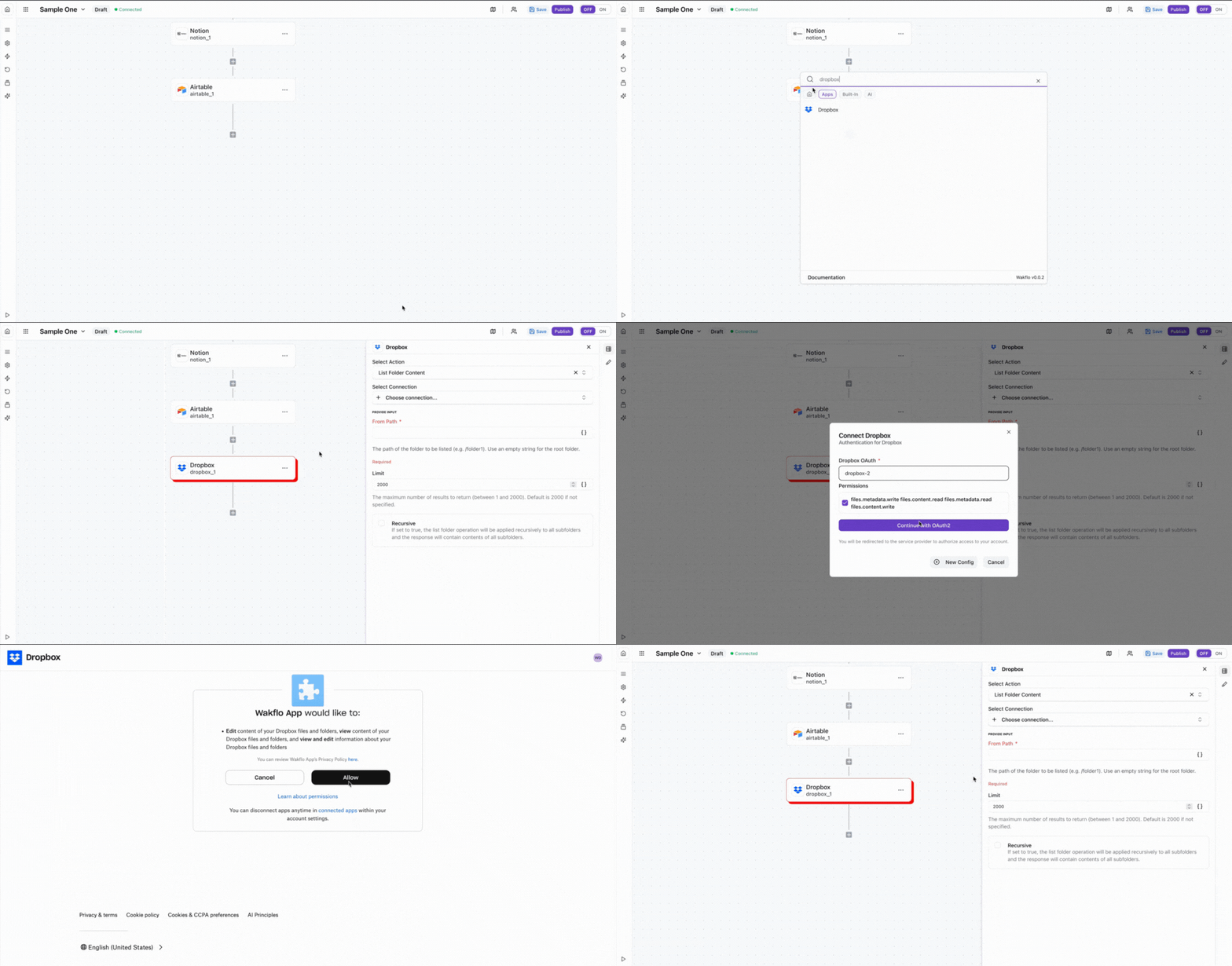
Test Connection
Verify the connection by retrieving test data to ensure everything is working properly.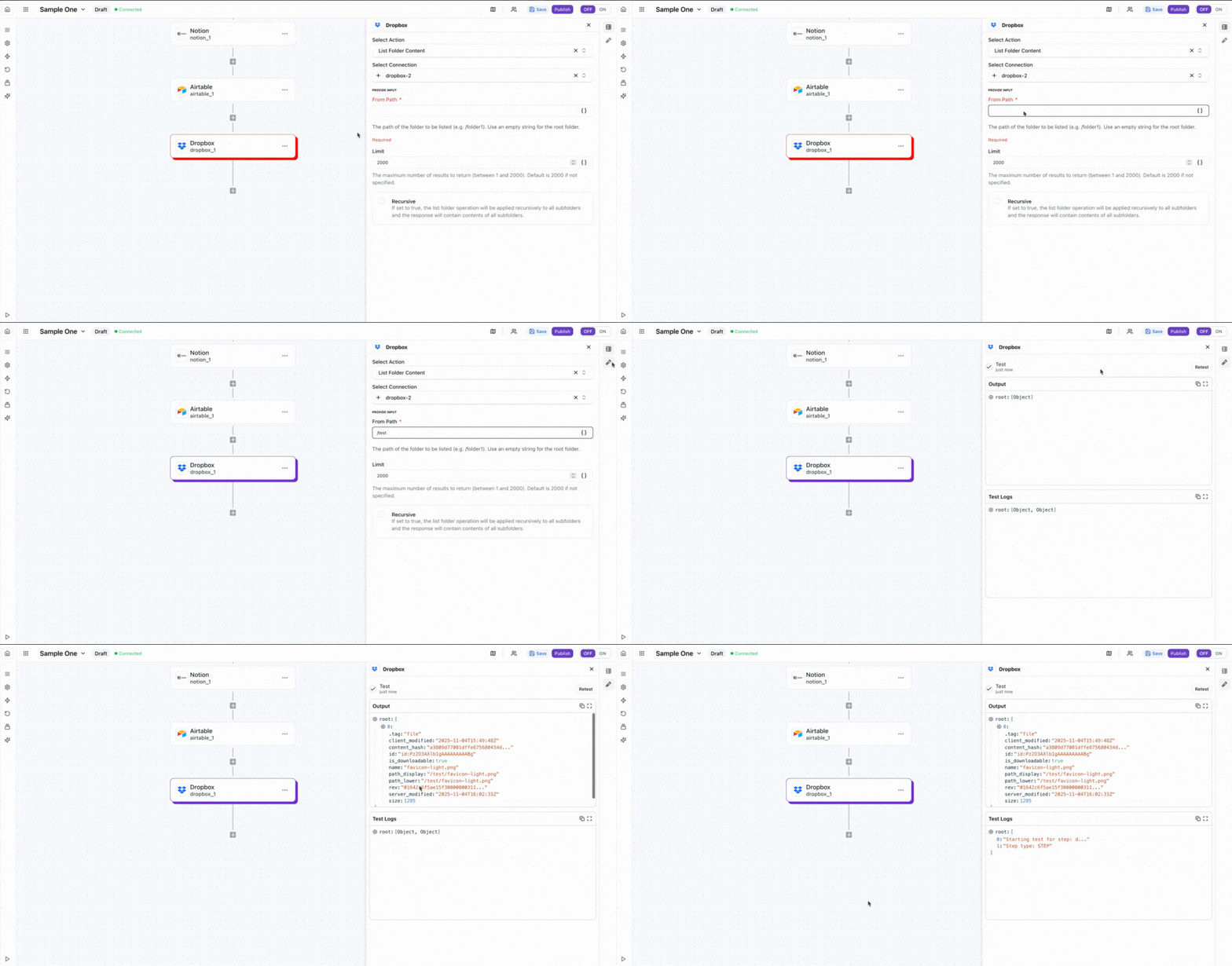
Wakflo uses a pre-configured Dropbox app for all users, so you don't need to create your own app. Simply connect your Dropbox account and authorize the required permissions for file and folder operations.
Example: Get Temporary File Link
This example demonstrates how to generate a shareable link for a file stored in your Dropbox account.
Select the Action
In your Wakflo workflow, add a new action and select Dropbox as the integration, then choose 'Get File Link' from the available actions.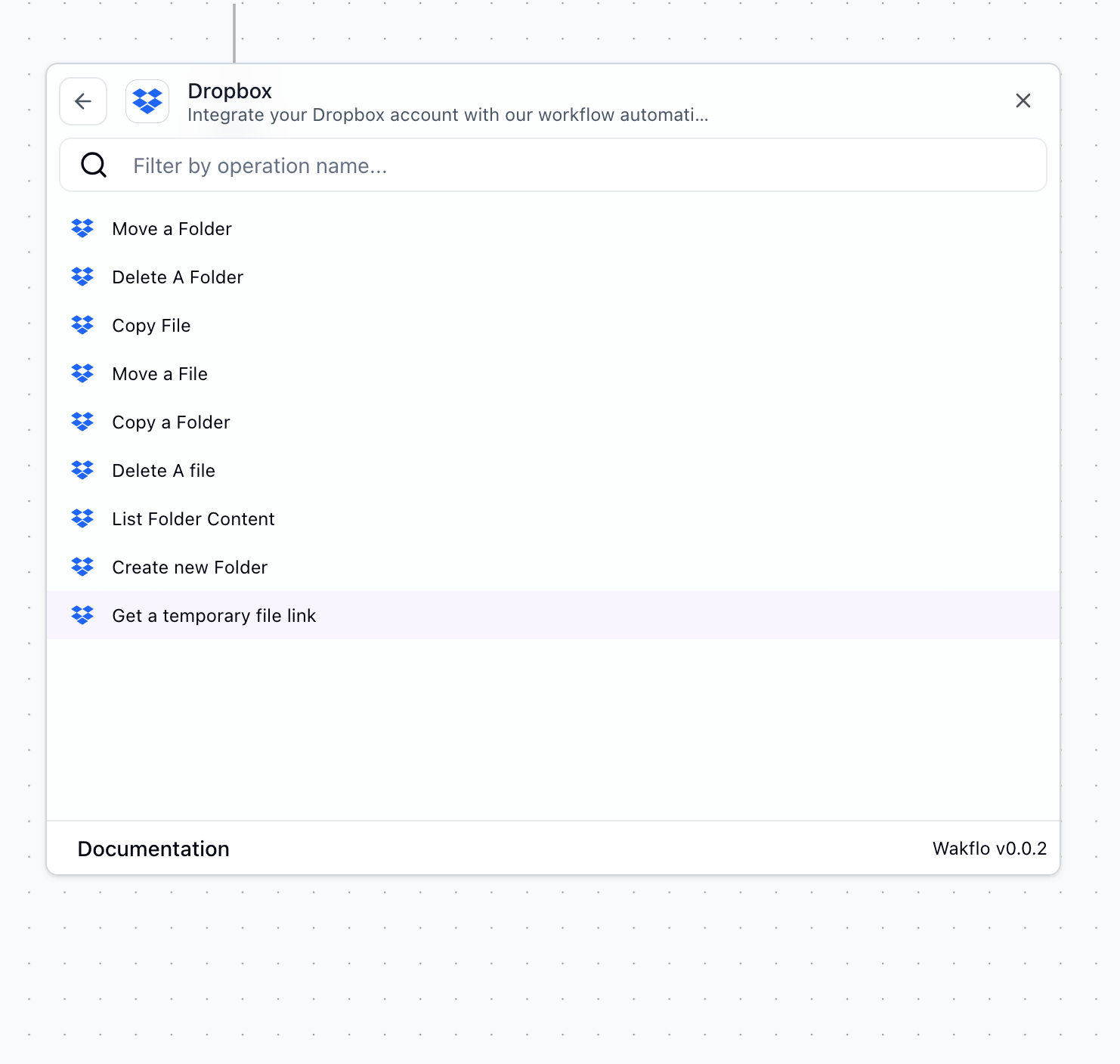
Configure File Path
Enter the path to the file you want to generate a link for (e.g., /Documents/report.pdf). You can use dynamic values from previous workflow steps.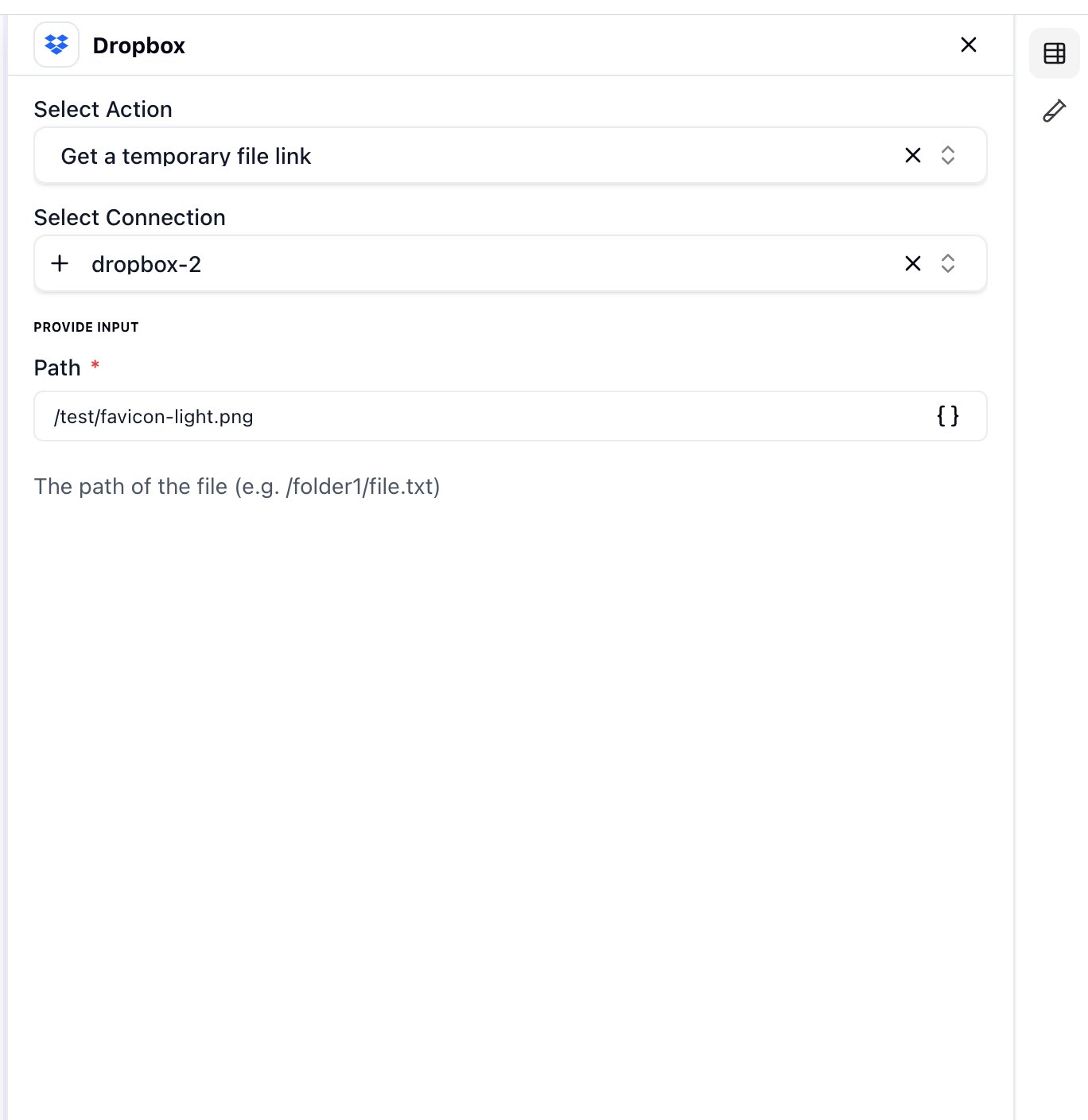
Run and Get Link
Execute the action to generate a shareable link. The link will be returned in the action output and can be used in subsequent workflow steps.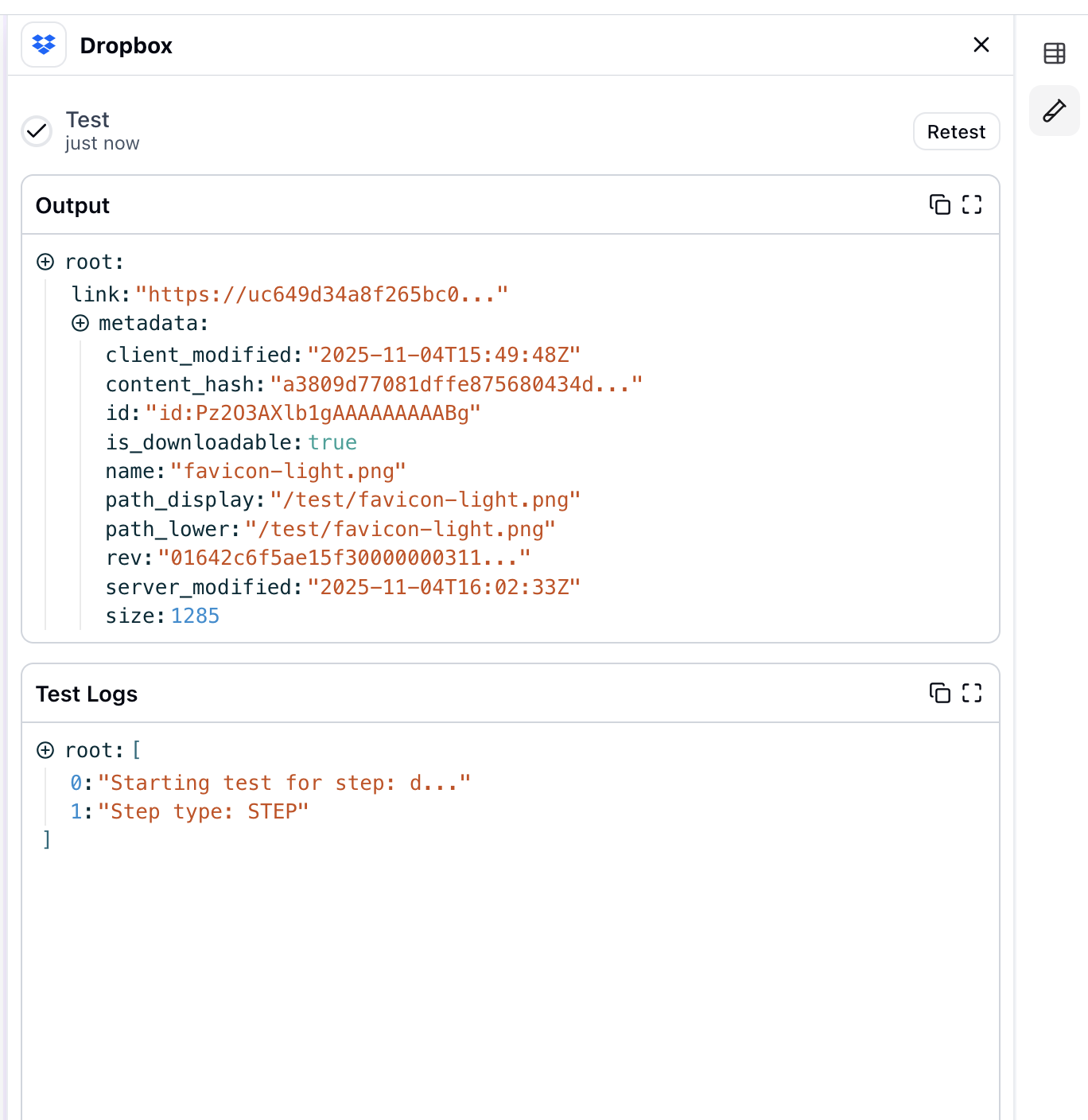
The generated link can be used to share files with team members, customers, or integrated into other applications like email notifications or Slack messages.
Additional Resources
Last updated on