Zoho CRM Integration
The Zoho CRM integration connects your Zoho CRM account to Wakflo, allowing you to automate customer relationship management, sales processes, and data synchronization.
Authentication Method
OAuth 2.0
Account Requirements
Active Zoho CRM account
Permissions Required
Admin or API access
Available Triggers & Actions
Zoho CRM Triggers
Record Triggers
- •
New Record Created: Triggered when a new record is created
- •
Record Updated: Triggered when a record information changes
Zoho CRM Actions
Record Actions
- •
Get Record: Retrieves a specific record from a Zoho CRM module using its ID
- •
Create Record: Add a new record to Zoho CRM
- •
Update Record: Modify existing record in a specified Zoho CRM module
- •
Delete Record: Delete a record from a specified Zoho CRM
Advanced Actions
- •
Search Records: Find records using criteria
- •
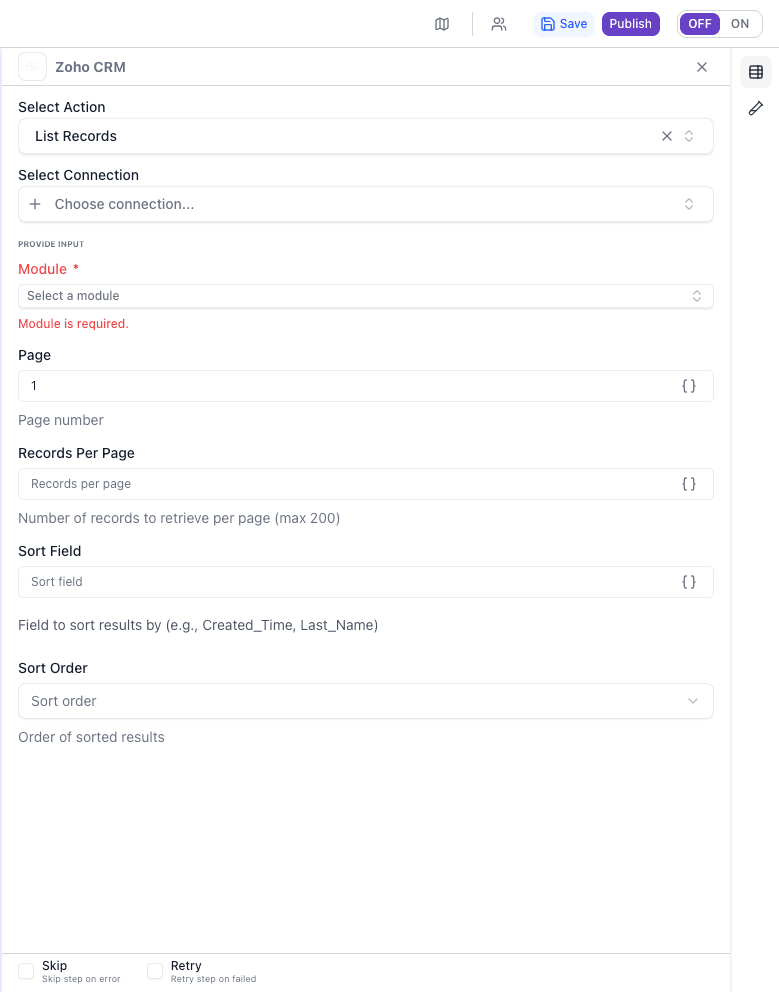
List Records: Retrieves a list of records from a specified Zoho CRM module with pagination and sorting options
Setup Guide
Connecting Zoho CRM to Wakflo
Connect to Zoho CRM
From the Integrations page, select Zoho CRM and click “Connect”
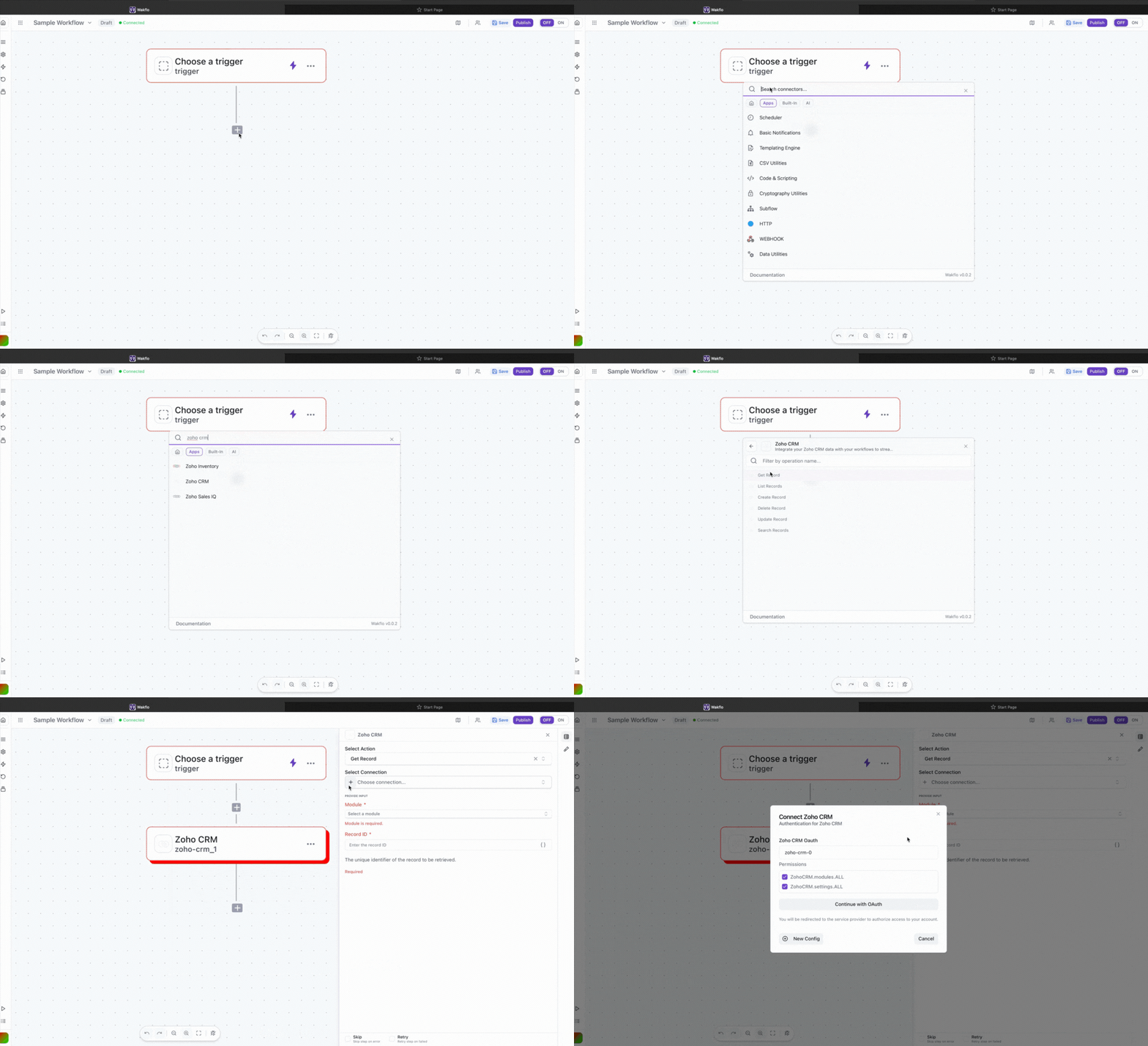
Sign in to Zoho
Log in to your Zoho account when prompted
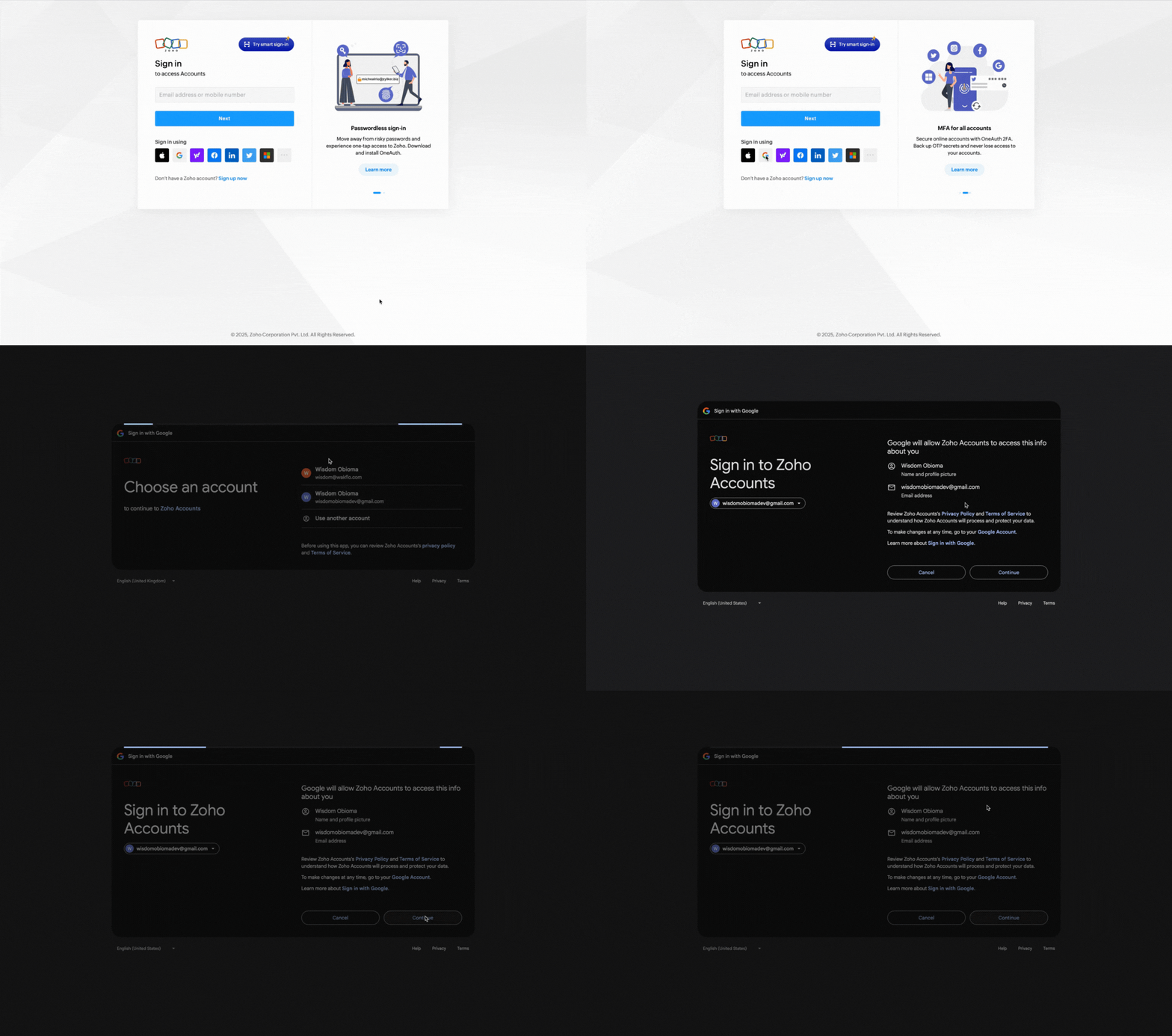
Approve Permissions
Review and grant the requested permissions for Wakflo to access your CRM data
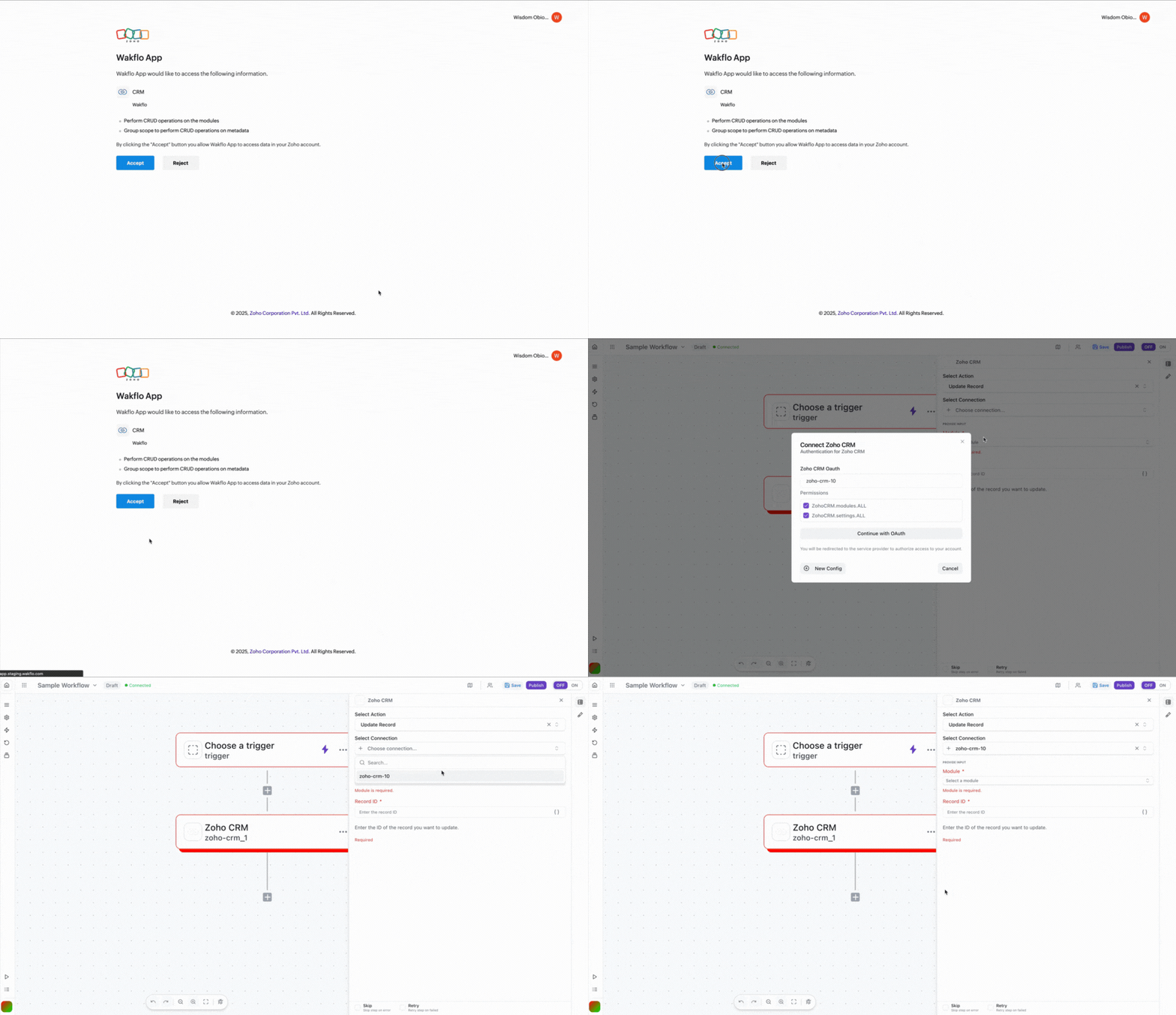
Complete Setup
Finish the connection process and start building workflows
Important: Only create one connection per Zoho CRM account. Multiple connections to the same account may cause issues with the integration.
Field Mapping
Working with Zoho CRM Records
- •Each module (Leads, Contacts, Deals, etc.) has specific required fields
- •Use the module parameter to specify which CRM module to interact with
- •Date fields should use ISO 8601 format (YYYY-MM-DD)
- •The record ID is required for Get, Update, and Delete operations
- •List Records supports pagination for handling large datasets
API Limits & Best Practices
| Limit Type | Value | Notes |
|---|---|---|
| API Calls per Day | Based on your Zoho plan | Professional: 50,000/day |
| Records per Request | 100 | For bulk operations |
| Field Limit | 50 fields per response | Can select specific fields |
Example: Executing an Action
Add your preferred node
Search for Zoho CRM and add your preferred node to your workflow
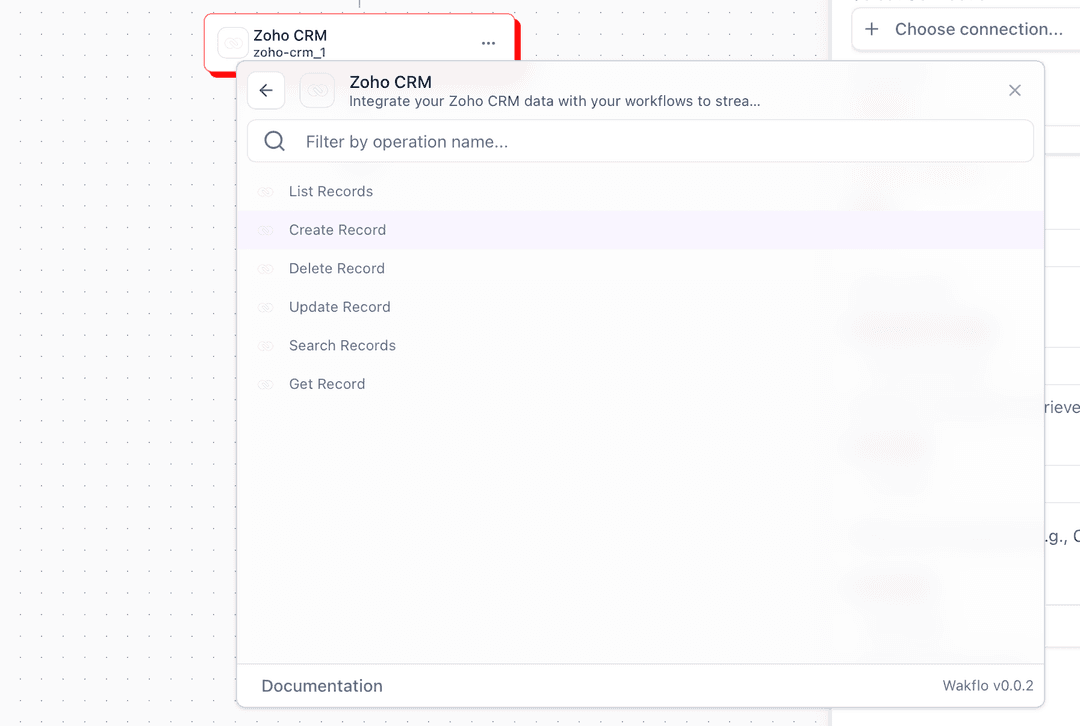
Configure connection
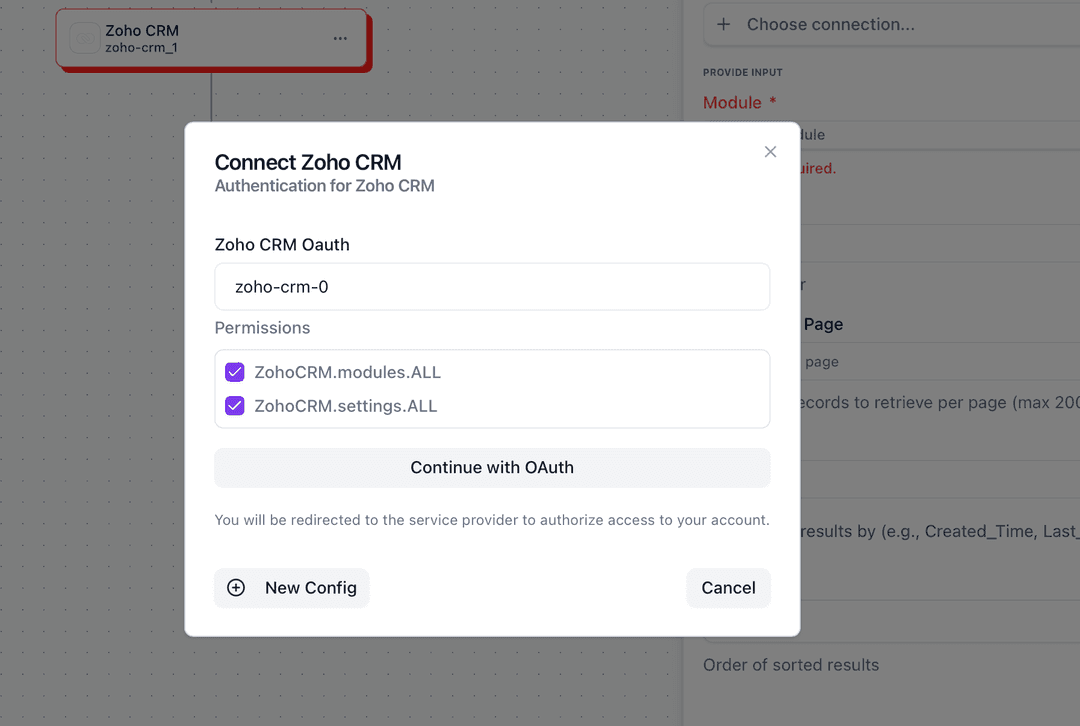
Check Required Scopes
Review the endpoint’s required scopes in the documentation
If the endpoint requires different scopes from the default ones:
- •
ZohoCRM.settings.ALL - •
ZohoCRM.modules.ALL
You'll need to create a new connection with the specific required scopes.
Configure the Node
Set up the node configuration
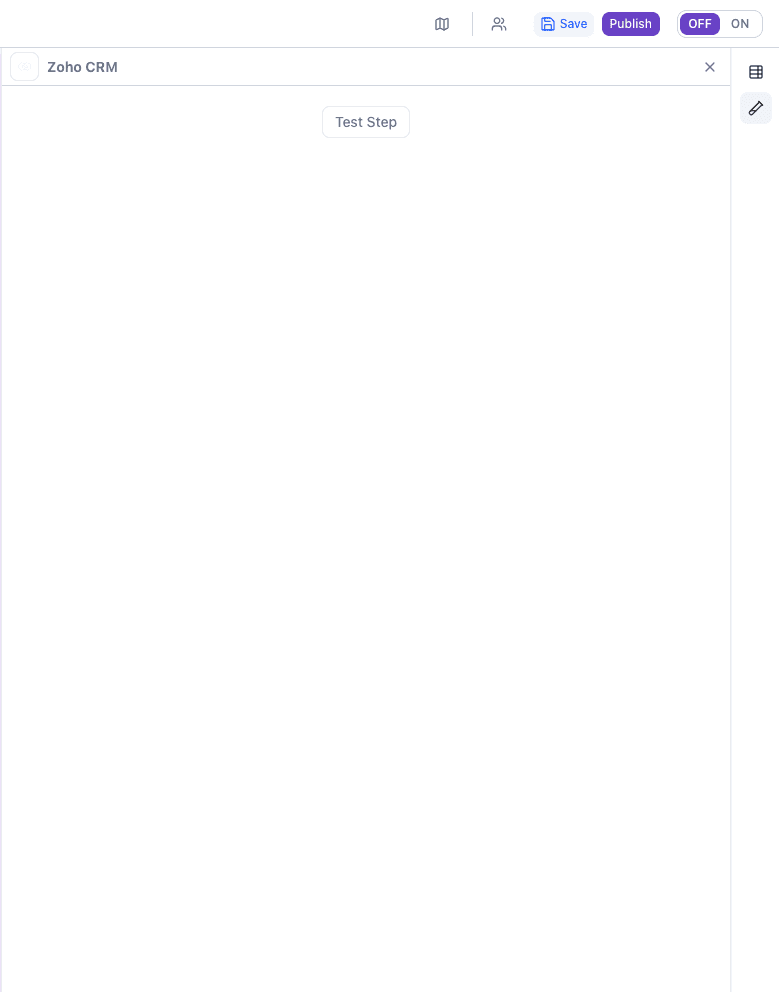
Execute and Test
To test operation, click on “Test Step” and execute the scenario
Rate Limits: Be aware of Zoho CRM API rate limits when using custom API calls. Excessive requests may result in temporary API restrictions.
Troubleshooting
Cannot read property ‘__itemId’ error
This error occurs when Created_time or Updated_time fields are missing. To fix:
- 1.Go to Setup → Customization → Modules and Fields
- 2.Select the affected module
- 3.Add
Created_timeandUpdated_timefields
Authentication Issues
- •Ensure you have only one active connection
- •Check that your Zoho account has API access enabled
- •Verify the OAuth scopes match your intended operations
- •For custom apps, use redirect URI:
https://api.staging.wakflo.com/auth/callback/oauth2
Missing Data in Responses
- •The API returns maximum 50 fields by default
- •Select specific fields needed (max 47 custom fields)
- •Object ID, Created Time, and Modified Time are always included