Google Mail Integration
Connect your Gmail account to Wakflo and automate email management, document extraction, and communication workflows. Build powerful integrations that streamline your inbox.
Authentication
OAuth 2.0
Features
7 Actions
Available Actions
Google Mail Actions
Available Actions
Available Actions
Email Reading
- •Extract Document from Email: Extract attachments and documents from email messages
- •Extract Email Text: Extract and parse text content from emails
- •Get Mail: Retrieve a specific email message
- •Get Thread: Retrieve an email thread with all its messages
- •List Mails: Retrieve all emails from your Gmail account
Email Sending
- •Send Email: Send a new email message
- •Send Email Template: Send an email using a predefined template
Setup Guide
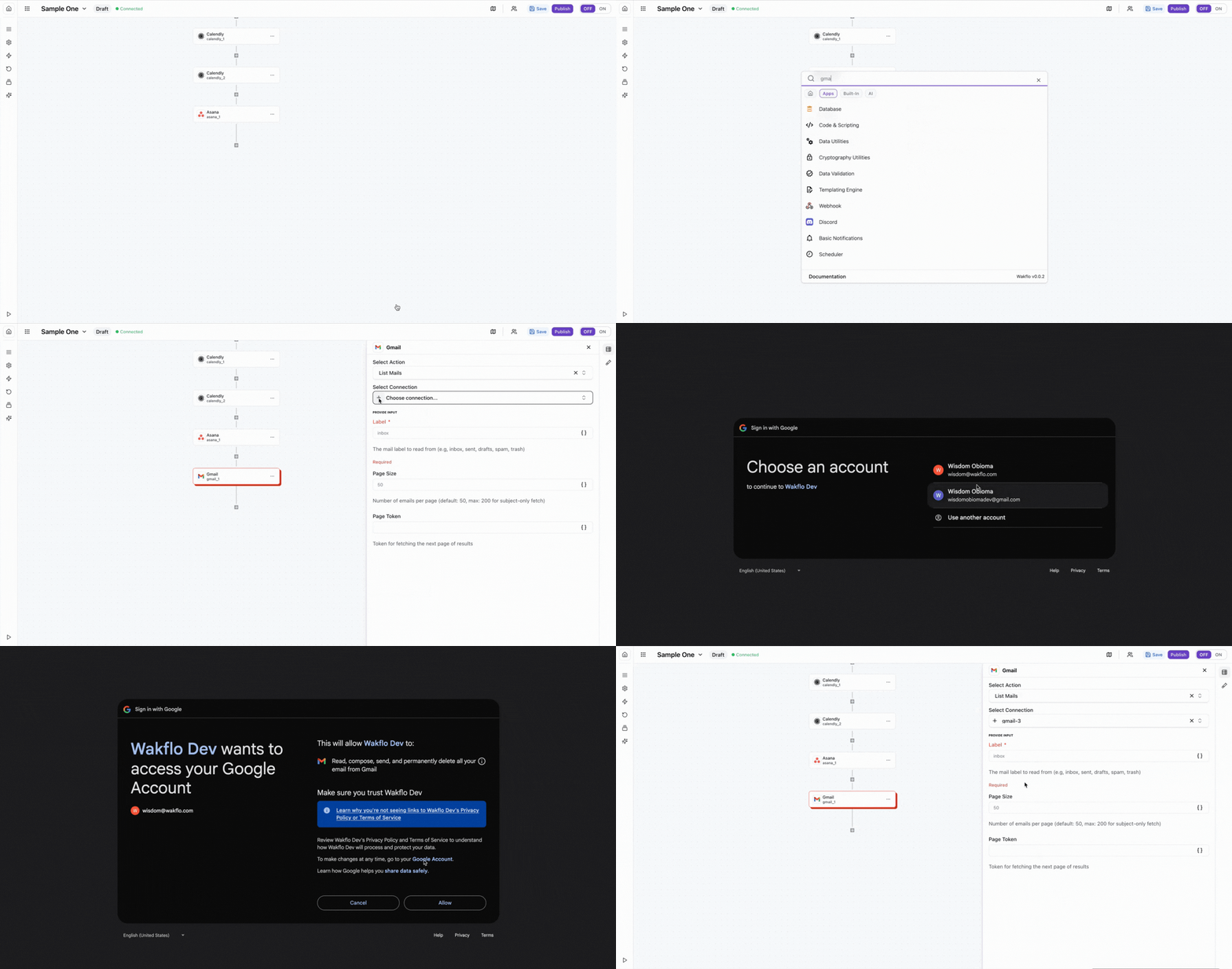
Connect to Wakflo
In Wakflo, select Google Mail integration and complete the OAuth authorization flow to connect your Gmail account.
The integration uses OAuth 2.0 for secure authentication. Make sure to grant the required permissions for reading and sending emails during the authorization process.
Test Connection
Verify the connection by retrieving test data to ensure everything is working properly.
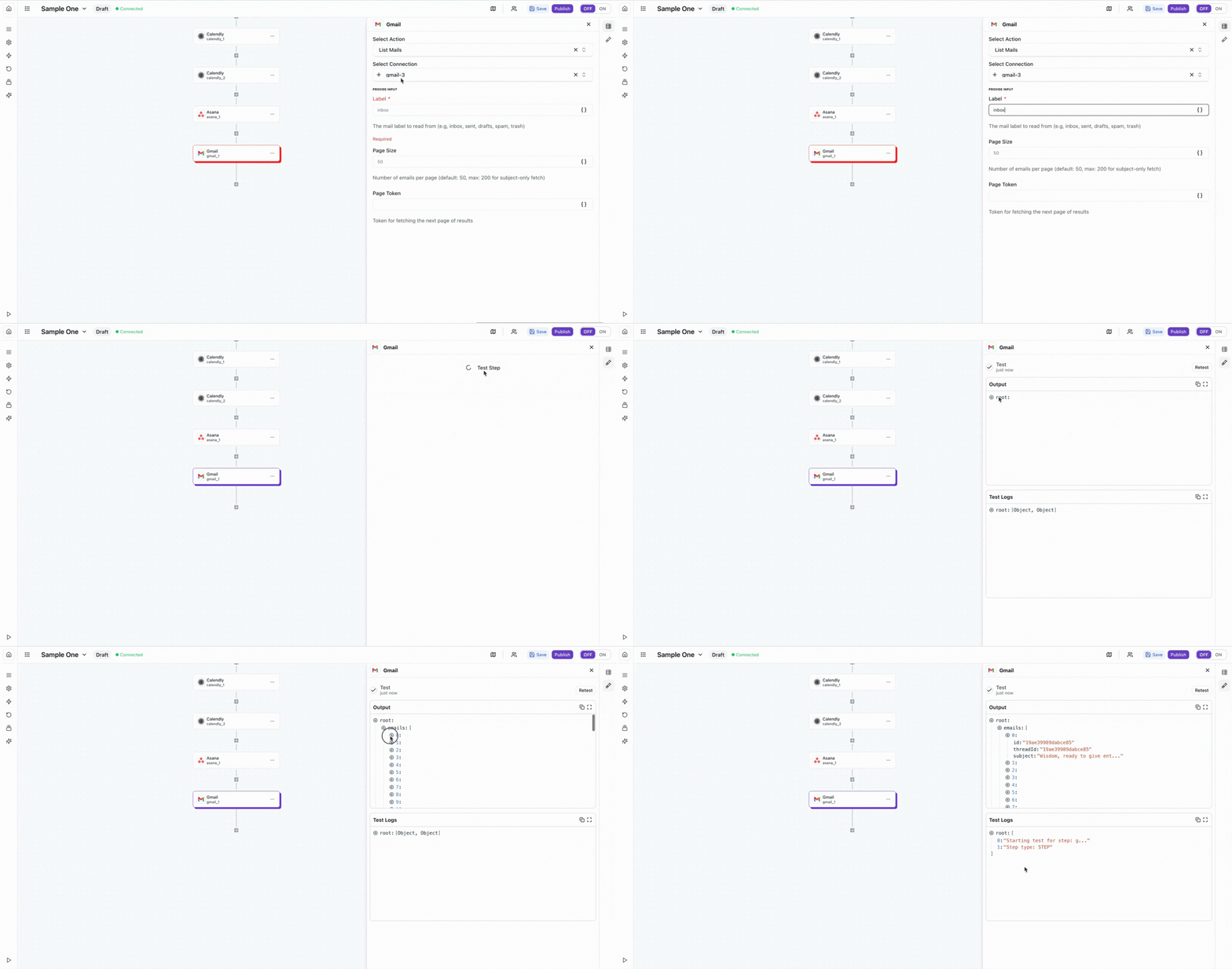
The Google Mail integration uses OAuth 2.0 for secure authentication. You can connect directly using Wakflo's existing integration. Only set up your own Google Cloud project and configure Gmail API scopes if you need a custom connection.
Best Practices
Working with Gmail Data
- •Use filters and labels to organize automated email processing
- •Extract attachments selectively to optimize storage and processing time
- •Implement rate limiting when processing large volumes of emails
- •Use templates for consistent email formatting and branding
- •Keep your OAuth credentials secure and refresh tokens regularly
Troubleshooting
Authentication Issues
- •Verify that the Gmail API is enabled in your Google Cloud project
- •Ensure OAuth scopes include read and send permissions
- •Check that your OAuth consent screen is properly configured
Email Operations Issues
- •Ensure email IDs and thread IDs are correctly formatted
- •Verify that recipient email addresses are valid
- •Check attachment sizes don't exceed Gmail's limits (25MB)
Rate Limiting
- •Gmail API enforces quota limits based on your project tier
- •Implement delays between bulk email operations
- •Monitor your API usage in the Google Cloud Console
Additional Resources
Last updated on