Google Docs Integration
Automate document creation and management with Google Docs. Generate reports, templates, and documentation programmatically, search and read documents, and streamline your content workflows.
OAuth 2.0
Secure Google authentication
Full Access
Create, read, and update docs
Template Support
Dynamic document generation
Requirements
- •Active Google account (personal or Google Workspace)
- •Appropriate document permissions for the documents you want to access
Available Actions
Automate document operations through your workflows with these actions.
Document Actions
Document Operations
- •Create Document: Create a new Google Doc with specified content and formatting
- •Append Text to Document: Add text content to an existing document
Search Actions
Search and Read Operations
- •Find Document: Search for documents by name or other criteria
- •Read Document: Retrieve the content of a specific Google Doc
Setup Guide
Follow these steps to connect your Google Docs to Wakflo and start automating.
Connect to Google Docs
From the Integrations page, select Google Docs and click 'Connect'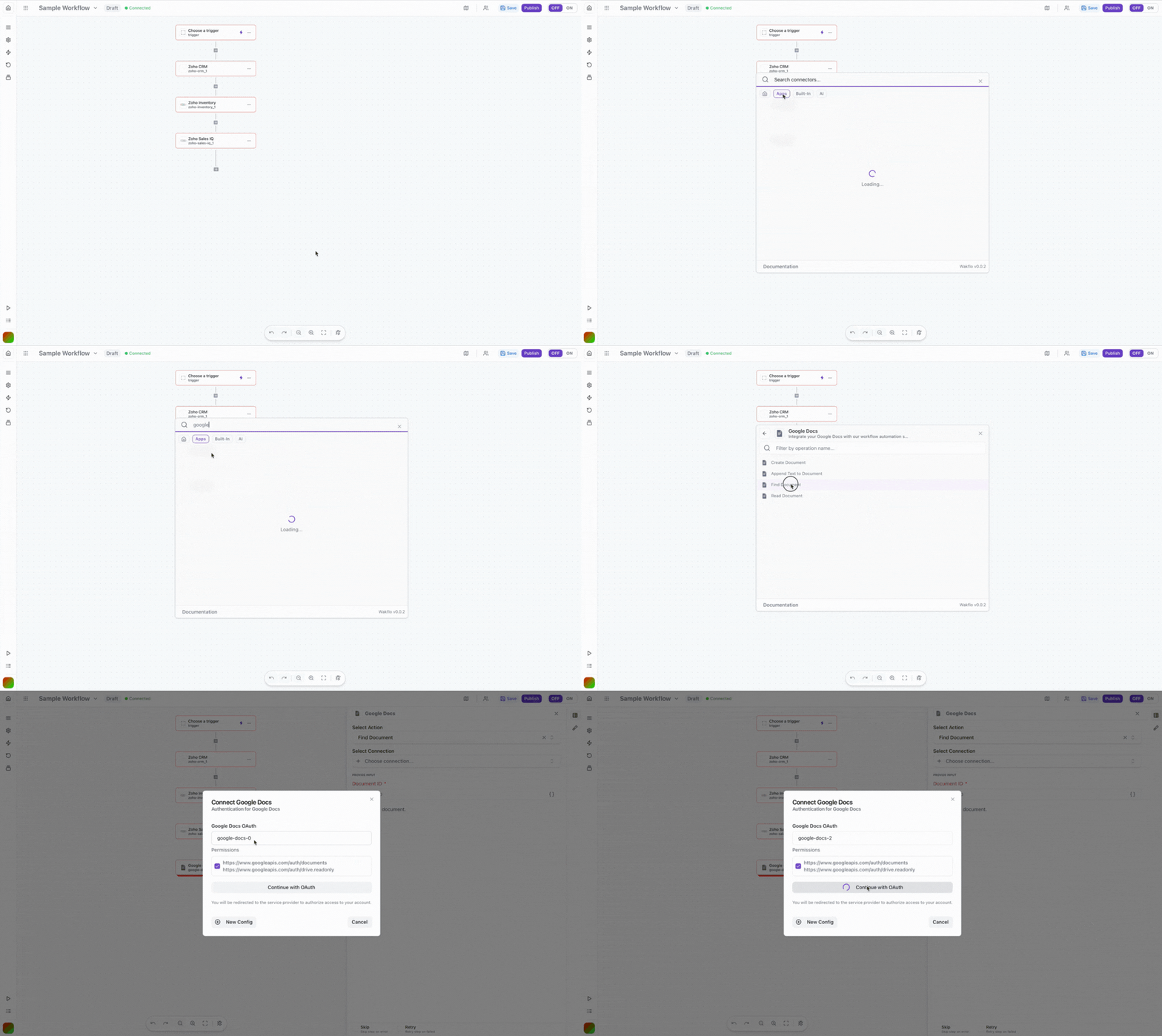
Sign in to Google
Log in to your Google account when prompted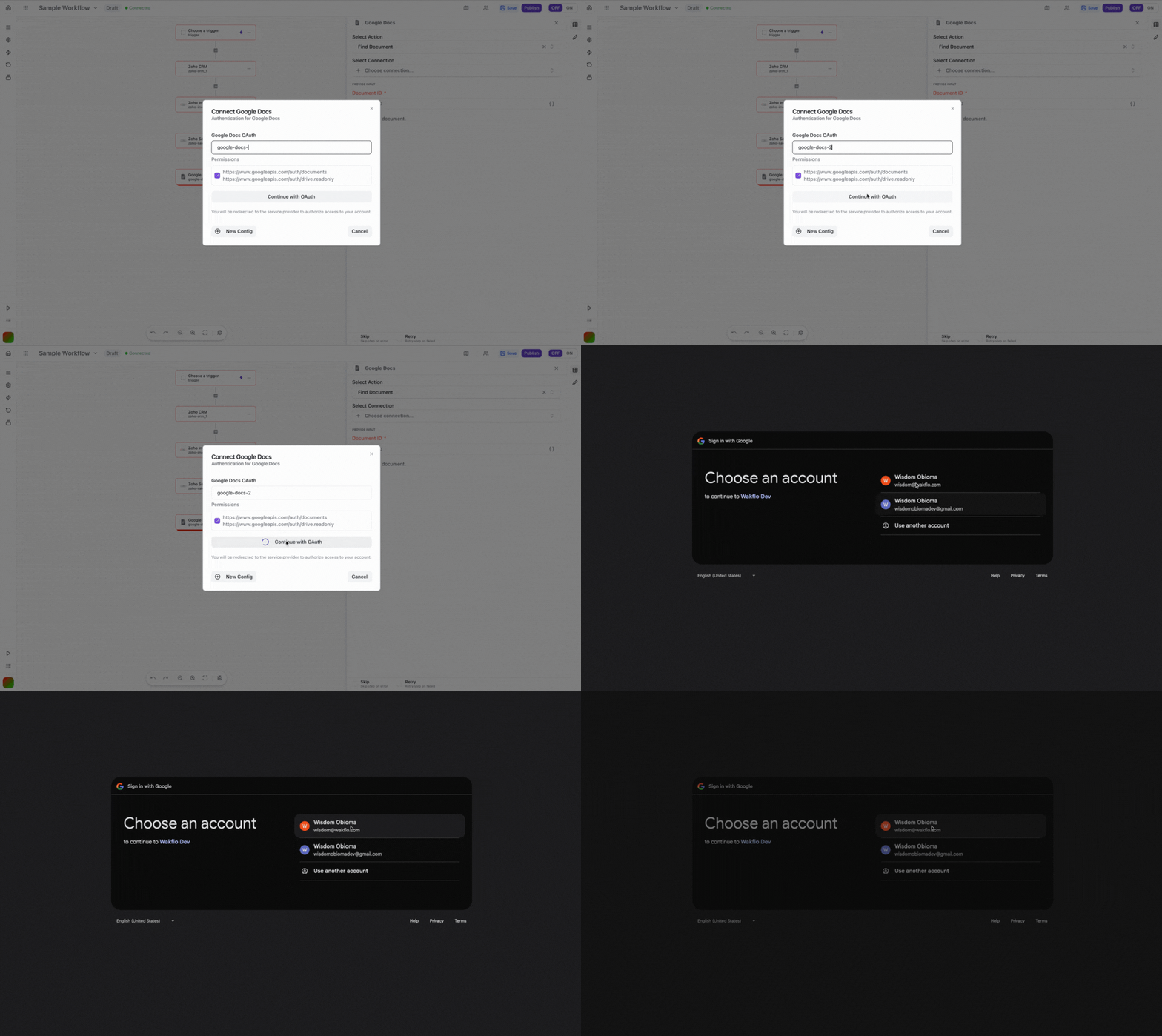
Approve Permissions
Review and grant the requested permissions for Wakflo to access your Google Docs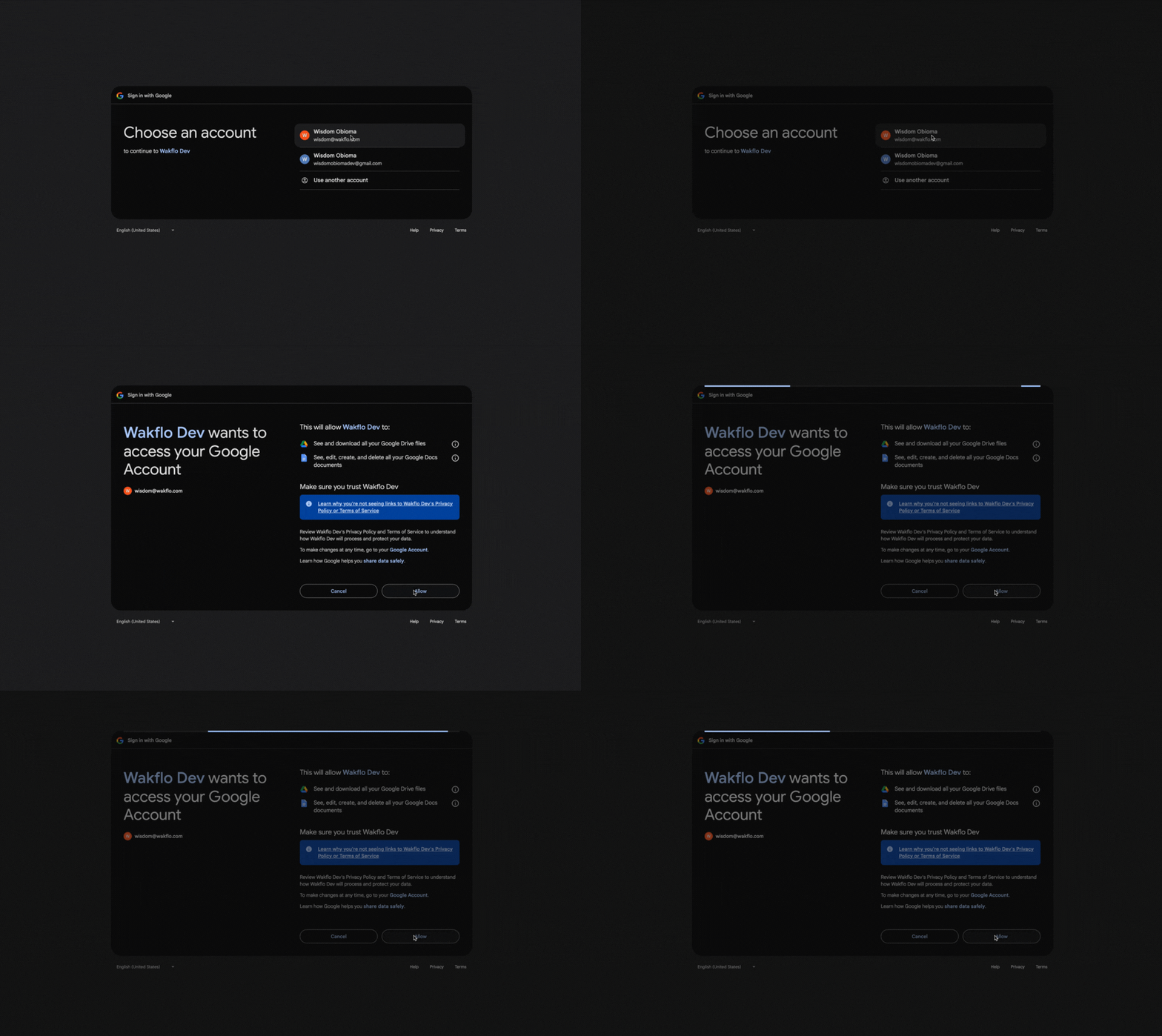
Complete Setup
Finish the connection process and start building document automation workflows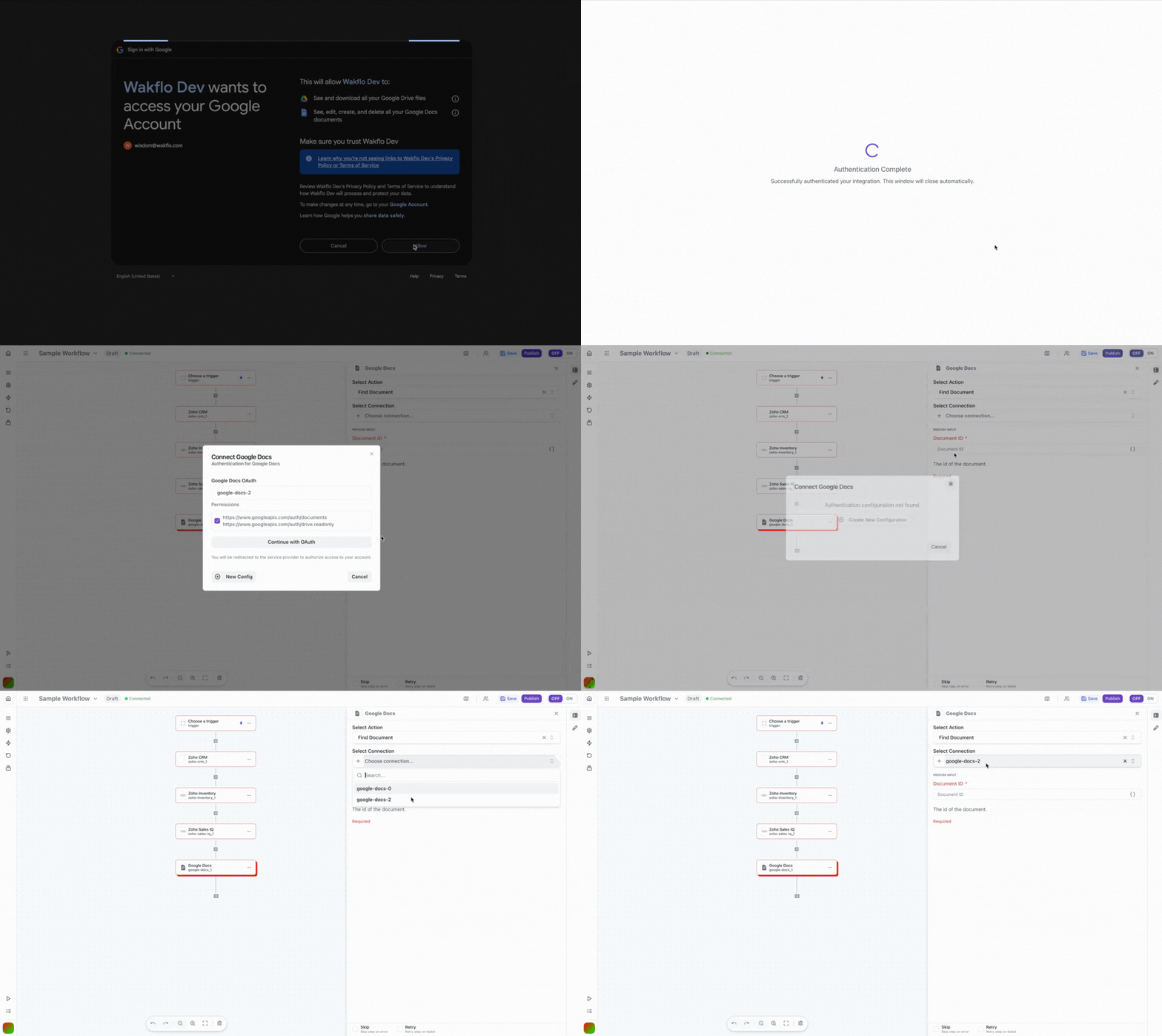
Tip: You can connect multiple Google accounts if you need to work with documents across different workspaces. Each connection will be listed separately in your integrations.
Action Parameters
Create Document
Creates a new Google Doc in your Google Drive.
Parameters:
- •
title(required): The name of the new document - •
content(optional): Initial text content for the document - •
folder(optional): Drive folder ID where the document should be created
Returns:
- →Document ID, URL, and created timestamp
Use template placeholders like
{{ variable}} in your content to create dynamic documents that can be populated with data from other workflow steps.Other Actions
For detailed parameters of other actions (Append Text, Find Document, Read Document), refer to the action configuration in the workflow builder. Each action provides inline help and examples.
Field Mapping
When working with Google Docs:
• Document IDs are found in the document URL after
/d/
• Content can include basic HTML formatting tags
• Large documents may take longer to process
• Shared documents require appropriate permissionsAPI Limits & Best Practices
| Limit Type | Value | Notes |
|---|---|---|
| Requests per minute | 60 | Per user per project |
| Document size | 50 MB | Maximum document size |
| Batch operations | 100 requests | For bulk updates |
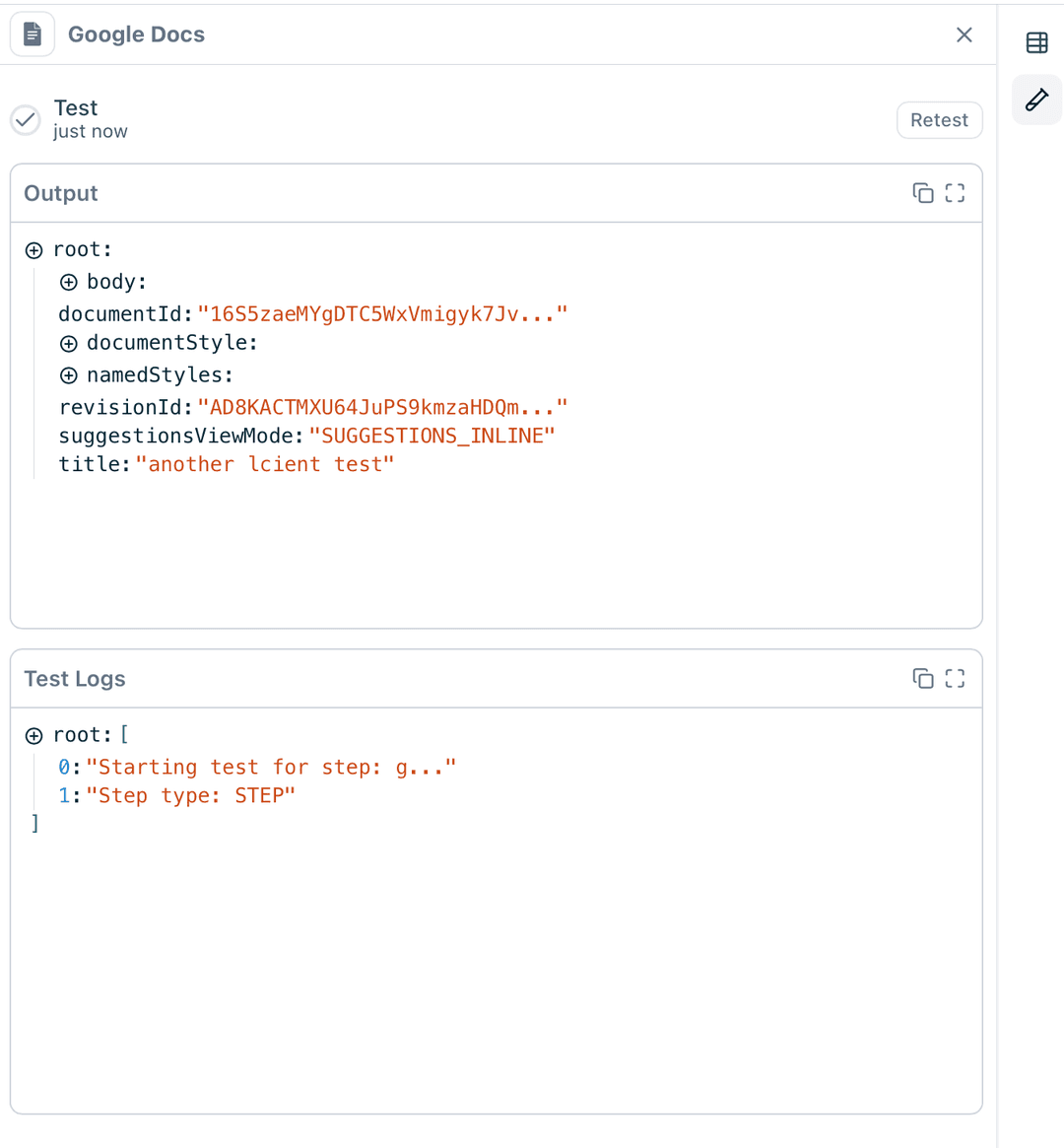
Example Workflow: Find Document
Here's a practical example showing how to search for and retrieve a document in your workflow.
Add Google Docs node
Search for Google Docs and add the 'Create Document' action to your workflow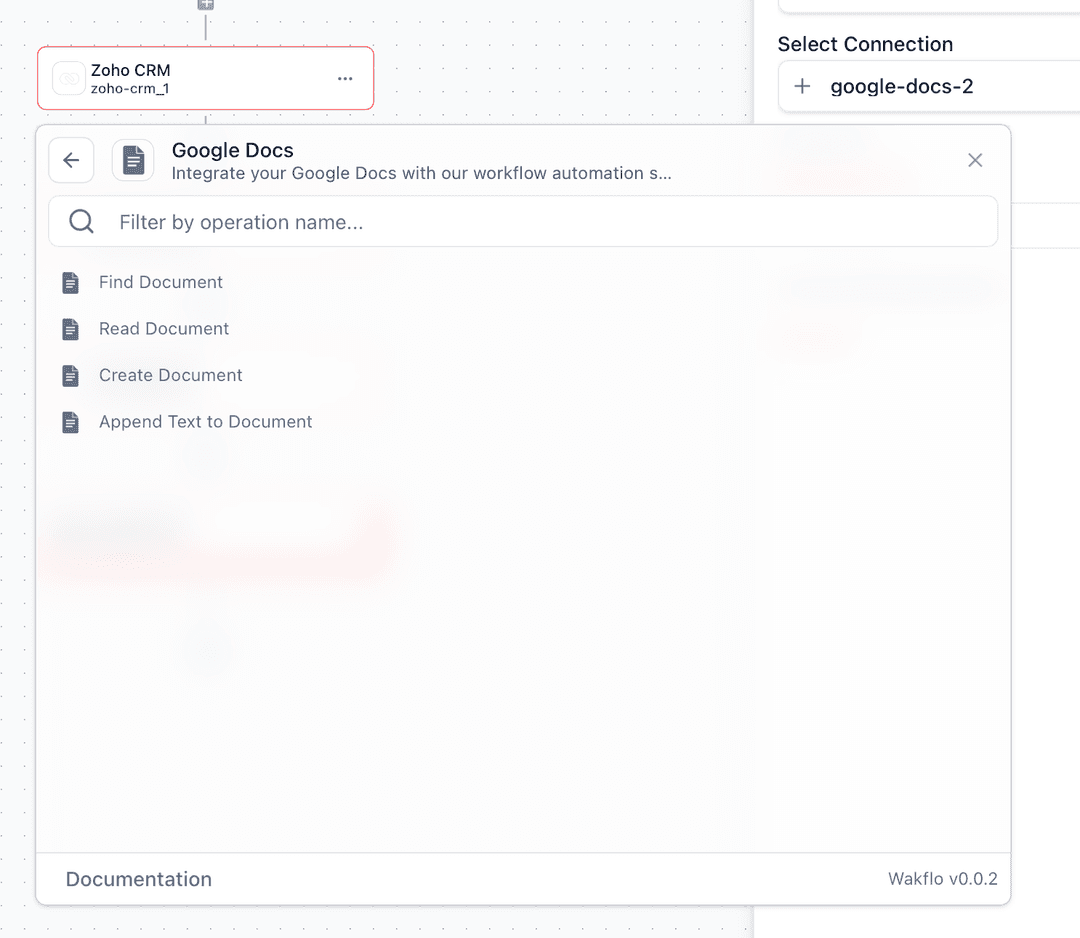
Configure connection
Select or create a new Google Docs connection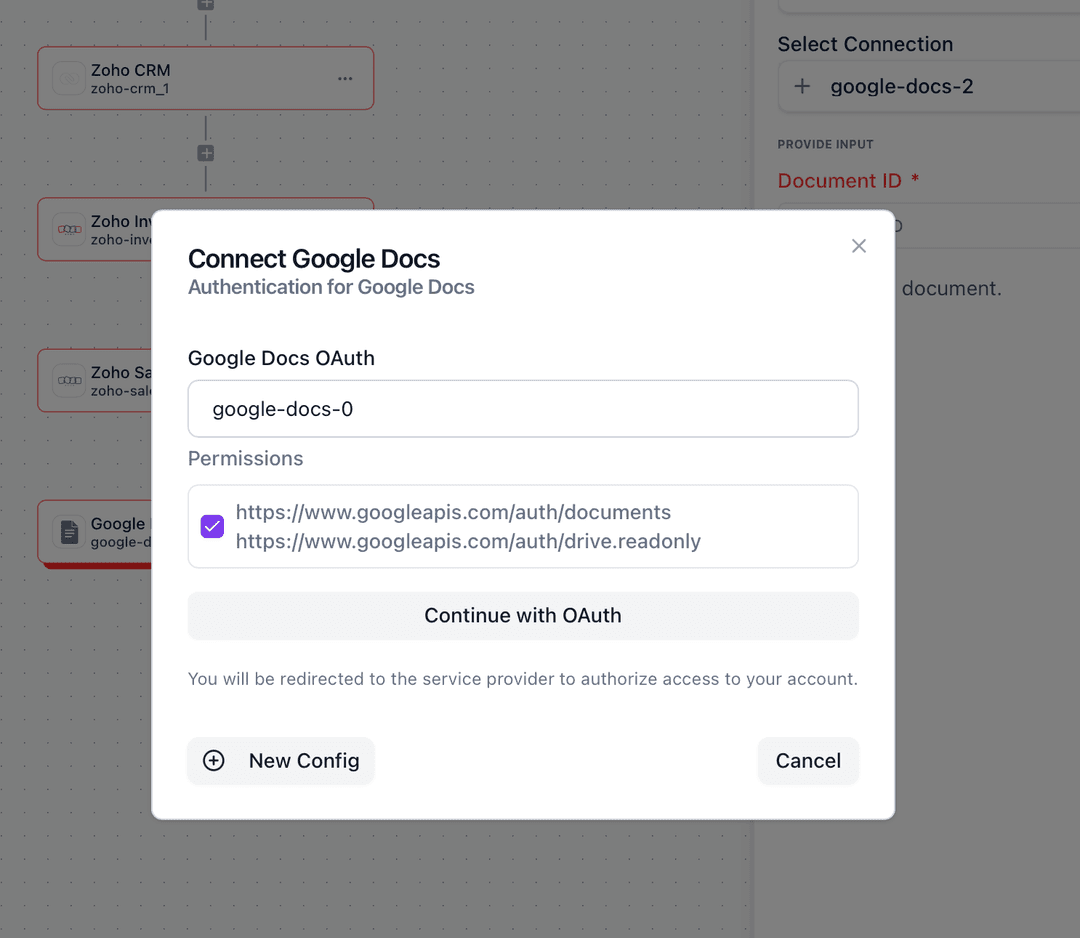
Set document parameters
Pass the document ID that you want to find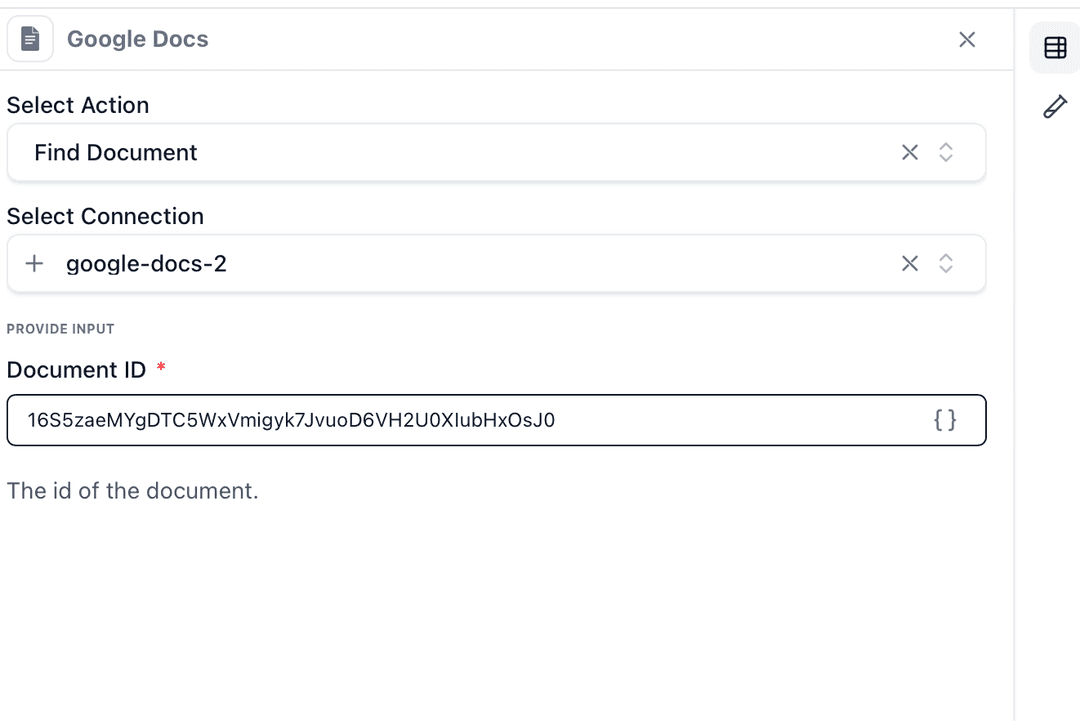
Test the action
Click 'Test Step' to find a sample document and verify the output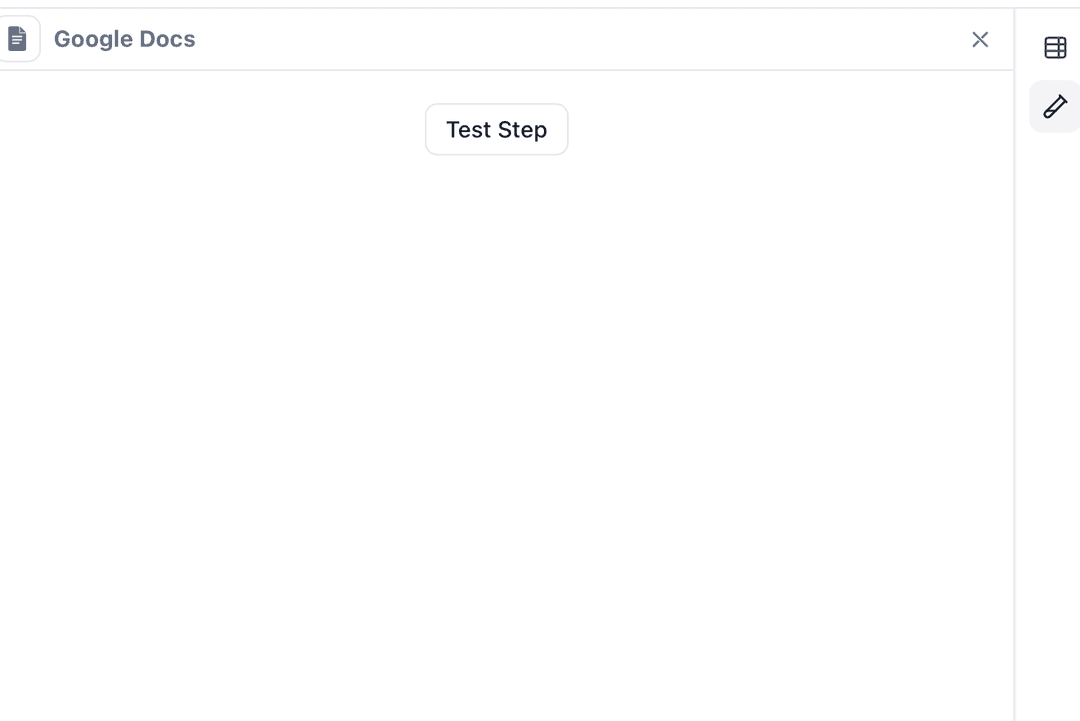
Formatting Options
When appending text, you can include basic formatting:
- •Bold:
**text**or<b>text</b> - •Italic:
*text*or<i>text</i> - •Headings: Use
#,##,###for different levels - •Lists: Use
-for bullets or1.for numbered lists
Troubleshooting
Permission Denied Errors
- •Ensure the connected Google account has access to the document
- •Check if the document is in a shared drive that requires additional permissions
- •Verify the OAuth scopes include document access permissions
- •Re-authenticate if permissions were recently changed
Document Not Found
- •Verify the document ID is correct (found in the URL after /d/)
- •Ensure the document hasn't been deleted or moved to trash
- •Check if the document is in a different Google account
- •Use Find Document action to search by name if ID is unknown
Rate Limiting Issues
- •Implement delays between requests in high-volume workflows
- •Use batch operations when possible
- •Consider spreading operations across multiple time periods
- •Monitor your API quota usage in Google Cloud Console
Additional Resources
Last updated on