SurveyMonkey Integration
Connect your SurveyMonkey account to Wakflo and automate survey response management, contact list operations, and feedback workflows. Build powerful integrations to streamline your survey data collection and analysis.
Authentication
OAuth 2.0
Features
1 Trigger • 1 Action
Available Triggers
SurveyMonkey Triggers
Response Triggers
Response Triggers
- •New Response: Triggered when a new survey response is submitted
Available Actions
SurveyMonkey Actions
Contact Actions
Contact Actions
- •Create Contact List: Create a new contact list in your SurveyMonkey account
Setup Guide
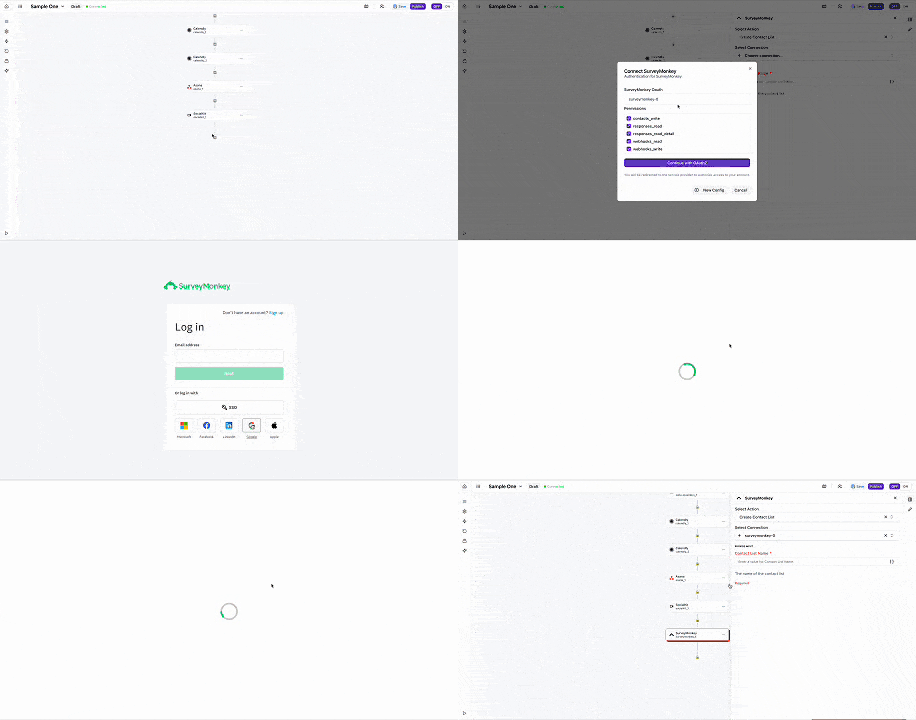
Connect to Wakflo
In Wakflo, select SurveyMonkey integration and complete the OAuth authorization flow. You'll be redirected to SurveyMonkey to authorize access.
If you don't have a SurveyMonkey app yet, you'll need to register one at developer.surveymonkey.com before connecting.
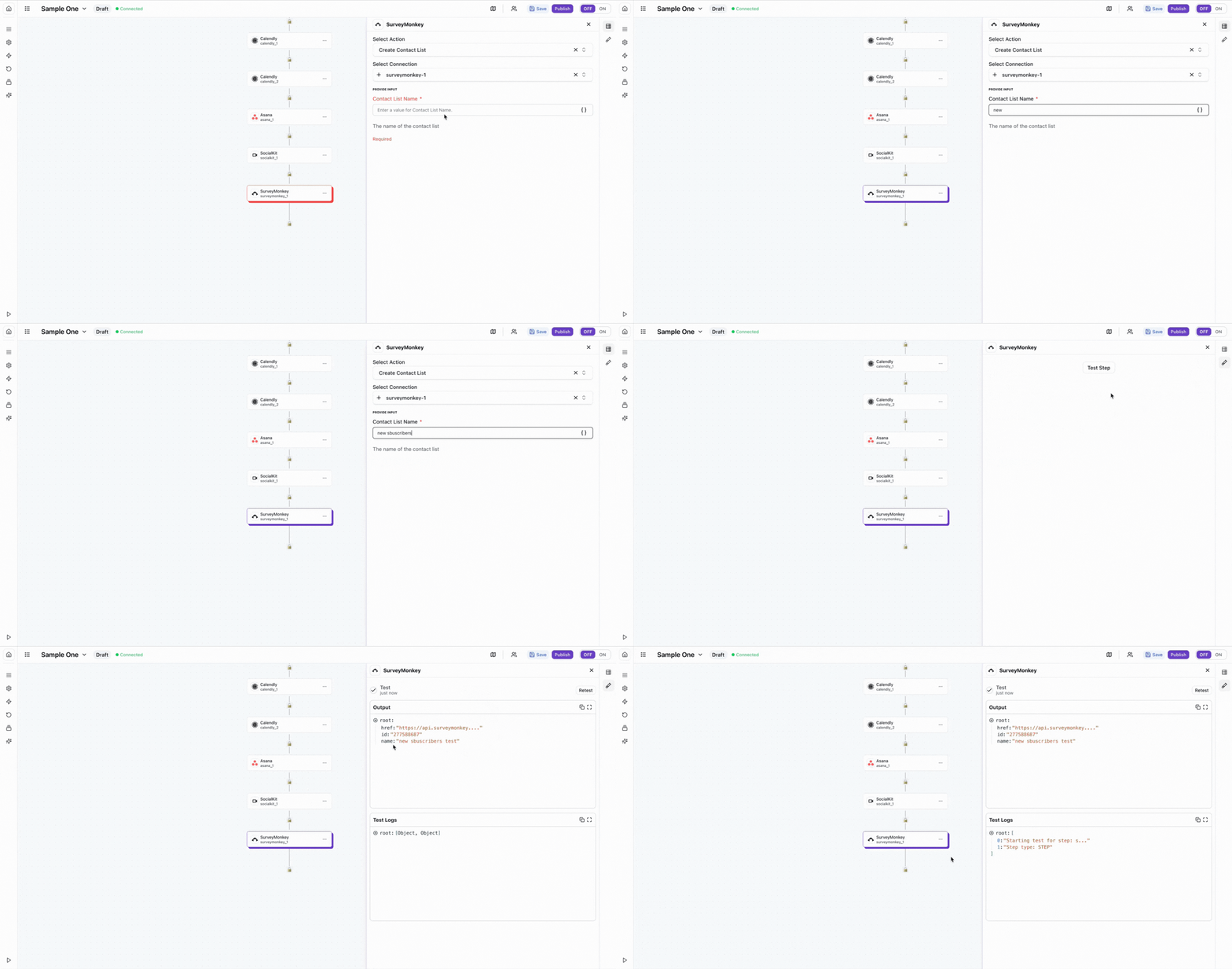
Test Connection
Verify the connection by retrieving test data to ensure everything is working properly.
The SurveyMonkey integration uses OAuth 2.0 for secure authentication. Make sure your app has the appropriate scopes for accessing surveys and responses.
Best Practices
Survey Response Management Best Practices
- •Set up webhooks for real-time response notifications instead of polling
- •Handle partial responses gracefully - not all respondents complete surveys
- •Implement data validation to ensure response data meets your quality standards
- •Store response metadata (timestamps, IP addresses) for audit trails
- •Respect API rate limits - SurveyMonkey has different limits per plan tier
- •Use bulk operations when possible to reduce API calls and improve efficiency
- •Implement proper error handling for expired tokens and refresh them automatically
- •Consider data privacy regulations (GDPR, CCPA) when handling survey responses
Troubleshooting
Authentication Issues
- •Verify that your OAuth credentials (Client ID and Client Secret) are correct
- •Ensure your redirect URI matches exactly what's configured in your SurveyMonkey app
- •Check if your access token has expired and needs to be refreshed
- •Verify that your SurveyMonkey account has API access enabled
Permission and Scope Issues
- •Ensure your app has requested the correct OAuth scopes (view_surveys, view_responses, create_modify_contacts)
- •Some operations require higher-tier SurveyMonkey plans - verify your account level
- •If you added new scopes, users need to re-authorize the connection
Response Trigger Not Firing
- •Verify that the survey is active and accepting responses
- •Check webhook configuration if using webhooks for triggers
- •Ensure your workflow is properly configured and activated
- •Test with a sample response to verify the trigger is working
Rate Limiting
- •SurveyMonkey enforces rate limits based on your account plan (free, standard, advantage, premier)
- •Implement exponential backoff when you receive 429 (Too Many Requests) errors
- •Monitor rate limit headers in API responses to track your usage
- •Consider caching frequently accessed data to reduce API calls
Additional Resources
Last updated on