Google Sheets Integration
Automate spreadsheet operations, data management, and reporting workflows with Google Sheets. Add rows, update data, create spreadsheets programmatically, and build powerful data-driven automations.
OAuth 2.0
Secure Google authentication
Full CRUD Operations
Create, read, update data
Real-Time Updates
Instant data synchronization
Requirements
- •Active Google account (personal or Google Workspace)
- •Appropriate spreadsheet permissions for the sheets you want to access
- •Sheets API access enabled (handled automatically during setup)
Available Actions
Automate spreadsheet operations through your workflows with these comprehensive actions.
Spreadsheet Actions
Spreadsheet Management
- •Create Spreadsheet: Create a new Google Sheets spreadsheet
- •Find Worksheet: Search for a worksheet within a spreadsheet
- •Get Worksheet by ID: Retrieve a specific worksheet using its ID
- •Copy Worksheet: Duplicate an existing worksheet
Data Actions
Data Operations
- •Add Row in Worksheet: Insert a new row with data
- •Update Row in Worksheet: Modify existing row data
- •Read Row in Worksheet: Retrieve data from a specific row
- •Add Column in Worksheet: Insert a new column with headers and data
Setup Guide
Follow these steps to connect your Google Sheets to Wakflo and start automating.
Connect to Google Sheets
From the Integrations page, select Google Sheets and click 'Connect'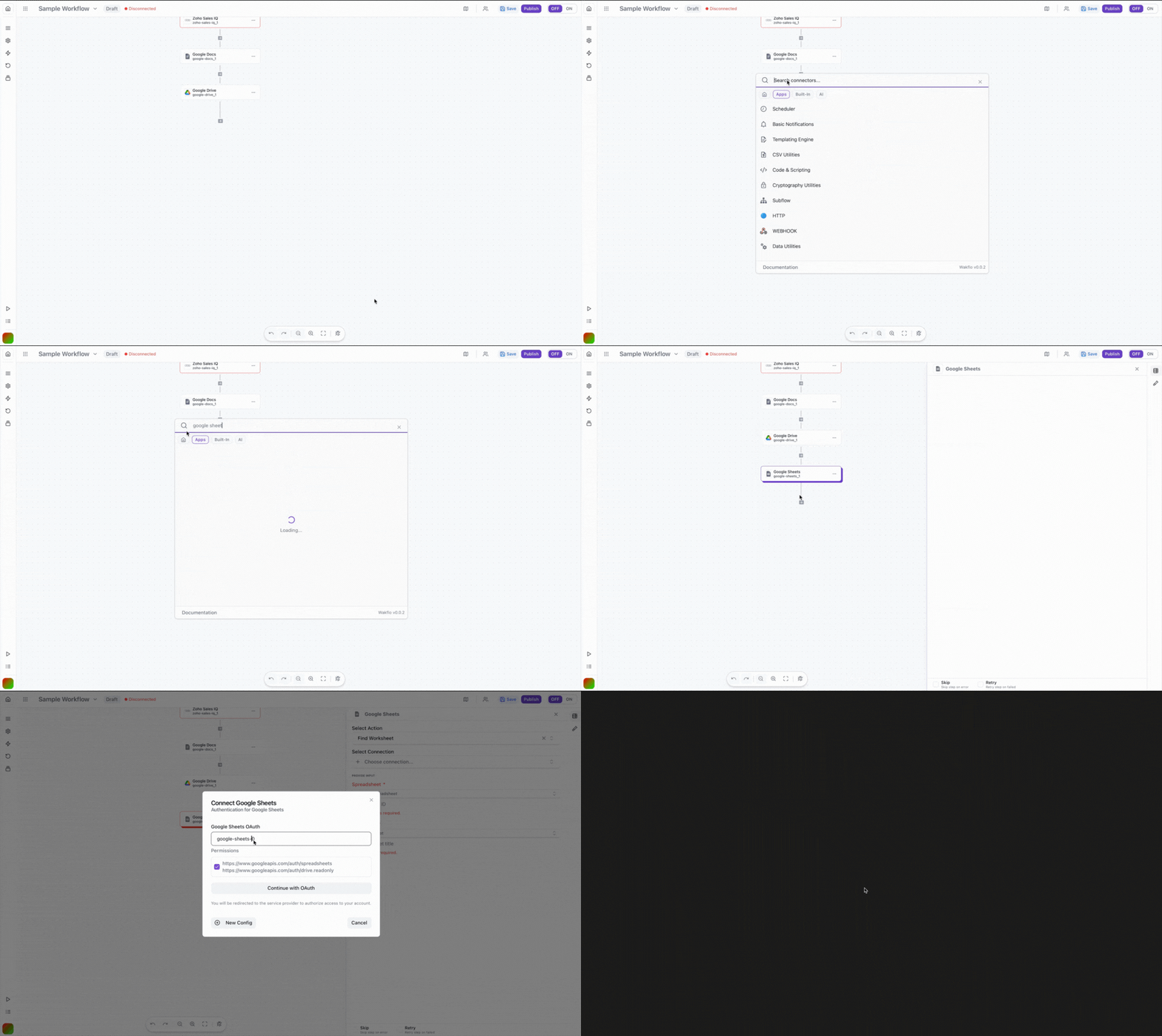
Sign in to Google
Log in to your Google account when prompted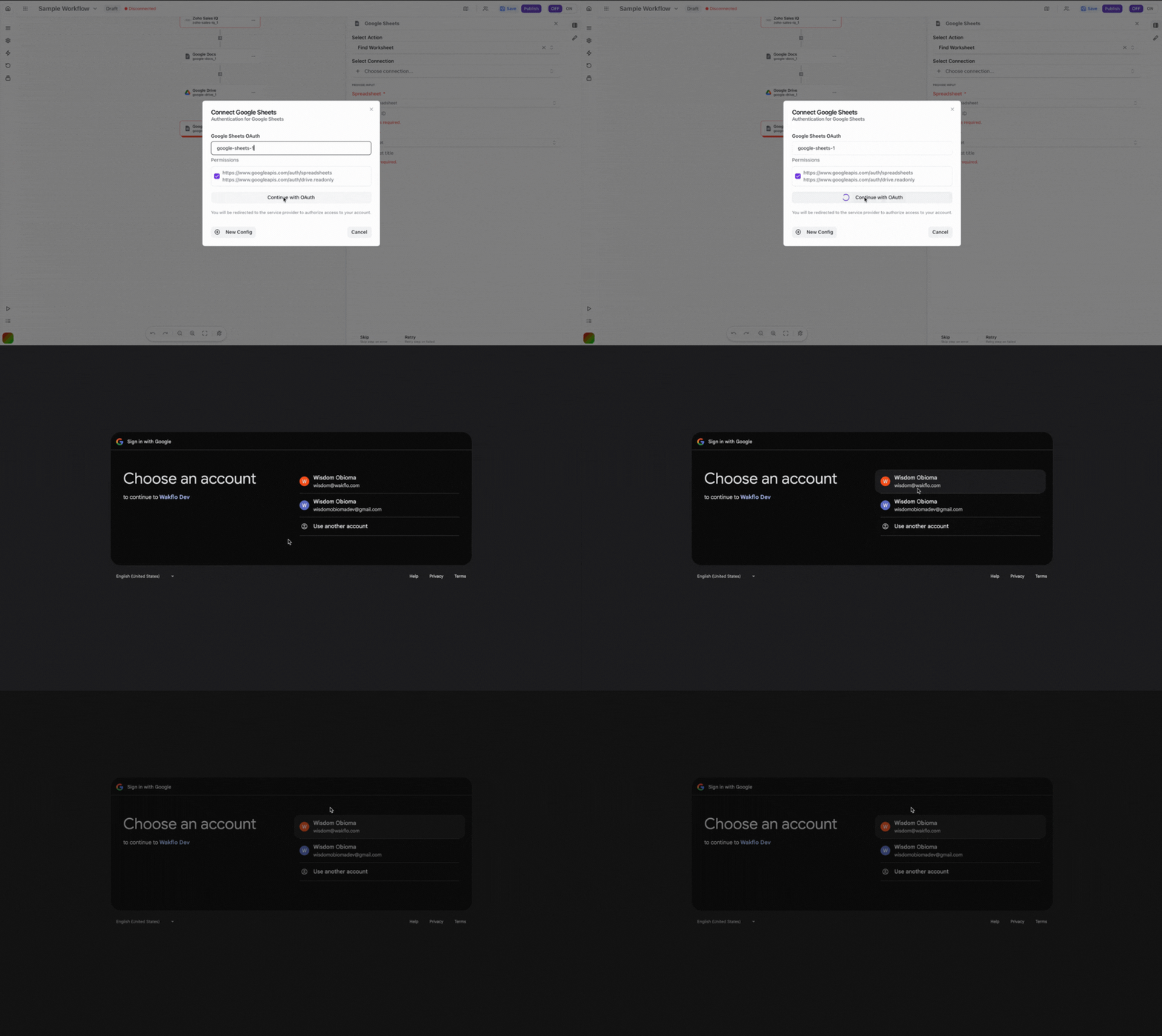
Approve Permissions
Review and grant the requested permissions for Wakflo to access your spreadsheets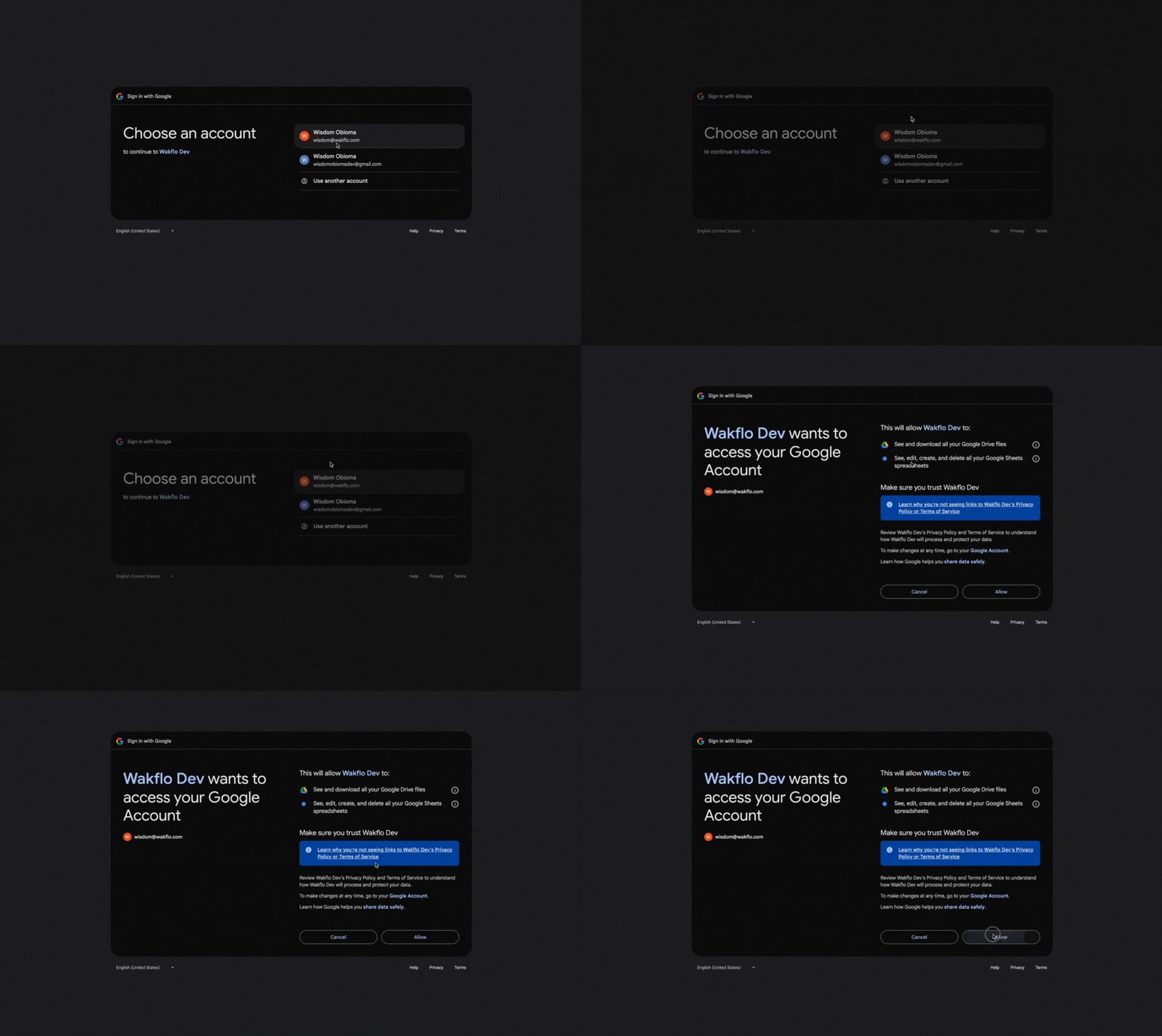
Complete Setup
Finish the connection process and start building spreadsheet automation workflows
Tip: Google Sheets uses a cell reference system (A1, B2, etc.). Understanding this notation will help you work more effectively with the integration.
Field Mapping
When working with Google Sheets:
• Spreadsheet IDs are found in the URL between
/d/ and /edit
• Row numbers start at 1 (row 1 is usually headers)
• Column letters follow Excel notation (A, B, C... AA, AB, etc.)
• Empty cells are represented as empty strings in arrays
• Date values should be in ISO format or serial numberAPI Limits & Best Practices
| Limit Type | Value | Notes |
|---|---|---|
| Read requests | 300 per minute | Per project per user |
| Write requests | 300 per minute | Per project per user |
| Cells per spreadsheet | 10 million | Total across all sheets |
| Columns per sheet | 18,278 | Column ZZZ |
Example Workflow: Find and Update Worksheet
Here's a practical example showing how to find a worksheet and work with its data.
Add Google Sheets node
Search for Google Sheets and add the 'Find Worksheet' action to your workflow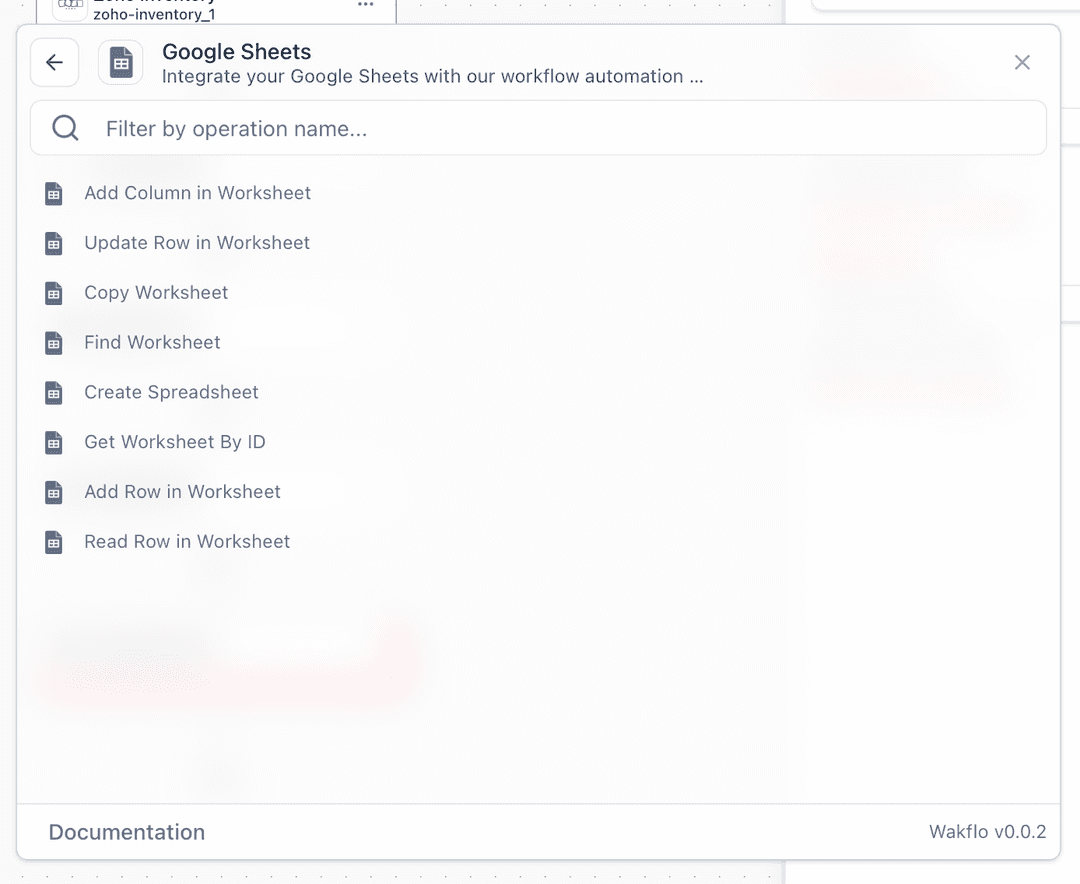
Configure connection
Select or create a Google Sheets connection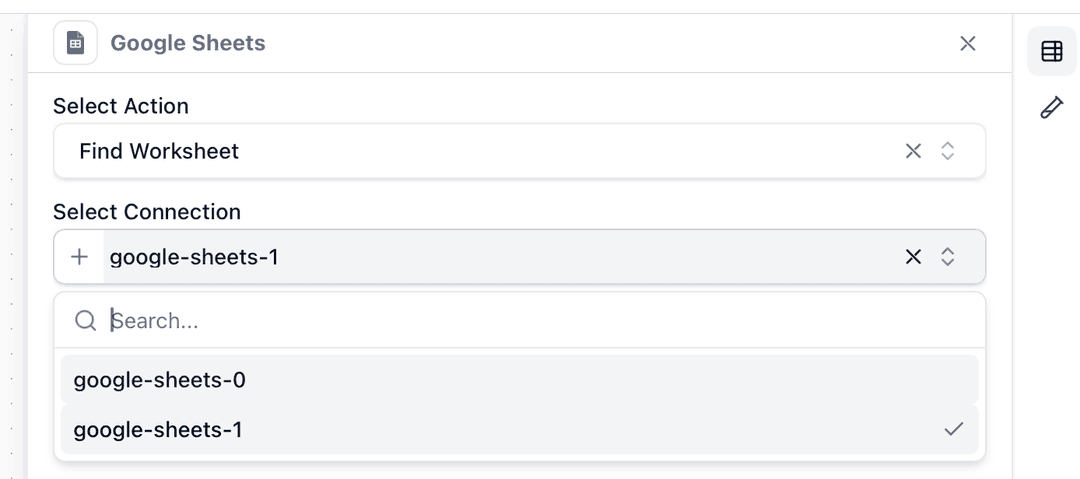
Enter search parameters
Input the spreadsheet ID and worksheet name to find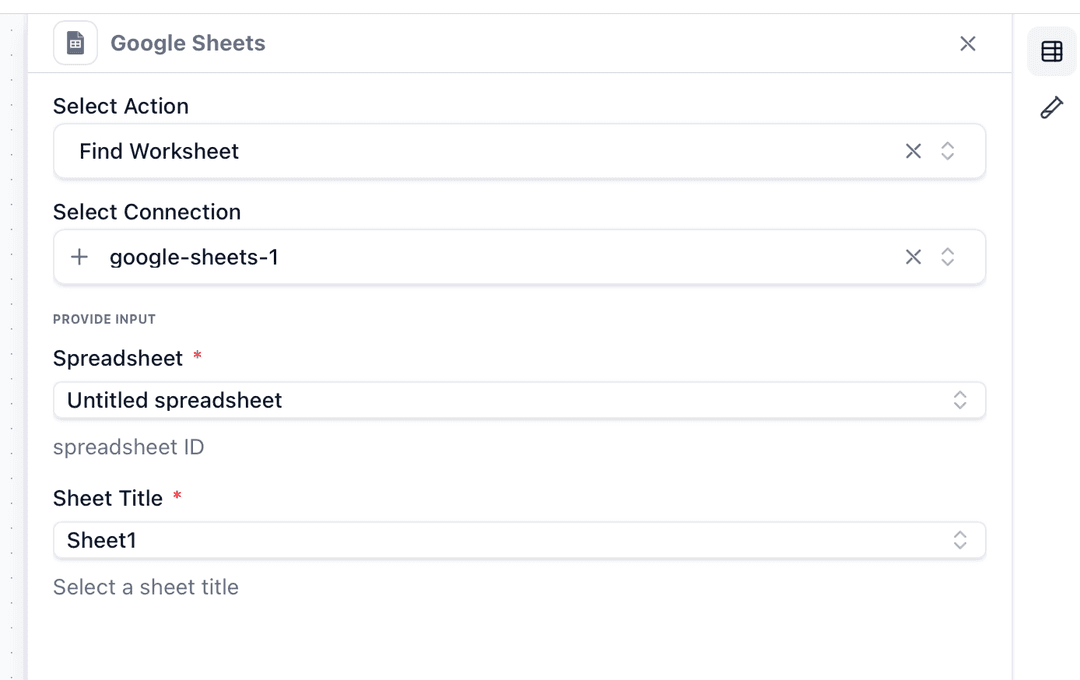
Test the action
Click 'Test Step' to search for the worksheet and verify it exists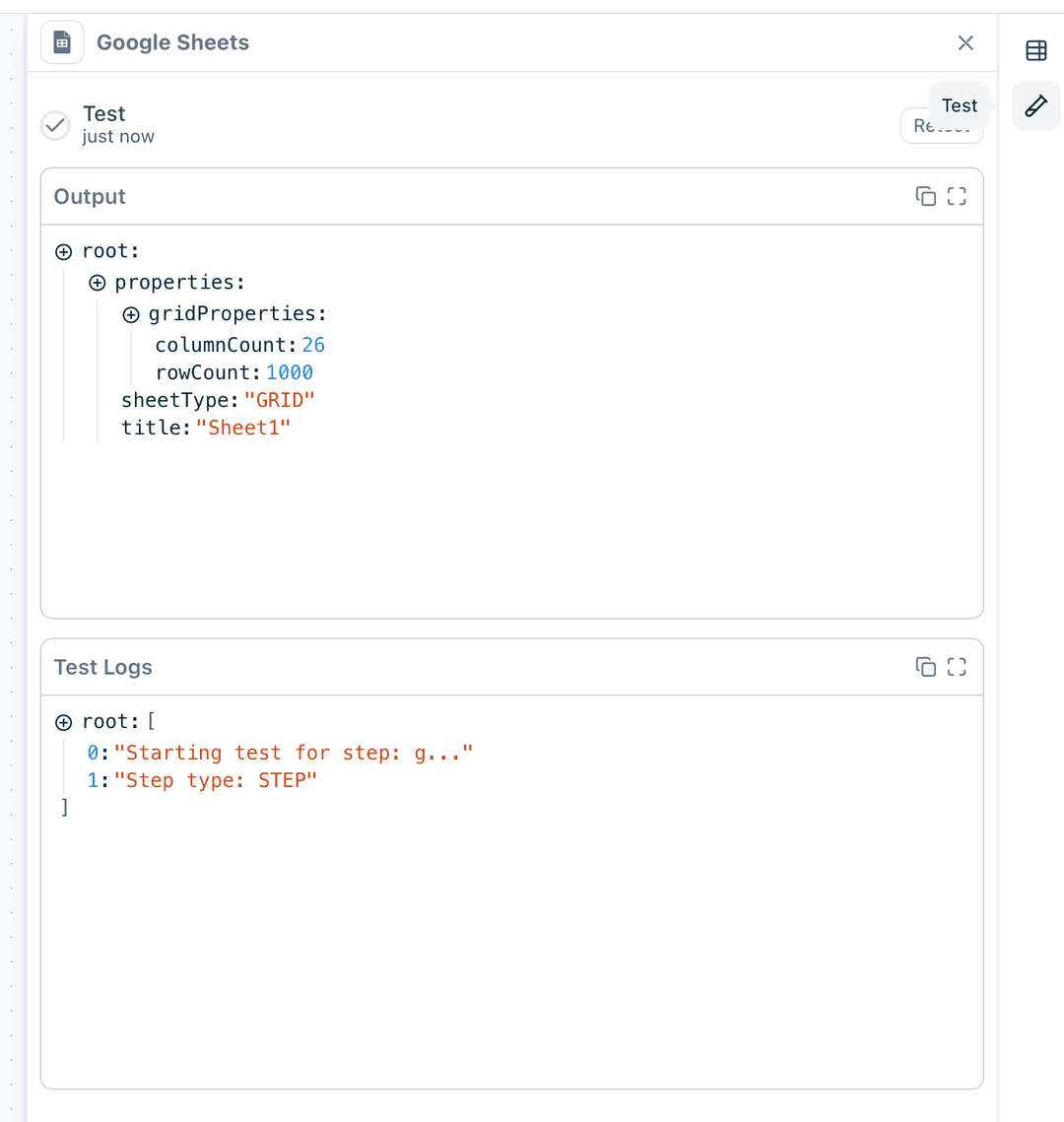
Working with Formulas
When adding or updating cells with formulas:
- •Prefix formula strings with
= - •Use standard Google Sheets formula syntax
- •Cell references auto-adjust when copying
Example formulas:
=SUM(A1:A10)=VLOOKUP(E2,A:C,3,FALSE)=TODAY()
Troubleshooting
Spreadsheet Not Found
- •Verify the spreadsheet ID is correct (found in URL)
- •Ensure the connected account has access to the spreadsheet
- •Check if the spreadsheet hasn't been deleted
- •Confirm it's not in trash
Permission Errors
- •Verify you have edit access (not just view)
- •Check if the sheet is protected
- •Ensure OAuth scopes include spreadsheet access
- •For shared sheets, confirm sharing settings
Rate Limit Exceeded
- •Implement exponential backoff for retries
- •Batch multiple operations together
- •Add delays between bulk operations
- •Monitor quota usage in Google Cloud Console
Additional Resources
Last updated on