Xero Integration
Connect your Xero accounting platform to Wakflo and automate invoice management, financial reporting, and accounting workflows. Build powerful integrations that streamline your financial operations.
Authentication
OAuth 2.0
Features
1 Trigger • 4 Actions
Available Triggers & Actions
Xero Triggers
Invoice Triggers
- •New Invoice: Triggered when a new invoice is created in Xero
Xero Actions
Available Actions
- •Create Invoice: Generate a new invoice in Xero
- •Email Invoice: Send an invoice to a customer via email
- •Get Invoice: Retrieve details of a specific invoice
- •List Invoices: Retrieve all invoices from your Xero account
Setup Guide
Connect to Wakflo
In Wakflo, navigate to the Xero integration and click connect. You'll be redirected to Xero to authorize Wakflo to access your account.
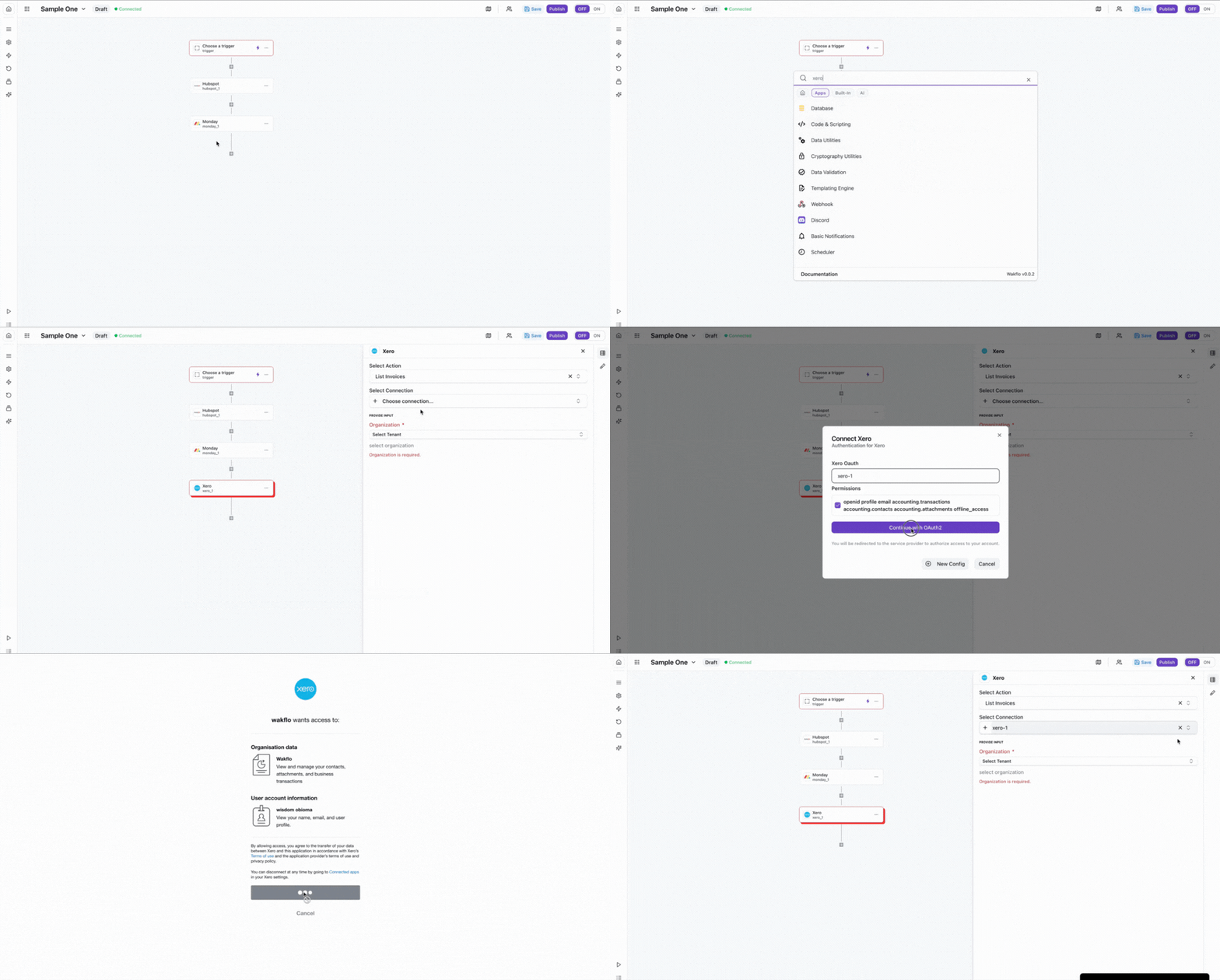
Authorize Permissions
Grant Wakflo access to your Xero organization. You'll need to authorize all permissions for the integration to work properly.
Make sure to grant full permissions when prompted. Do not deselect any permissions as this may prevent the integration from functioning correctly.
Test Connection
Verify the connection by retrieving test data to ensure everything is working properly.
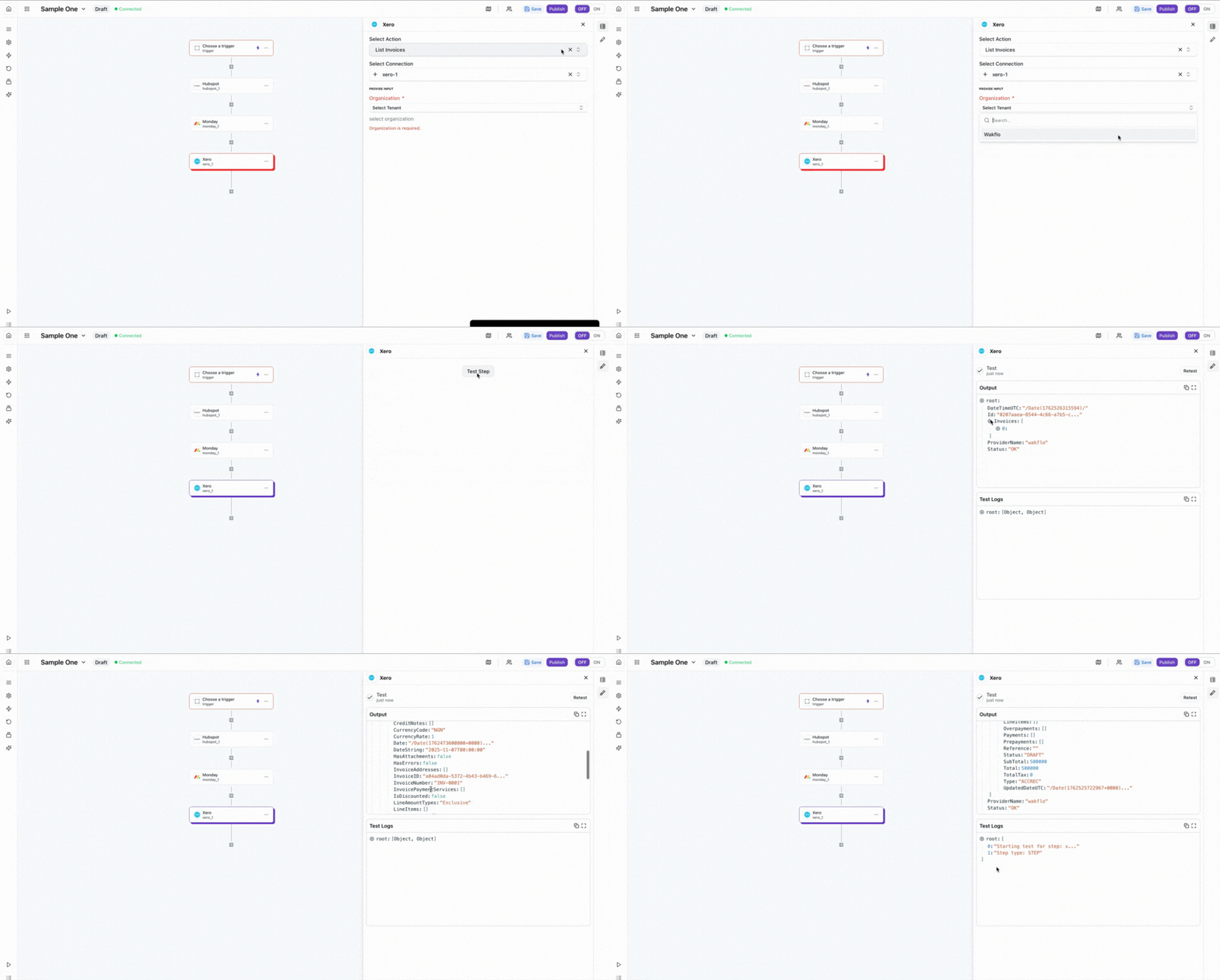
Usage Example: List Invoices
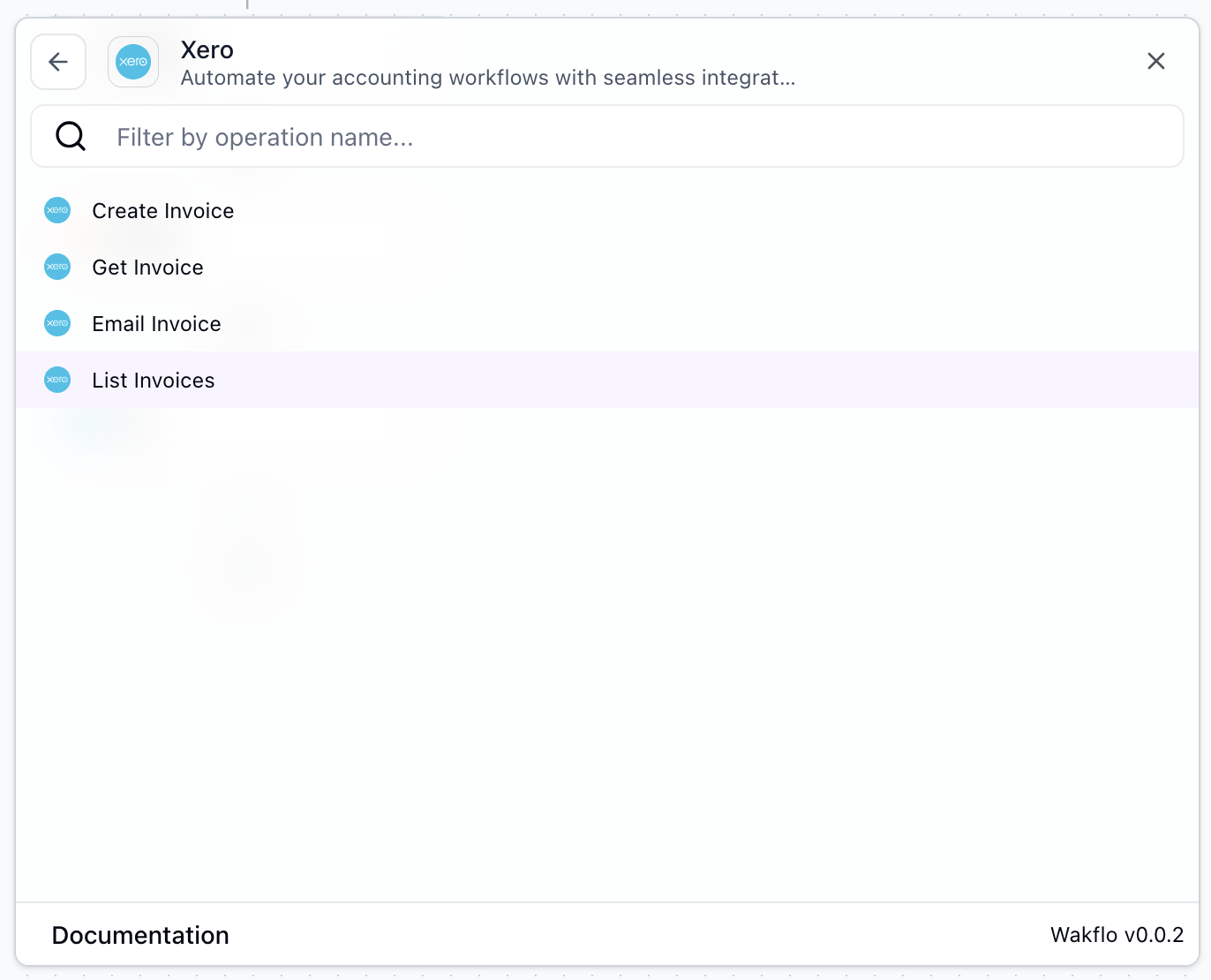
Select the Action
In your Wakflo workflow, add a new action and select Xero as the integration, then choose List Invoices from the available actions.
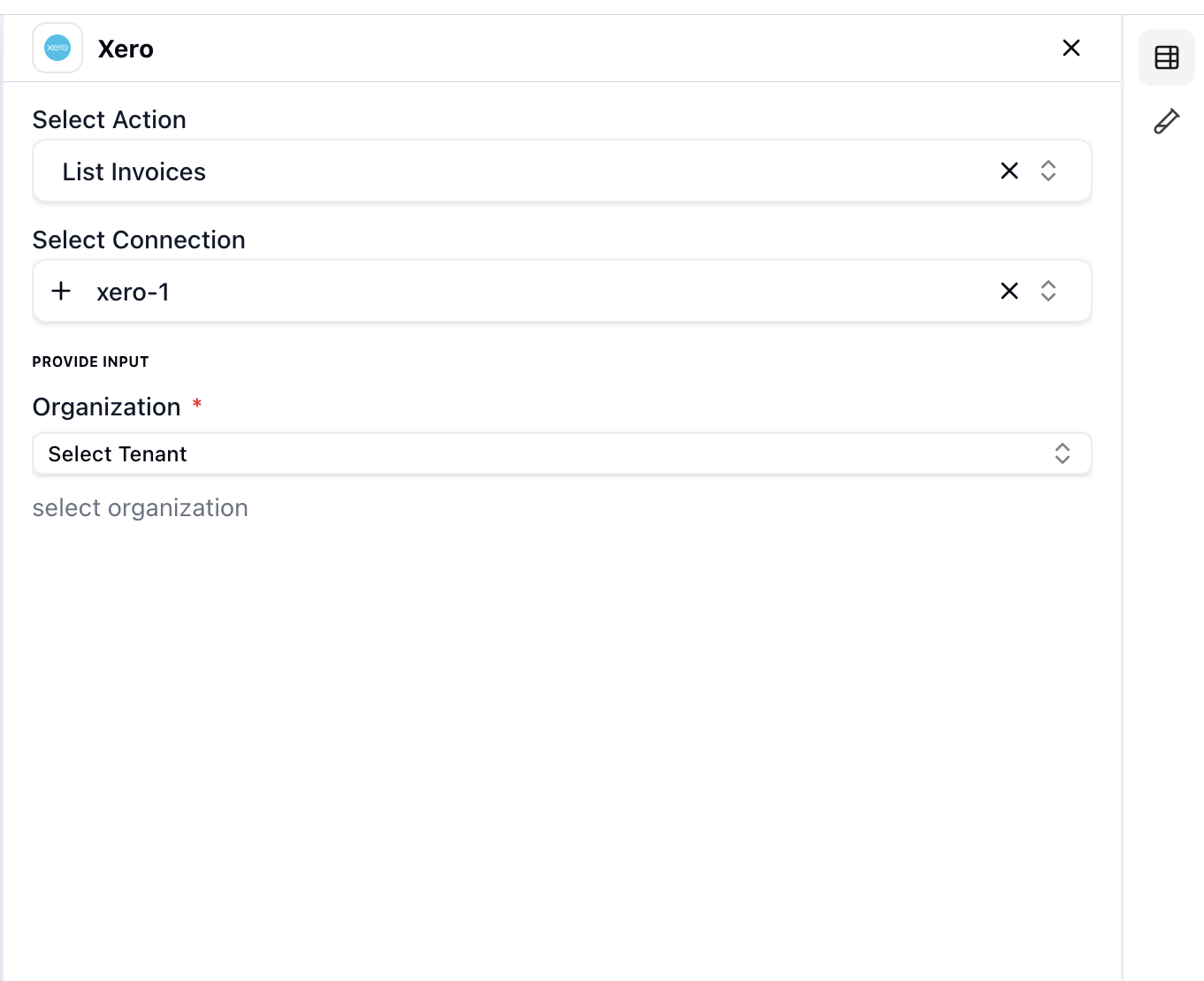
Configure Node
Select your connected Xero account and configure any filtering options such as date range or invoice status.
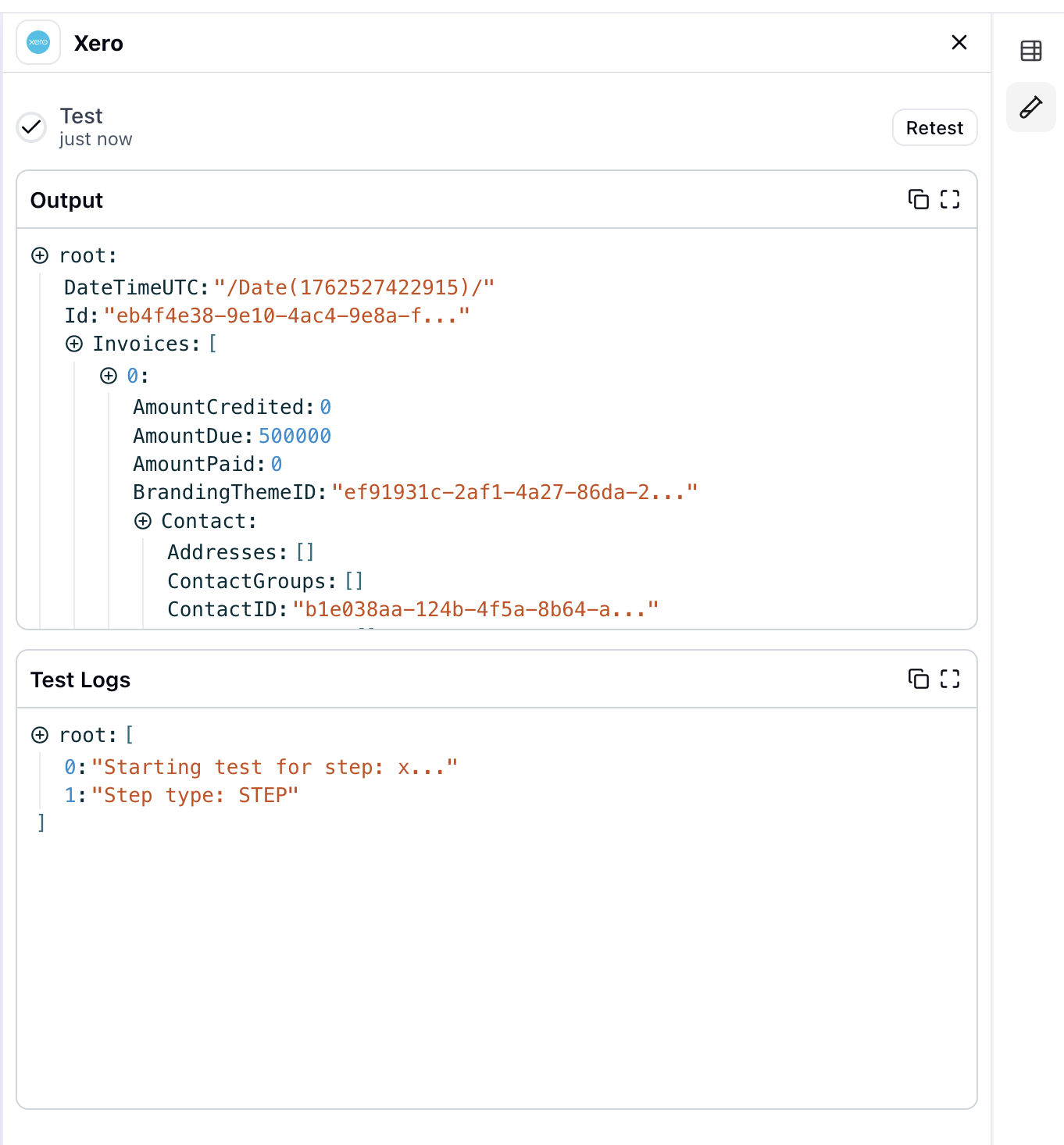
Run and Retrieve Invoices
Execute the action to retrieve all your Xero invoices. The invoice data will be returned in the action output and can be used in subsequent workflow steps.
Best Practices
Working with Xero Data
- •Always include tax rates and line items when creating invoices
- •Use invoice references to track related transactions across systems
- •Implement error handling for invoice creation to avoid duplicate entries
- •Monitor webhook events for real-time invoice updates and payments
- •Keep your Xero organization data synchronized across integrations
Troubleshooting
Authentication Issues
- •Ensure your Xero account has access to the organization you're trying to connect
- •Check if your OAuth token has expired and reconnect if needed
- •Verify that you granted all required permissions during authorization
Rate Limiting
- •Xero enforces rate limits of 60 calls per minute per organization
- •Implement delays between bulk operations to avoid hitting rate limits
- •Monitor API usage to stay within your plan's limits
Invoice Issues
- •Ensure all required fields are provided when creating invoices (contact, date, line items)
- •Verify that invoice IDs are correctly formatted when retrieving or updating invoices
- •Check that tax rates and account codes are valid in your Xero organization