Google Calendar Integration
Automate your scheduling and event management with Google Calendar. Create, update, and respond to calendar events automatically, sync schedules across platforms, and streamline your workflow operations.
OAuth 2.0
Secure Google authentication
Event Webhooks
Real-time calendar updates
Multiple Calendars
Access all your calendars
Requirements
- •Active Google account with Calendar enabled
- •Appropriate calendar permissions for the calendars you want to automate
- •Calendar API access enabled (handled automatically during setup)
Available Triggers
Start workflows automatically when calendar events occur.
Event Triggers
- •Event Created: Triggered when a new event is created in your calendar
Available Actions
Manage your calendar events programmatically through your workflows.
Event Actions
- •Create Event: Add a new event to your Google Calendar
- •Update Event: Modify an existing event in your calendar
Setup Guide
Follow these steps to connect your Google Calendar to Wakflo and start automating.
Connect to Google Calendar
From the Integrations page, select Google Calendar and click 'Connect'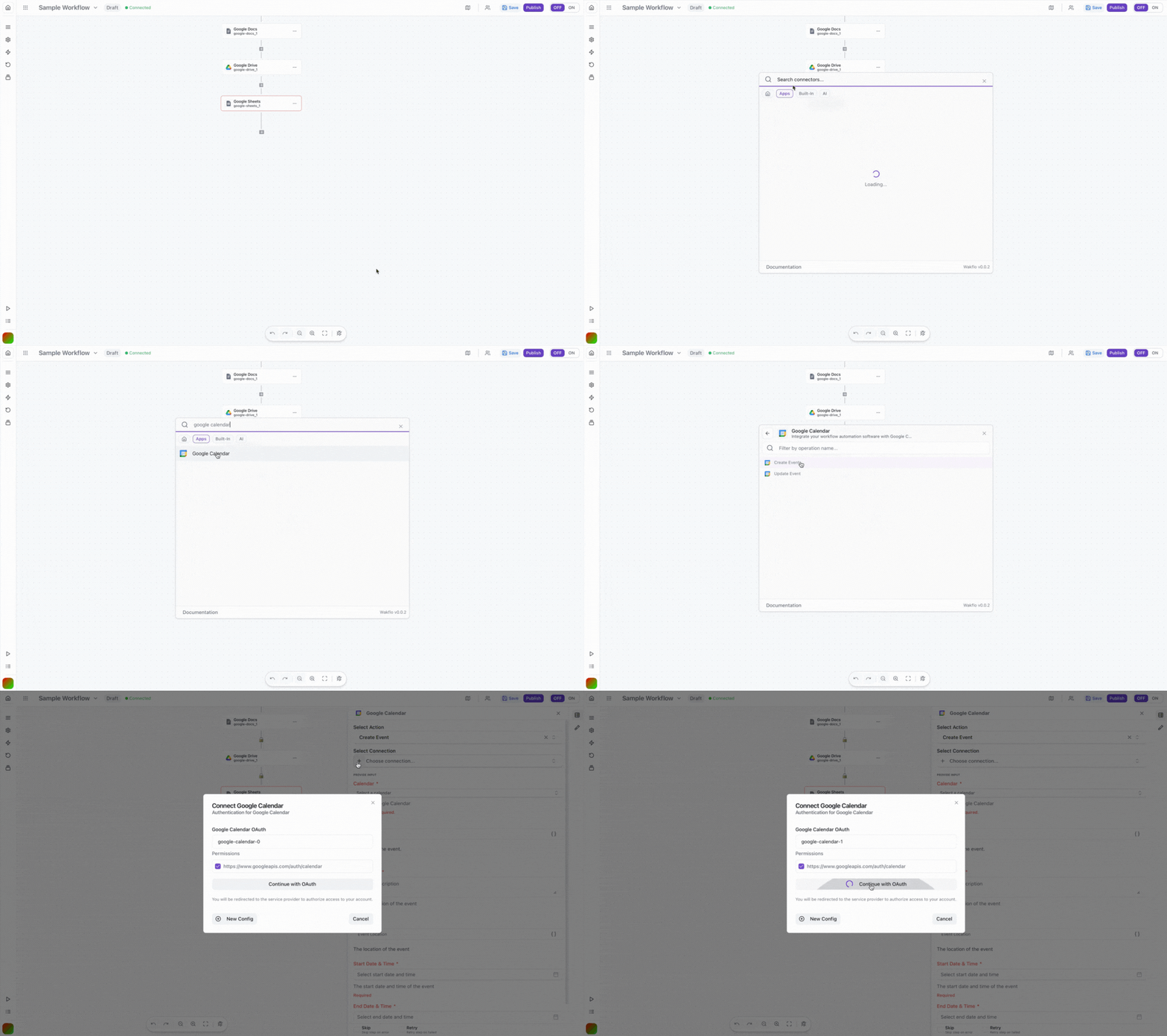
Sign in to Google
Log in to your Google account when prompted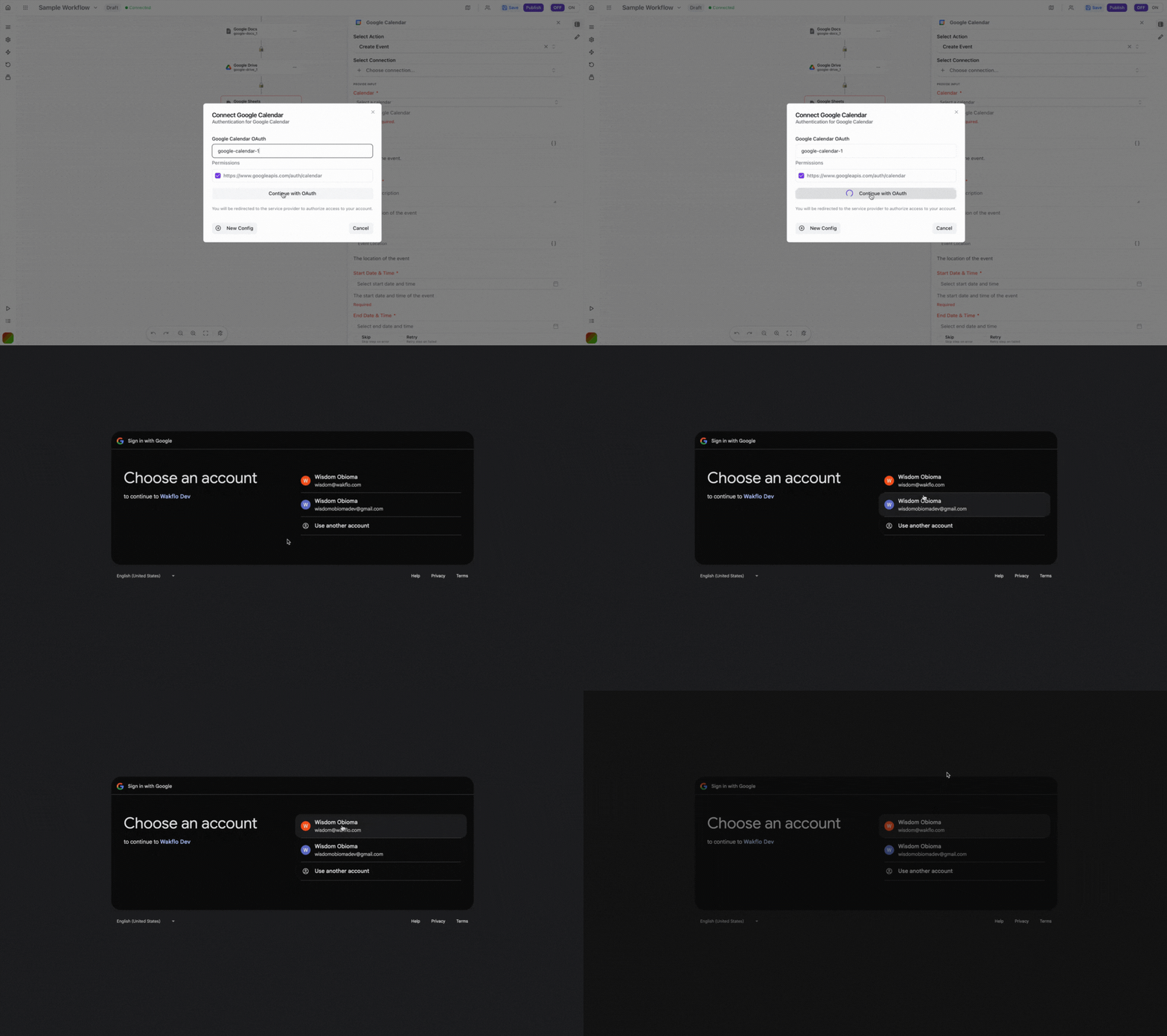
Approve Permissions
Review and grant the requested permissions for Wakflo to access your calendar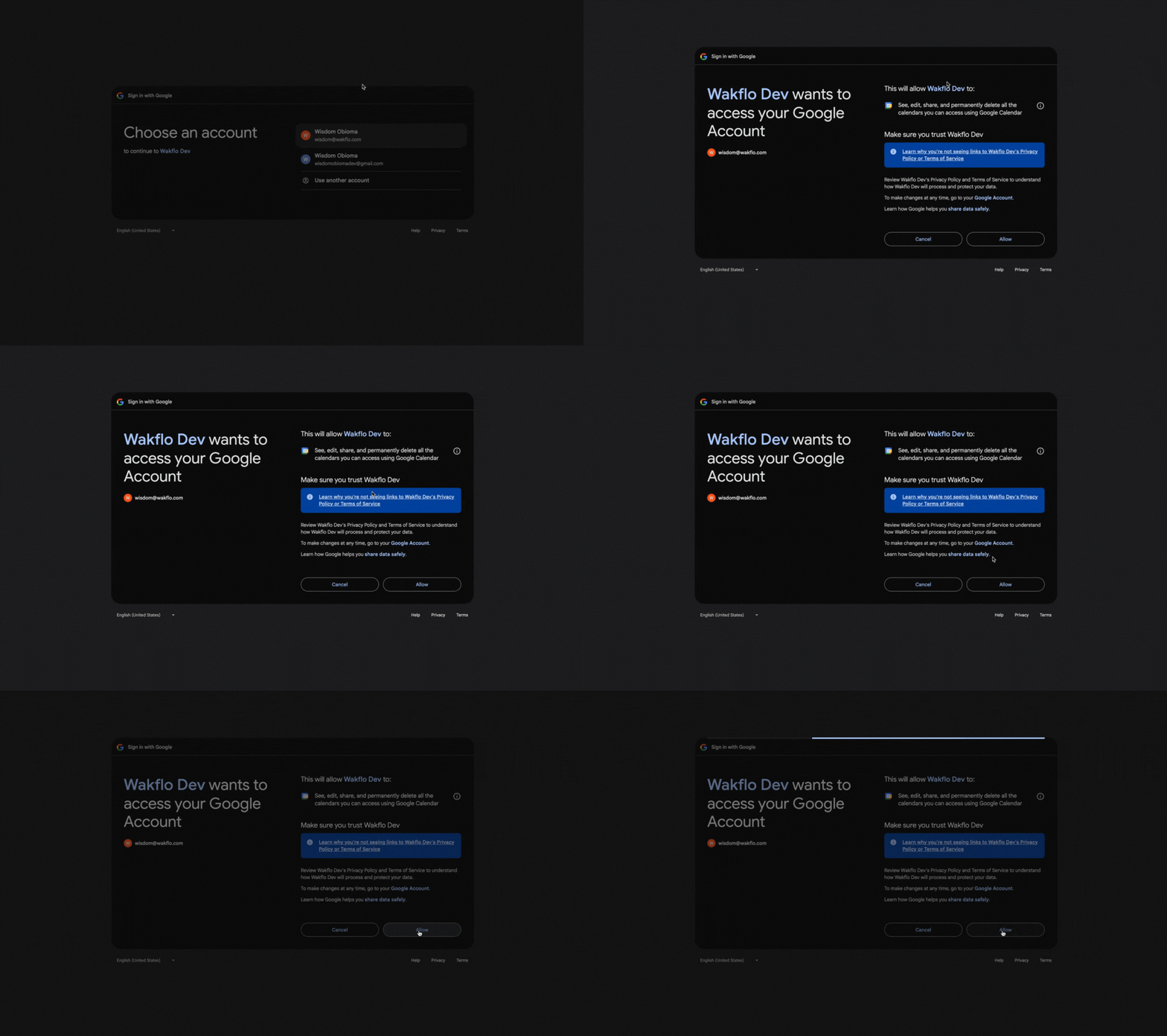
Complete Setup
Finish the connection process and start building workflows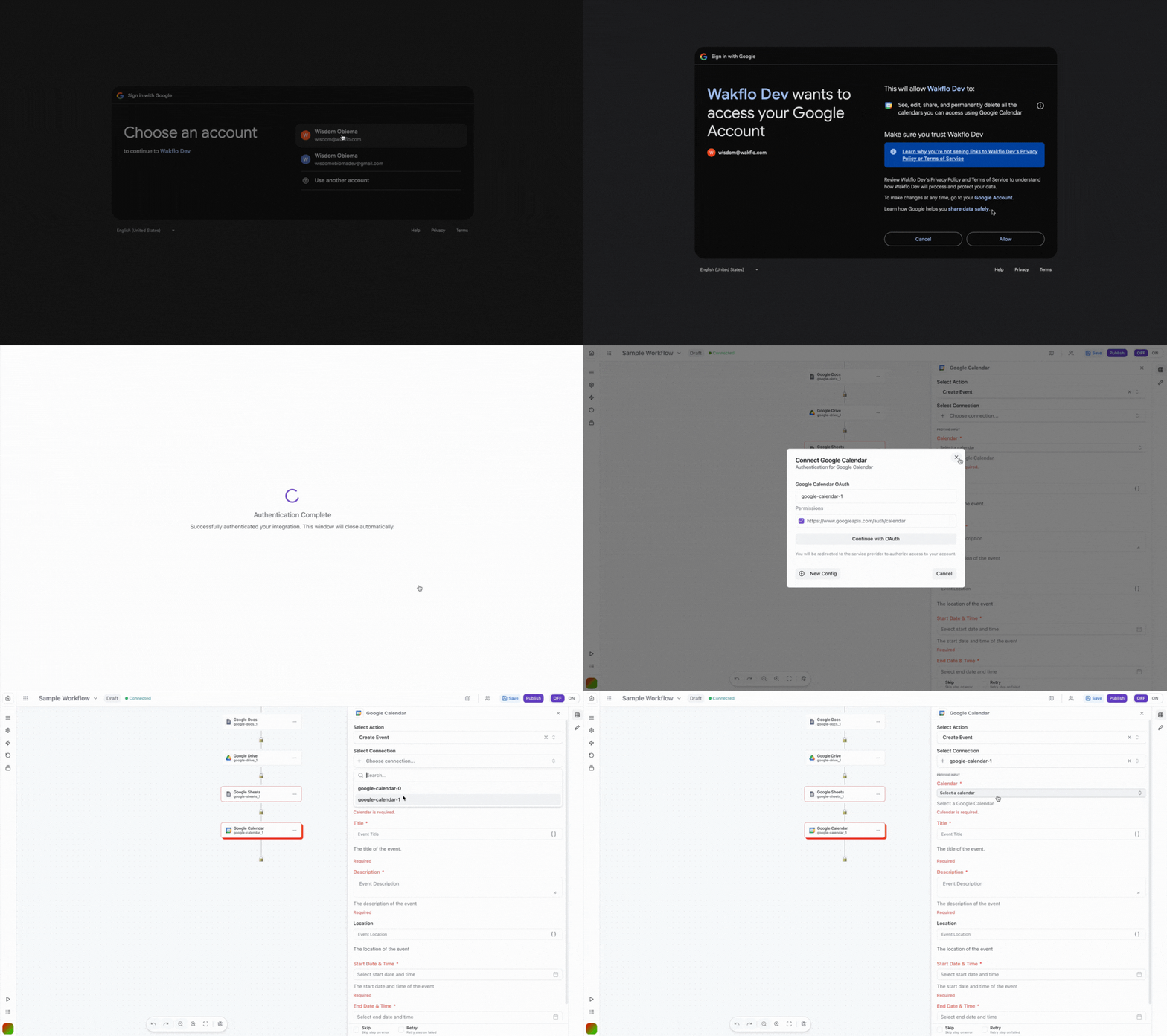
Important: Only create one connection per Google Calendar account. Multiple connections to the same account may cause synchronization issues.
Field Mapping
When working with Google Calendar events:
• Event title/summary is required for creating events
• Event ID is required for updating events
• DateTime fields should use ISO 8601 format (YYYY-MM-DDTHH:mm:ss±HH:mm)
• Time zone should be specified for accurate scheduling
• Recurring events follow RFC 5545 recurrence rules
API Limits & Best Practices
| Limit Type | Value | Notes |
|---|---|---|
| API Calls per Day | 1,000,000 | Per Google Cloud project |
| Queries per Second | 10 | Per user per second |
| Event Description Length | 8,192 characters | Maximum description field size |
Example Workflow: Updating an Event
Here's a practical example showing how to update a calendar event in your workflow.
Add Update Event node
Search for Google Calendar and add the 'Update Event' action to your workflow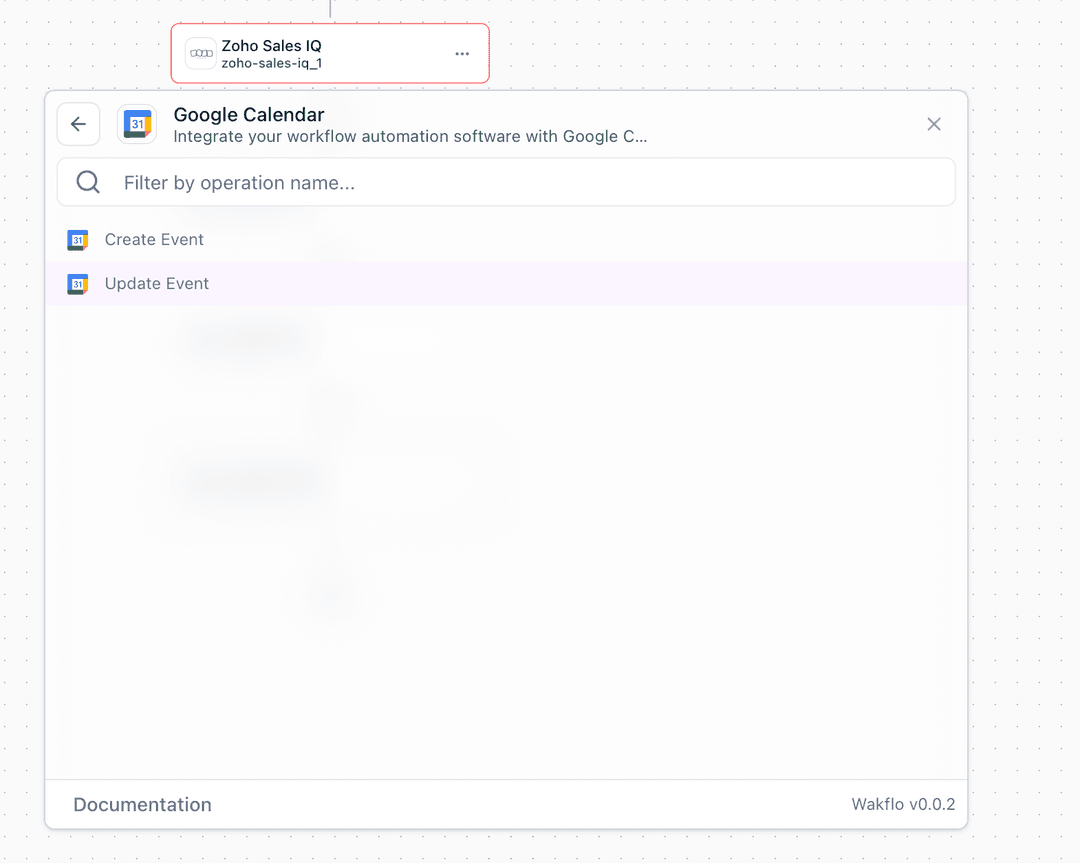
Configure connection
Select your Google Calendar connection or create a new one
Set up event details
Configure the update parameters: • Calendar ID: Select the calendar containing the event • Event ID: Provide the ID of the event to update • Updated Fields: Specify which event properties to modify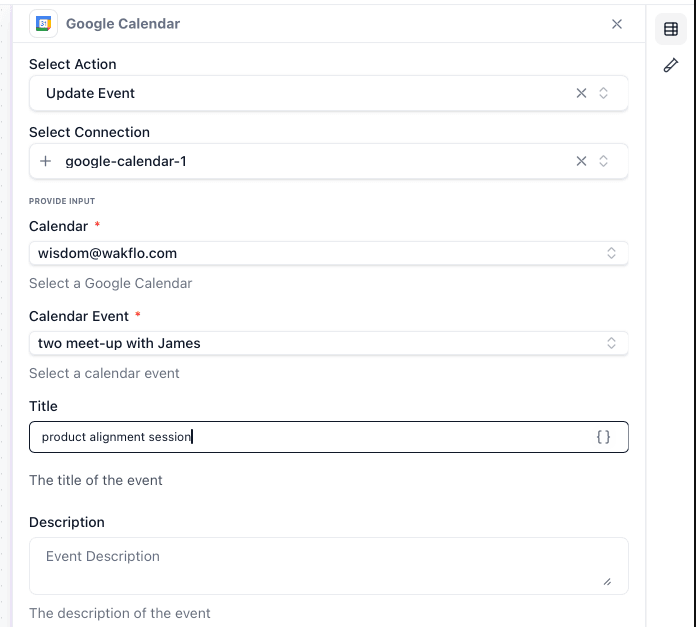
Test the update
Click 'Test Step' to execute the update and verify the changes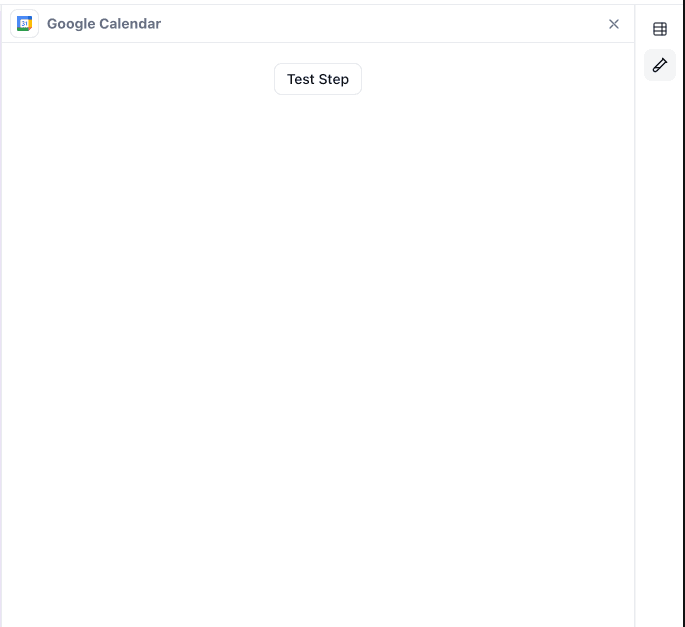
Pro Tip: When updating recurring events, you can choose to update just one instance or all future occurrences by using the appropriate event ID format.
Troubleshooting
Event Not Found Error
This error occurs when the event ID is invalid or the event has been deleted. To fix:
- 1.Verify the event ID is correct
- 2.Ensure the event exists in the specified calendar
- 3.Check if you have permission to access the calendar
Authentication Issues
- •Ensure you have only one active connection per Google account
- •Verify that calendar API is enabled in Google Cloud Console
- •Check that OAuth scopes include calendar access
- •Re-authenticate if token has expired
Time Zone Conflicts
- •Always specify time zone in DateTime fields
- •Use IANA time zone identifiers (e.g., 'America/New_York')
- •For all-day events, use date-only format (YYYY-MM-DD)
- •Consider attendee time zones for scheduling
Additional Resources
Last updated on