Platform Overview
Your complete guide to navigating Wakflo. Learn how to use every feature of the platform to build powerful, automated workflows.
First time here? Jump straight to our Quick Start Guide and build your first workflow in under 5 minutes.
Dashboard Overview
Your dashboard is mission control. Everything you need to manage automations, connections, and your organization lives here.
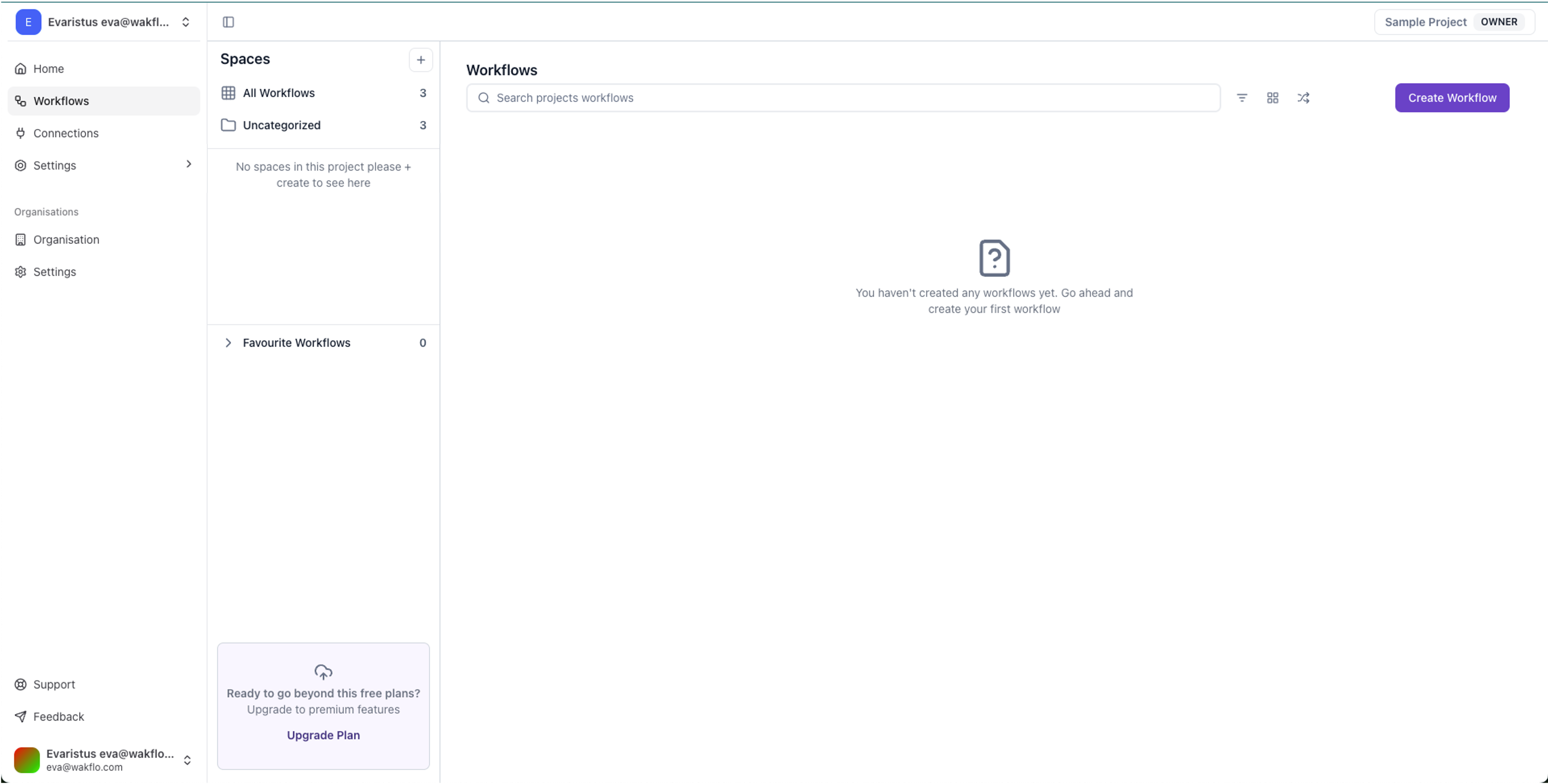
Quick Access Cards
Workflows
Browse and manage all your automation workflows and spaces
Connections
View and configure all your platform integrations
Organization
Manage settings, teams, and organization preferences
Support
Get help from our documentation and support team
Feedback
Share ideas and help us improve the platform
Navigation
The sidebar organizes all features into two main sections: Workflows and Organization.
Workflows
Create, edit, and manage your automation workflows
Link external platforms and services to Wakflo
Organize workflows into logical groups and folders
Configure workflow-specific settings and preferences
Control who can access and edit workflows
Store API keys and sensitive credentials securely
Manage subscriptions, invoices, and payment methods
Working with Workflows
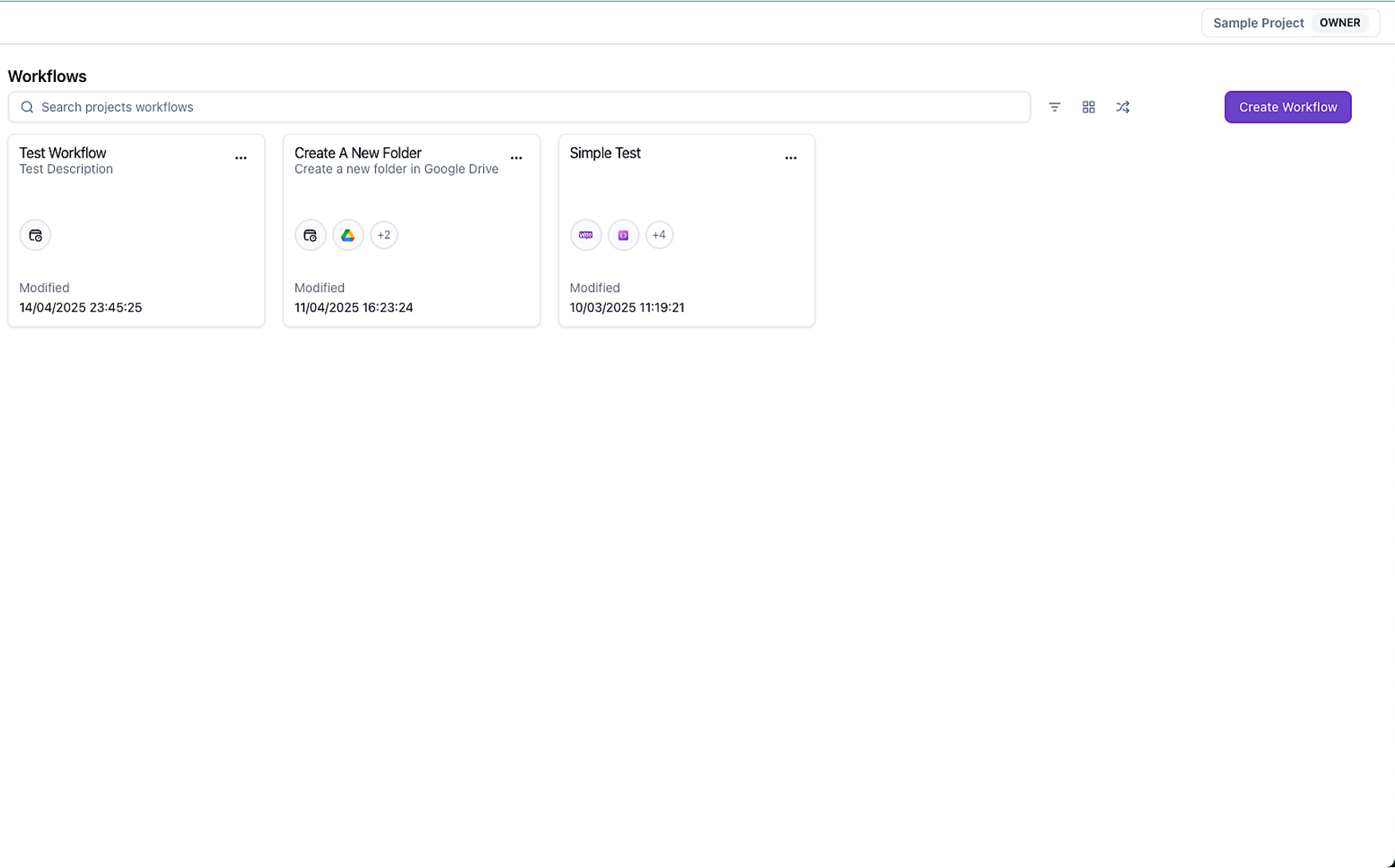
The Workflows section is your automation hub. Here’s what you can do:
1
See every workflow at a glance with status indicators showing which are active, paused, or encountering errors
2
Quickly find workflows by name, filter by status, tags, or the integrations they use
3
Arrange by name, creation date, or last run time to prioritize what matters most
4
Select multiple workflows to enable, disable, or delete them all at once
5
Click the create button to start building a new automation from scratch or use a template
Inside Each Workflow
Click any workflow to access these three key areas:
Editor
Visual drag-and-drop interface for building and modifying your workflow logic
Executions
Complete history of every workflow run with detailed logs and debugging information
Settings
Configure schedules, error handling, notifications, and other workflow options
Settings & Configuration
Customize your Wakflo experience and manage your account from the Settings section.
Account
• Profile & contact info
• Company details
• Billing & subscriptions
• Security preferences
Team
• User accounts
• Roles & permissions
• Team structure
• Access controls
Developer
• API keys
• Webhooks
• Environment variables
Automation Studio
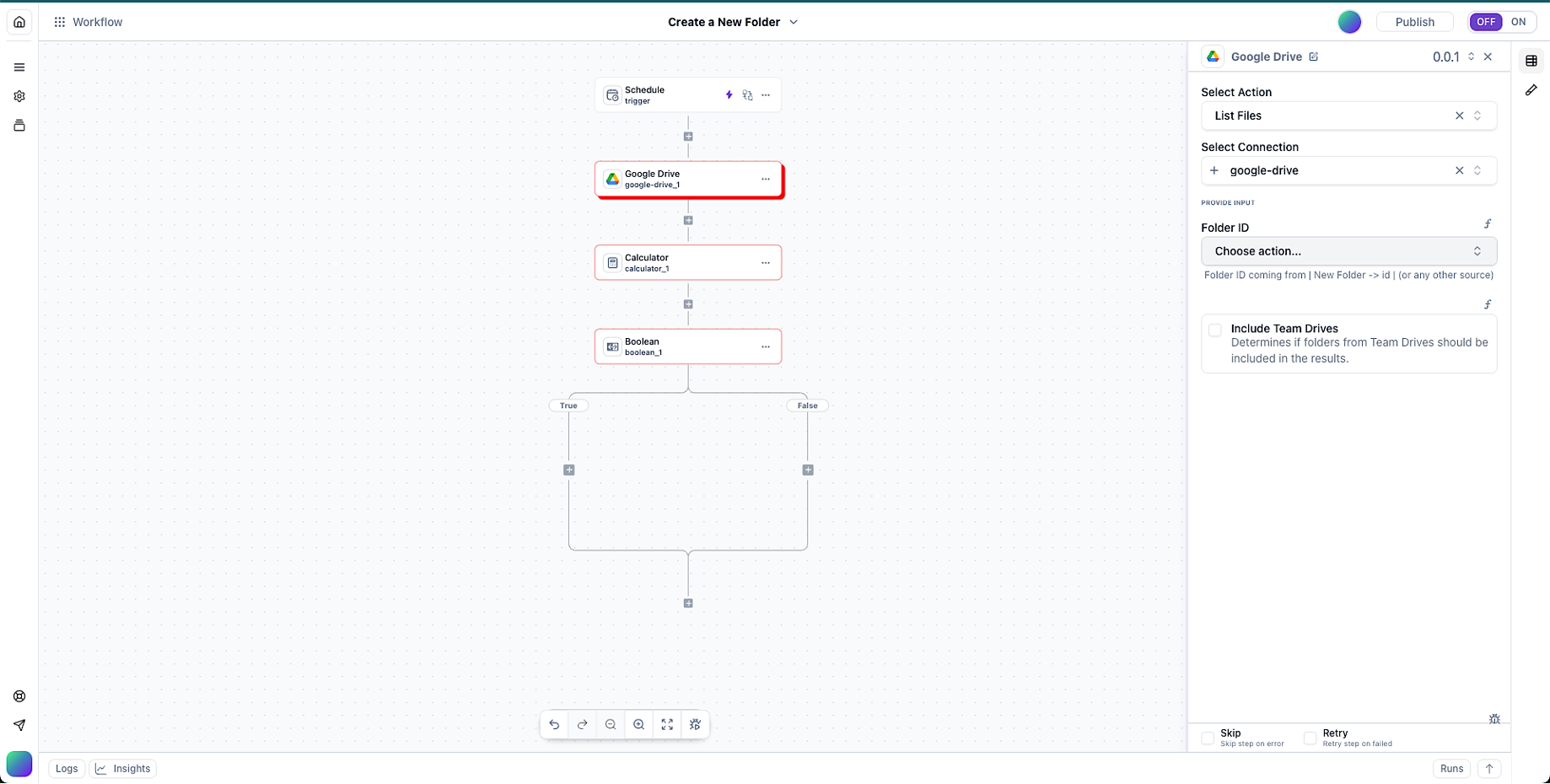
The Automation Studio is where the magic happens. This is your visual workspace for creating, testing, and publishing workflows.
1
Configuration & info
2
Save, publish & controls
3
Visual workflow builder
4
Node settings
5
Browse apps
6
Status & alerts
Want to dive deeper? Check out the full Automation Studio documentation for advanced tips and techniques.
Keyboard Shortcuts
Speed up your workflow with these handy keyboard shortcuts.
⌨️ General
🎨 Studio
Personalization
Make Wakflo your own with these customization options.