Mailchimp Integration
Connect your Mailchimp account to Wakflo and automate email marketing campaigns, subscriber management, and audience segmentation. Build powerful workflows that keep your marketing engine running smoothly.
Authentication
OAuth 2.0
Features
2 Triggers • 6 Actions
Available Triggers & Actions
Mailchimp Triggers
Subscriber Triggers
- •New Subscriber: Triggered when a new subscriber is added to a list
- •Unsubscriber: Triggered when a subscriber unsubscribes from a list
Mailchimp Actions
Available Actions
- •Add Member to List: Add a subscriber to a Mailchimp list
- •Add Subscriber to Tag: Apply a tag to a subscriber
- •Remove Subscriber from Tag: Remove a tag from a subscriber
- •Update Subscriber Status: Change a subscriber's status (subscribed, unsubscribed, etc.)
- •Add Note to Subscriber: Add a note to a subscriber's profile
- •Get All Lists: Retrieve all lists in your Mailchimp account
Setup Guide
Connect to Wakflo
In Wakflo, navigate to the Mailchimp integration and click connect. You'll be redirected to Mailchimp to authorize Wakflo to access your account.
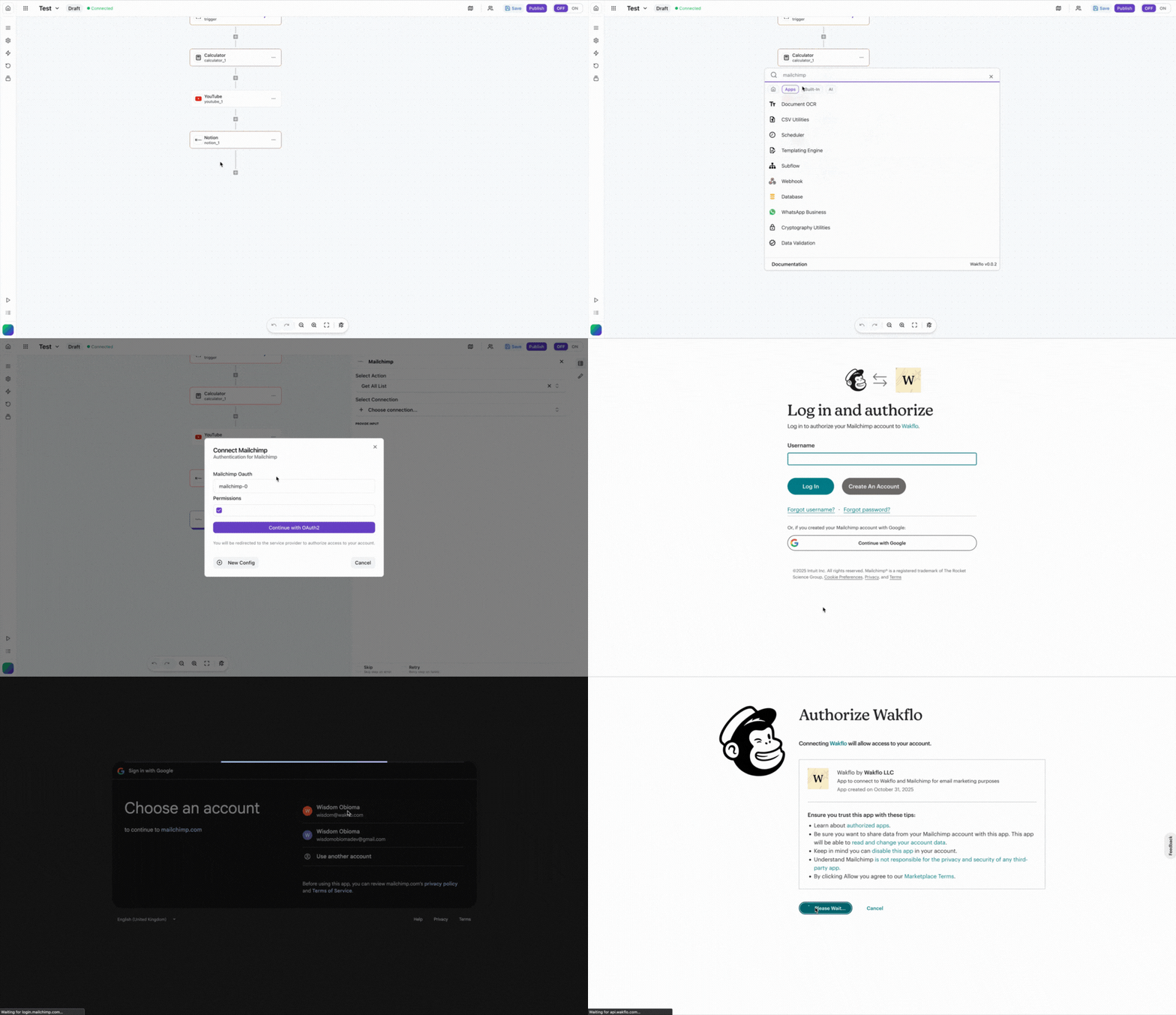
Authorize Permissions
Grant Wakflo access to your Mailchimp account. The following permissions are required:
- •Audience management (read/write)
- •Subscriber operations (read/write)
- •Tag management (read/write)
Test Connection
Verify the connection by retrieving test data to ensure everything is working properly.
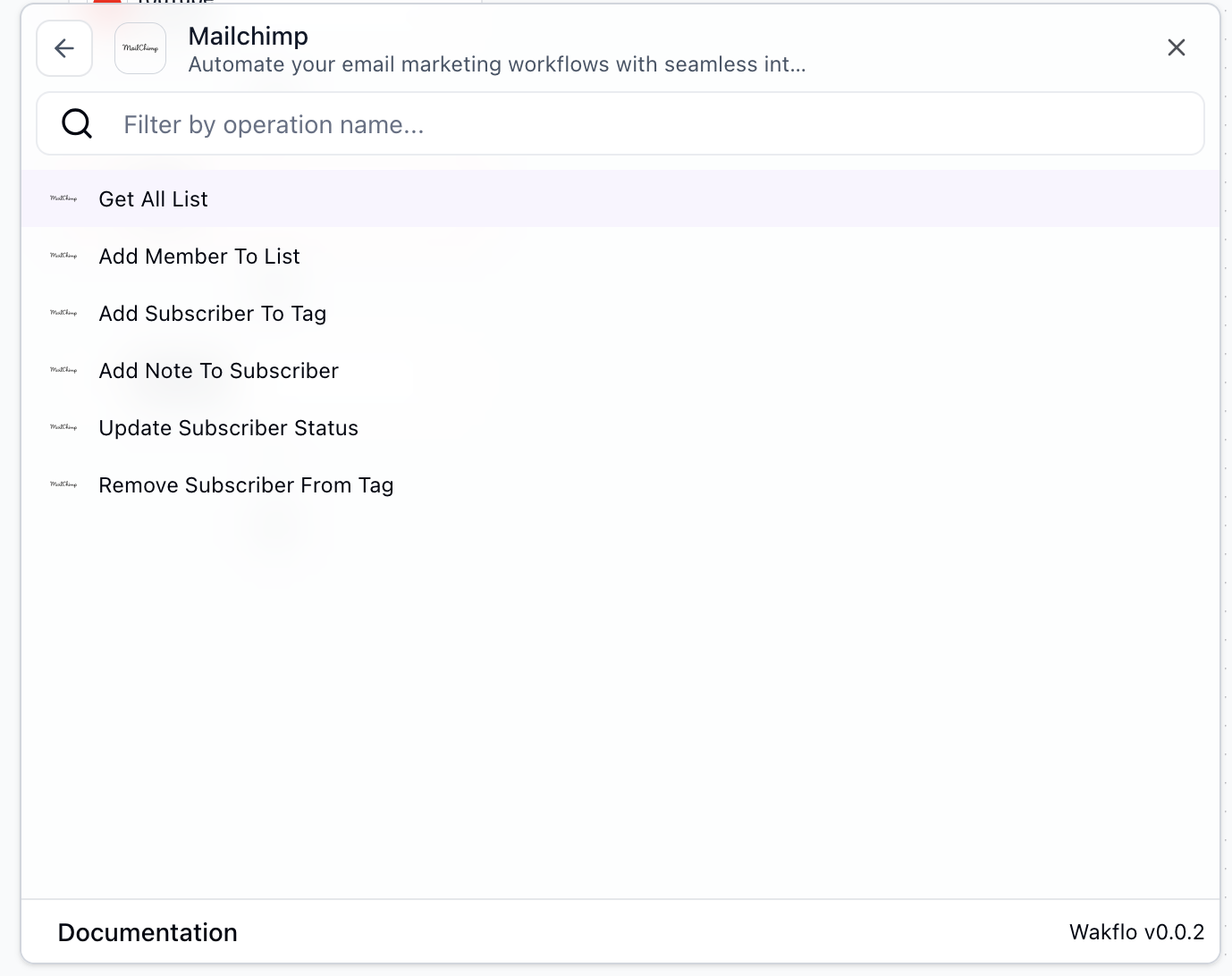
Usage Example: Get All Lists
Select the Action
In your Wakflo workflow, add a new action and select Mailchimp as the integration, then choose Get All Lists from the available actions.
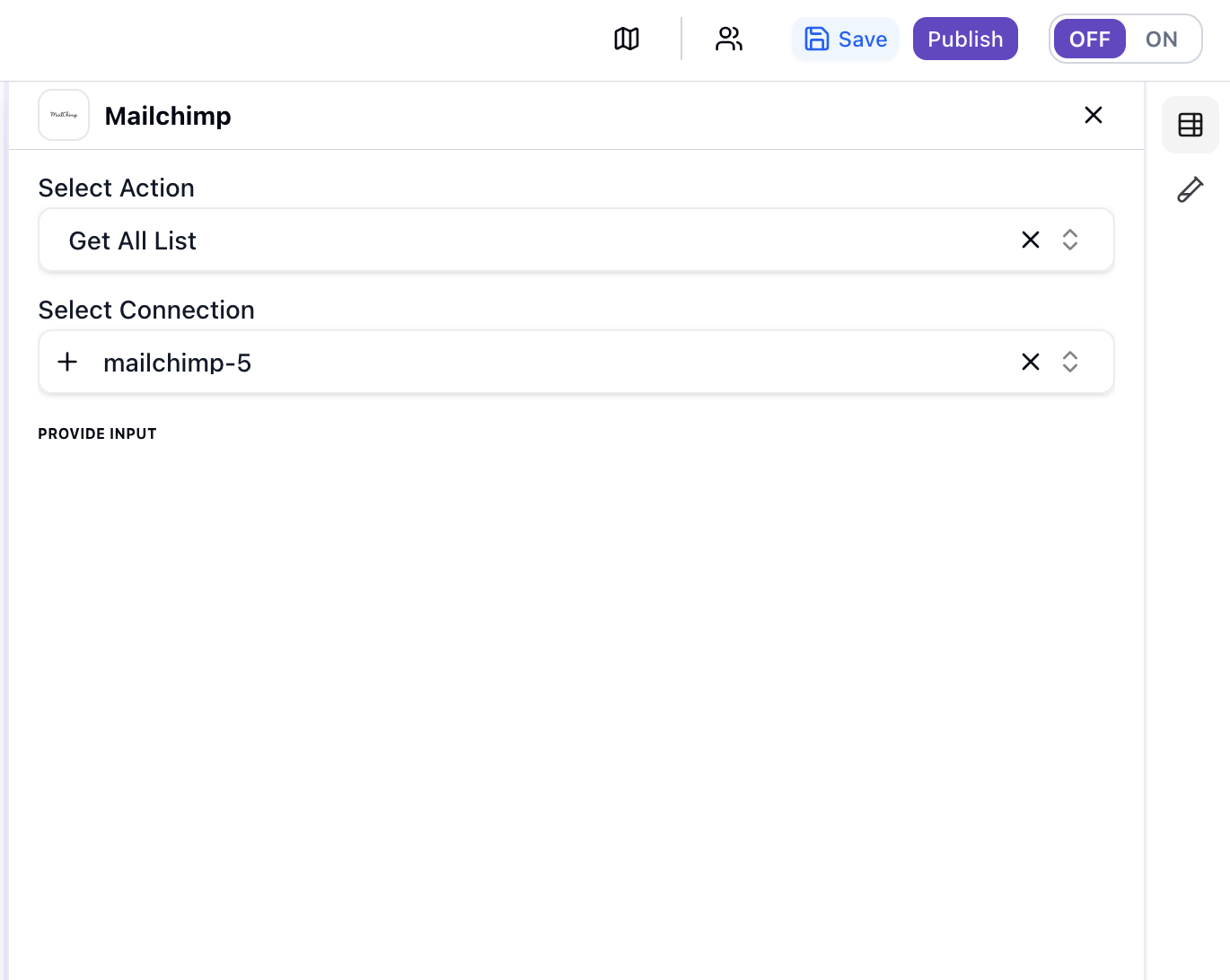
Configure Node
Select connection and configure node settings as needed.
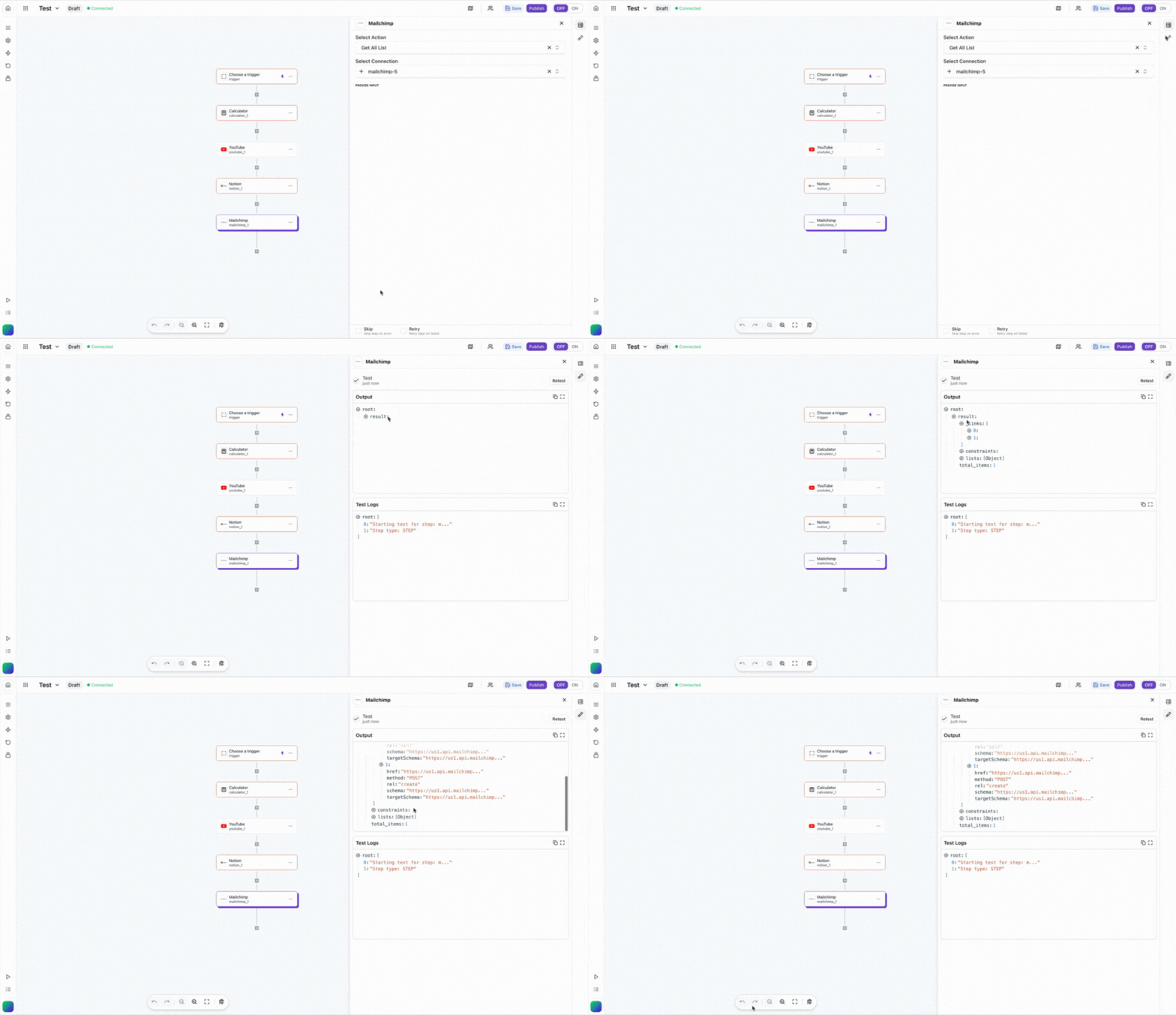
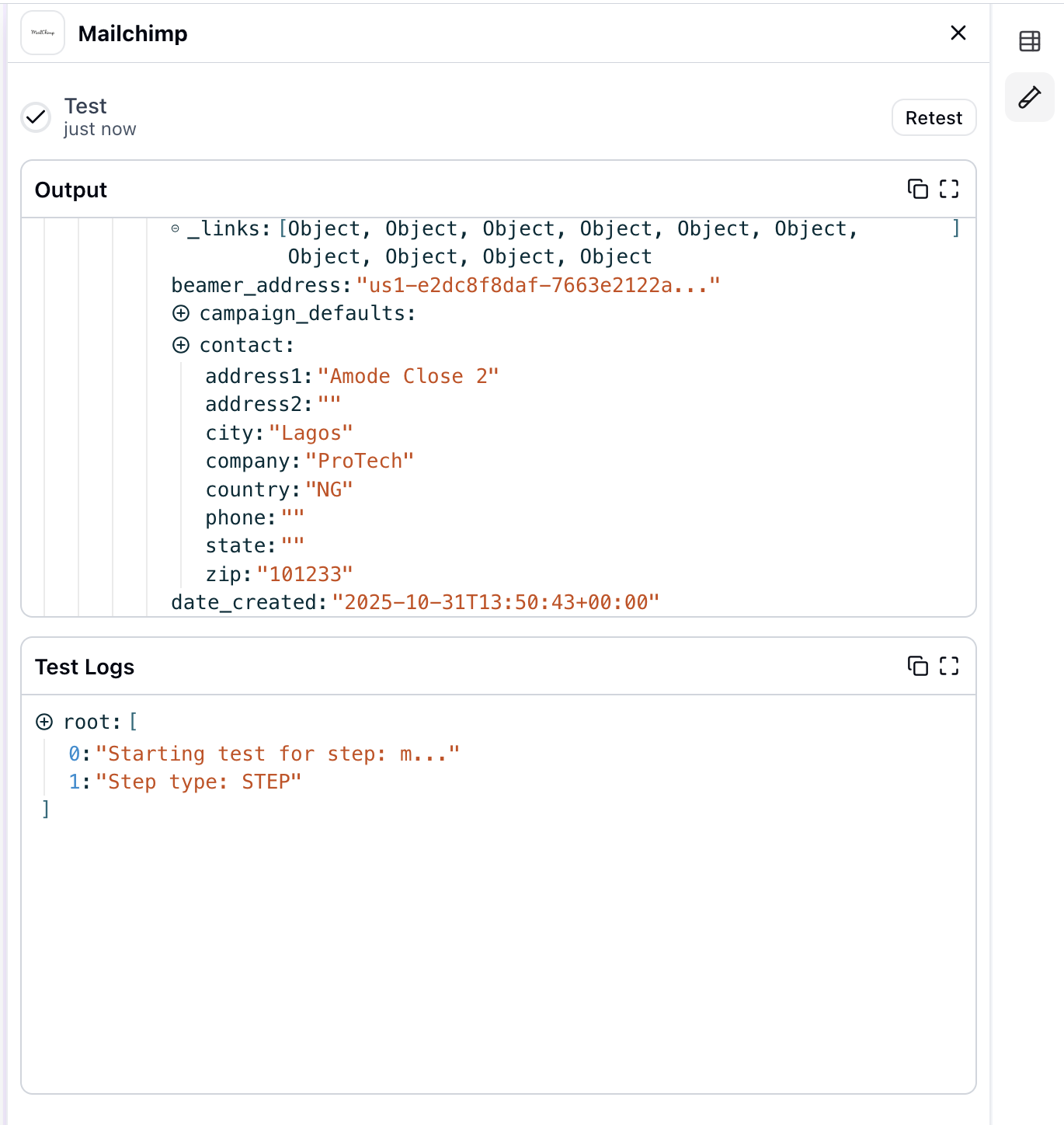
Run and Retrieve Lists
Execute the action to retrieve all your Mailchimp lists. The list data will be returned in the action output and can be used in subsequent workflow steps.
Best Practices
Working with Mailchimp Data
- •Always use double opt-in to ensure compliance with email marketing regulations
- •Use tags to segment your audience for more targeted campaigns
- •Implement error handling for duplicate subscriber additions
- •Monitor your API usage to stay within Mailchimp's rate limits
- •Regularly clean your lists by removing inactive subscribers
Troubleshooting
Authentication Issues
- •Ensure your Mailchimp account is active and in good standing
- •Check if your OAuth token has expired and reconnect if needed
- •Verify that API access is enabled in your Mailchimp account settings
Rate Limiting
- •Mailchimp enforces a rate limit of 10 simultaneous connections
- •Implement delays between batch operations to avoid hitting limits
- •Use batch endpoints when adding multiple subscribers at once
Subscriber Issues
- •Handle duplicate email errors gracefully by updating existing subscribers
- •Verify email addresses before adding them to avoid bounce rates
- •Check that required merge fields are properly mapped